My external hard drive suddenly shows up as RAW, and Windows keeps telling me I need to format it before I can use it. It has important photos and work files on it, so I’m trying to find the safest way to recover data from a RAW hard drive without making things worse. What should I do first, and are there reliable recovery methods or tools that can help?
I went through this once, and I would not format the drive first. When Windows throws the “You need to format the disk before you can use it” prompt, it usually means the file system looks broken to Windows. It does not mean your files are gone. On a lot of RAW drives, the data is still sitting there.
My first check would be the drive itself. I’d look at behavior before touching anything else.
- If the drive shows up normally in Disk Management, keeps a stable connection, and stays quiet, I’d try software recovery.
- If it clicks, drops off, reconnects at random, or shows up one minute and vanishes the next, I’d stop there and send it to a recovery lab. I’ve seen people push a failing drive too far and lose more than they started with.
If this looks like file system damage and not hardware failure, I’d do it in this order:
- Stop writing anything to the drive.
- Pull the important files off first.
- Open a sample of the recovered files and make sure they work.
- Fix or recreate the RAW partition after your data is safe.
- Move the files back only if you still trust the drive.
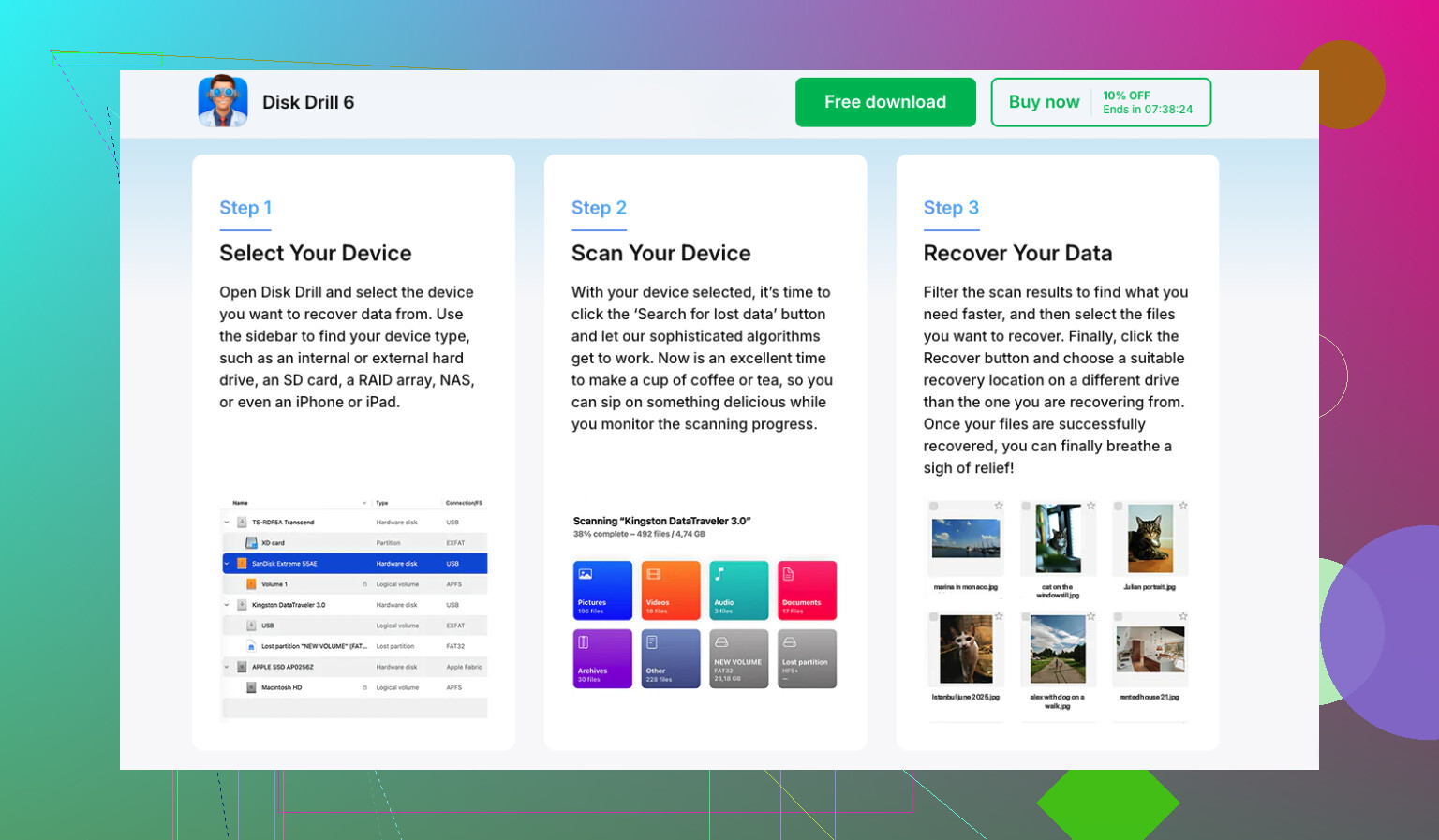
For the recovery step, I’d start with Disk Drill. What I liked when I used tools like this is the scan does not depend on one method. If enough file system info survived, it pulls files with their original names and folders. If the structure is wrecked, it falls back to file signature scanning and looks for known file types directly on the disk surface.
The process is short:
- Install Disk Drill somewhere else, not on the RAW drive.
- Pick the RAW disk or the damaged partition.
- Hit Search for Lost Data. On an external drive, use Universal Scan if it asks. I’d only touch Advanced Camera Recovery for footage from cameras, action cams, or drones.
- Let the scan finish. Don’t cut it off halfway unless the drive starts acting weird.
- Preview files before restoring them. This saves time later.
- Recover everything to a different disk.
If you want free tools, the usual pair is TestDisk and PhotoRec.
- TestDisk is the one I’d try if the goal is to repair the partition table or boot sector and get the volume readable again.
- PhotoRec goes the other route. It ignores the broken file system and scans for known file headers. It works better than people expect, but the output is messy. You lose original names and folder layout, so cleanup afterward is a pain.
One part people skip, and I think this matters, is making an image of the RAW drive before trying repairs. If the disk reads but feels unstable, a byte-for-byte image gives you one clean shot to work from. Mess up a repair attempt on the clone, no big deal. Mess it up on the original, diff story.
After the files are recovered and checked, then I’d try to fix the partition. If the drive used NTFS before, CHKDSK sometimes helps. I still would not run it first. It writes changes to the file system, and I wouldn’t want my first move to be a repair tool touching damaged metadata before my files are copied out.
If CHKDSK doesn’t do anything useful, I’d move to TestDisk. If TestDisk still fails, I’d stop trying to rescue the old structure, recreate the partition in Disk Management, do a quick format, and copy the recovered files back.
One more thing on SSDs. Don’t let it sit for days or weeks while deciding. TRIM can clear deleted blocks over time, and once those blocks are cleaned, recovery gets worse fast. A RAW state does not always trigger TRIM right away, but I would still treat it like a clock is ticking. Less use, faster action, better odds.
1 Like
Yes, you still have a solid shot at getting your files back from a RAW external hard drive. Do not format it first. Windows throws that prompt when it stops recognizing the file system. Your photos and docs are often still there.
I agree with @mikeappsreviewer on one big point, recover first, repair later. Where I differ a bit is CHKDSK. I would skip it entirely on the first pass, even on NTFS. I’ve seen it turn a messy file system into a cleaner mess with fewer recoverable file names. Not worth it when the data matters.
What I’d do:
- Plug it in once, confirm it shows the right size in Disk Management.
- If it makes noises, freezes Explorer, or disconnects, stop. That points to hardware trouble.
- If it stays stable, make a full image of the drive first if you have space. This matters more than people think.
- Scan the image, or the drive if you must, with Disk Drill.
- Save recovered files to a different drive.
Disk Drill is a good fit here because it handles damaged partitions well and gives you a preview before recovery. For a case like how to recover files from a RAW hard drive after Windows asks to format it, preview support helps a ton. You verify photos open before spending hours copying junk.
Also, check the SMART health if the enclosure allows it. CrystalDiskInfo is fine for this. Bad sectors climbing fast means stop messing with software and move to a lab.
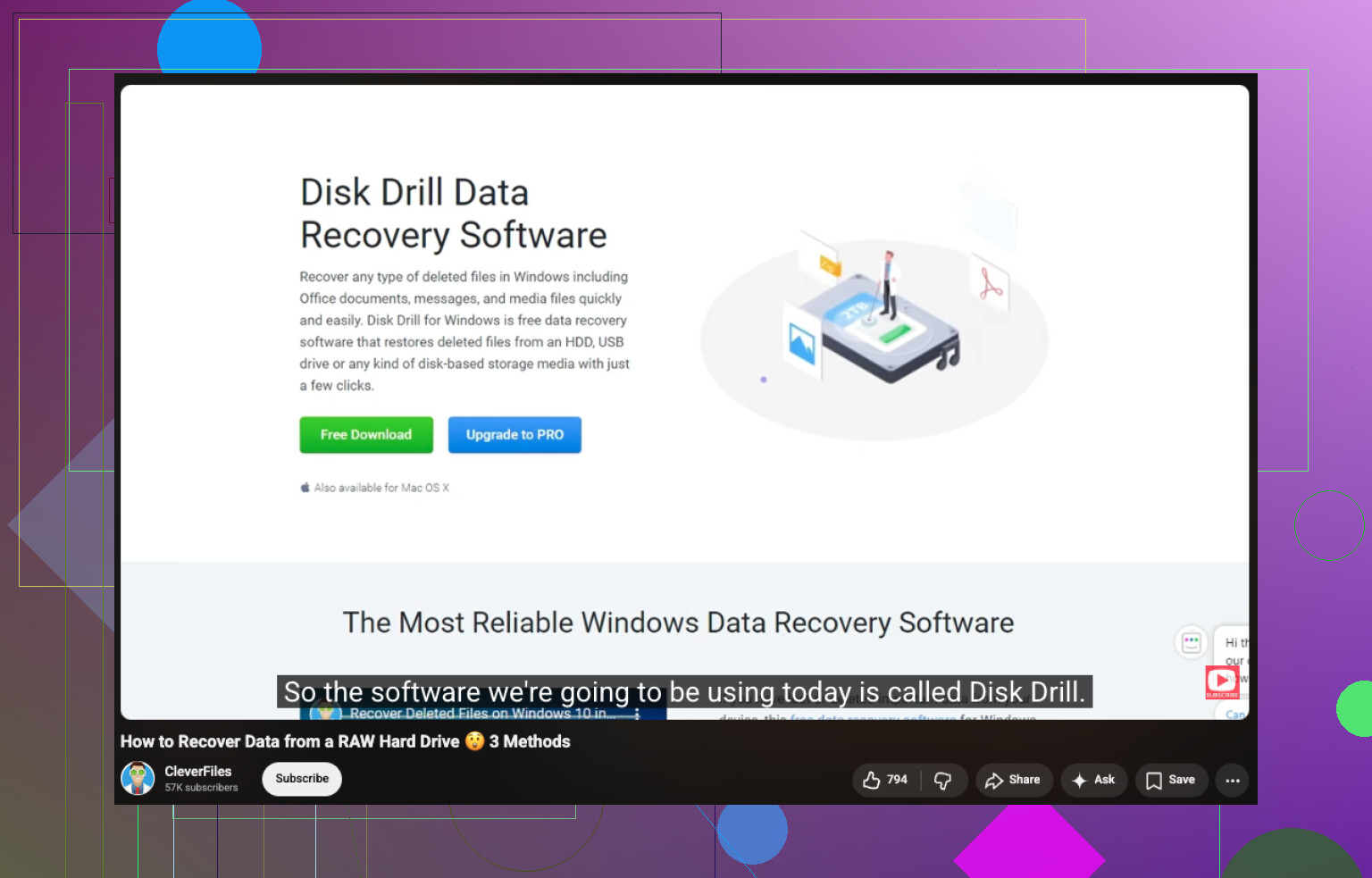
If you want a visual walkthrough, this is decent:
watch how to recover files from a RAW hard drive
Small thing, don’t keep unplugging and replugging it over and over. Ppl do that and make things worse.
Don’t format it. That prompt is Windows basically saying “I can’t read the filesystem,” not “your files are definitely gone.”
I mostly agree with @mikeappsreviewer and @cacadordeestrelas, but I’d add one thing they only touched lightly: check whether this is actually an enclosure/cable problem before you go deep into recovery. I’ve had “RAW” externals turn out to be a flaky USB bridge, not a trashed disk. Try a different cable, different port, and if possible another PC. If the drive suddenly reads normal, that saves a lot of hassle.
If it still shows RAW, safest route is:
- Stop using it.
- Do not run format.
- Do not copy anything onto it.
- Recover data to another drive.
If the drive is stable, Disk Drill is a solid choice because it can scan a RAW partition and often pull files back with folder structure if enough metadata is still there. If not, it can still recover by signatures. That’s the main reason ppl use it for RAW drive recovery on Windows.
One place I slightly disagree with some advice online: I would not jump into “repairing” the partition just because TestDisk says it found something. If the files matter, extract data first, then expermient later.
Also worth checking: SMART health. If it’s throwing read errors or reallocated sectors fast, stop DIY stuff.
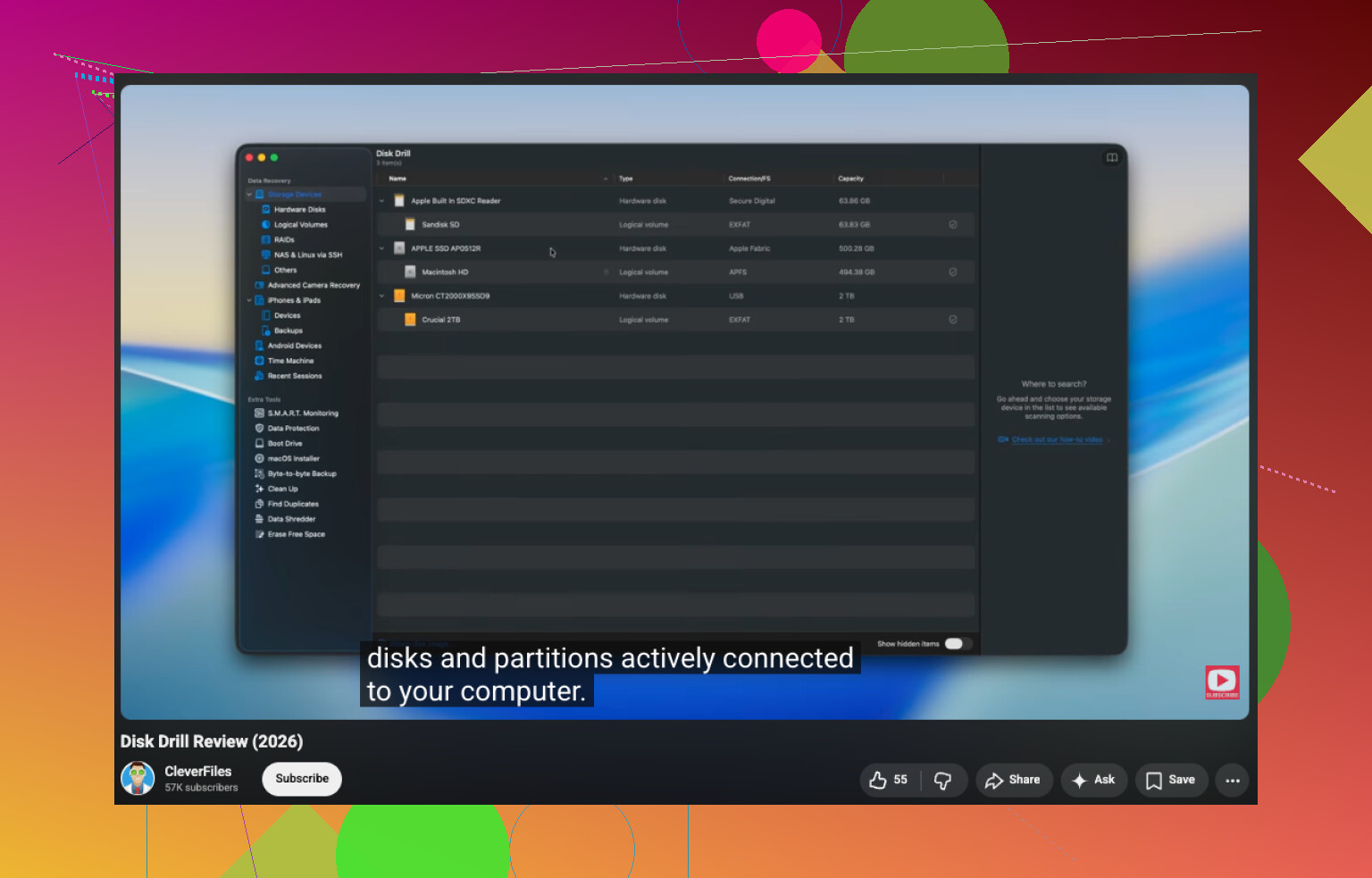
If you want a quick walkthrough plus a readable Disk Drill review, this video is useful:
see how Disk Drill handles RAW drive recovery
If the drive clicks, disappears, or stalls hard, software is probly not the move. That’s lab territory.
Skip the format prompt.
I’m with @cacadordeestrelas, @vrijheidsvogel, and @mikeappsreviewer on the big picture, but I’m a little less eager to try any repair utility afterward unless the drive proves healthy outside the USB enclosure too. RAW can be filesystem damage, sure, but sometimes it is a bad SATA-to-USB bridge lying to Windows.
What I’d add:
- Remove the drive from the enclosure if it’s a standard external and test it directly via SATA or a known-good adapter.
- Check Event Viewer for disk I/O errors. If Windows is logging resets or bad blocks, treat it as hardware first.
- On SSD-based externals, power it as little as possible until you decide what to do.
If the disk is readable enough, recover from a clone, not the original. If you want the simplest UI, Disk Drill is fine.
Disk Drill pros:
- easy preview
- good RAW partition support
- can find both filesystem entries and signature-based files
- beginner-friendly
Disk Drill cons:
- deep scans can take forever
- free recovery is limited on Windows
- signature recovery can still lose filenames/folders if metadata is wrecked
One slight disagreement with common advice: trying multiple recovery apps back-to-back on a shaky drive is risky. Every extra full scan is extra stress. Pick one serious pass, save results elsewhere, then stop.
If the drive clicks, vanishes, or reports 0 bytes, skip software and go to a lab.