I’m trying to decide whether to use Dropbox or OneDrive for my files and backups, and I’m getting confused by all the features and pricing plans. I work on multiple devices (Windows laptop, Android phone, and a shared family PC) and I need something reliable for syncing, sharing, and maybe basic collaboration. If you’ve used both, which one do you prefer, and why? Any pros, cons, or dealbreakers I should know about before I commit?
I’ve hopped back and forth between these two for years, and honestly, the “best” one usually depends on whether you live in Excel or just want your files to show up where they’re supposed to. Here is my take on how they actually stack up in the real world.
The core difference
The main thing to understand is that Dropbox was built to do one thing: sync files. Because it doesn’t have a massive OS to worry about, it focuses entirely on making sure that when you save a file on your laptop, it’s on your phone two seconds later.
OneDrive is a different beast. It’s a Microsoft product, which means it’s deeply woven into Windows and Office. It isn’t just a folder; it’s the backbone for how Word and Excel save your work. If you’re already using Microsoft’s tools, OneDrive feels like a natural extension of your computer. If you aren’t, it can feel like a houseguest that refuses to leave.
Where Dropbox wins
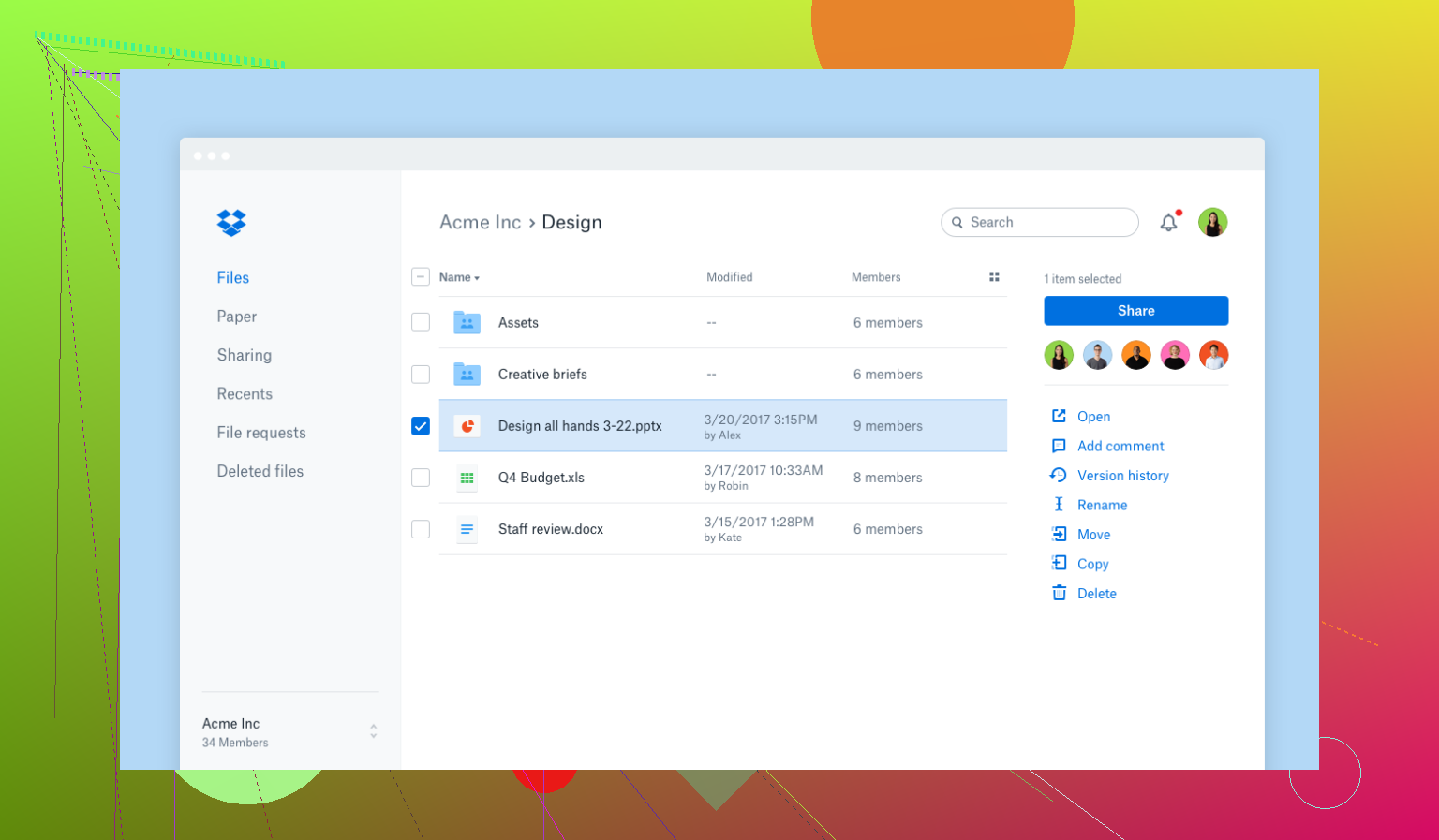
Dropbox is still the king of “it just works.” Its sync engine is fast and handles large files better than almost anyone else. If you use a Mac or Linux alongside a PC, Dropbox feels identical on all of them.
Sharing is also way less of a headache. If I want to send a folder to a client or a friend, I just send a link. They don’t need a special account to see it or download it. Plus, if you pay for a plan, their version history is a lifesaver–I’ve recovered files I deleted months ago without a sweat. The downside? The free 2 GB plan is a joke. You’ll hit that limit in a week, and their paid tiers are usually pricier than the competition.
Where OneDrive wins
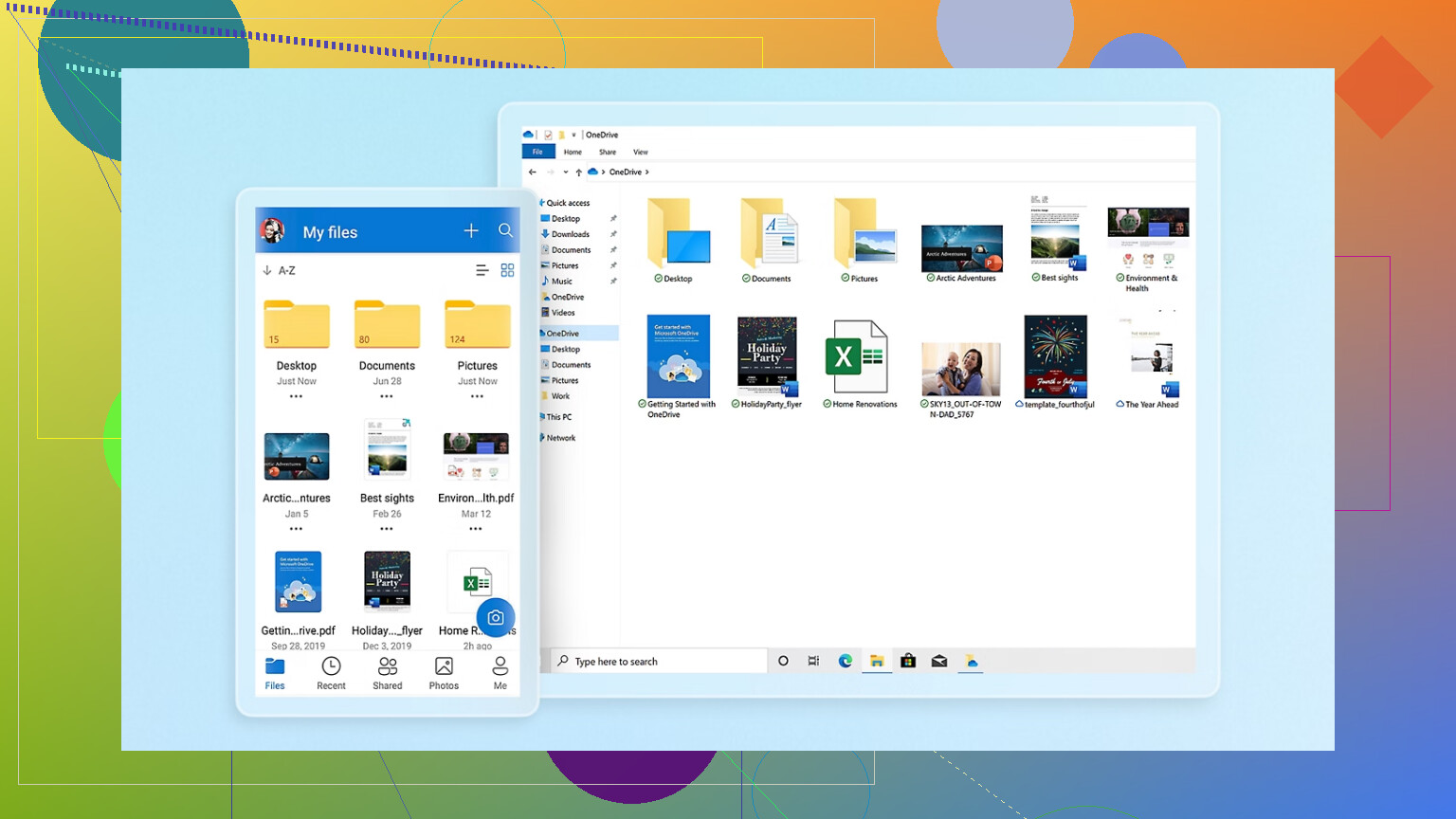
Money is the big one here. If you’re already paying for Microsoft 365, you probably already have 1 TB of storage sitting there for free. It’s hard to justify paying Dropbox $120 a year when you’ve already got a massive drive included with your email and Word subscription.
OneDrive is also the clear winner for collaboration. If you and a coworker need to be in the same Excel sheet at the same time, OneDrive handles that much better than Dropbox’s “badge” system. However, it’s not all sunshine. The Mac version can be finicky, and I’ve had plenty of “syncing” icons that just spin forever for no apparent reason. It also tries very hard to force you into a Microsoft account, which can be annoying for people you’re sharing files with.
What people actually say
If you look at any thread on this, the consensus is usually pretty split. Creative types (photographers, designers) and people who jump between Mac and PC tend to swear by Dropbox because it stays out of the way.
On the flip side, corporate workers and students almost always stick with OneDrive. The general vibe is: “Dropbox is a better product, but OneDrive is a better deal.” Most people find OneDrive “good enough” that they can’t justify the extra subscription cost for Dropbox.
The case for running both
A lot of us end up in a spot where we have Dropbox for personal photos and OneDrive for work or school. Managing two different apps – each with its own icons, settings, and battery drain–is a pain.
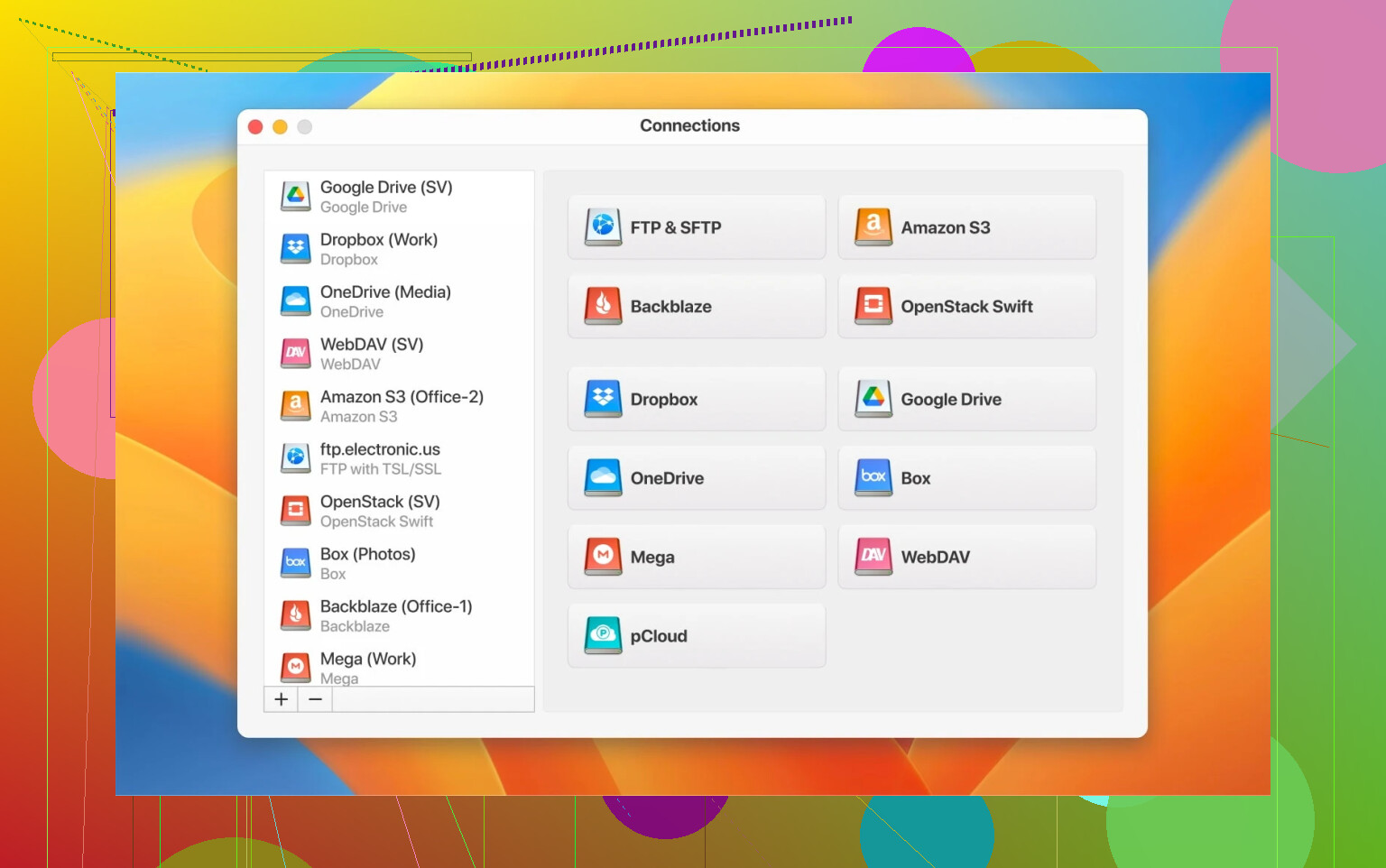
I eventually started using CloudMounter to deal with this. Instead of having two different sync clients running in the background, it just mounts both accounts as if they’re external hard drives. They show up right in Finder or File Explorer.
The best part is that it doesn’t automatically download every single file to your hard drive, so you aren’t wasting space. You can drag a file from your OneDrive straight into your personal Dropbox without having to open a browser or sync everything locally first. It’s a massive time-saver if you’re juggling multiple accounts or even different services like Google Drive.
If you want the fastest, most reliable sync and you don’t mind paying for it, go with Dropbox. If you’re already a heavy Office user or want the most storage for your money, stay with OneDrive.
And if you’re like me and stuck using both, don’t bother with two separate apps–just use something like CloudMounter to keep it all in one window.
1 Like
Short version for your setup:
Windows laptop + Android + shared family PC.
Think in three buckets.
- What you already pay for
- How you share and collaborate
- How much you trust sync
I agree with a lot of what @mikeappsreviewer said, but I see a few things a bit differently.
- Cost and licenses
If you pay for Microsoft 365 Personal or Family, you get 1 TB per user in OneDrive.
If you do not use Office much, Dropbox can be cleaner.
Rough numbers in the US, at the time I last checked:
Dropbox Plus
• About 2 TB total
• One user
• Strong file history
Microsoft 365 Personal
• 1 TB OneDrive
• Office apps included
Microsoft 365 Family
• Up to 6 users, 1 TB each
• Very good if your family shares the same PCs
If you already pay for 365, OneDrive storage is usually the logical first choice.
- Sync behavior and speed
Where I differ a bit from @mikeappsreviewer.
On modern connections, OneDrive sync speed is usually fine for office docs and photos.
For 10 GB video projects, Dropbox still wins.
You say “files and backups”. If by backups you mean:
• Documents
• Photos from phone
• Some archives
Both services handle that well.
If you edit large media files from multiple machines, Dropbox is safer.
- Cross platform and mobile
Windows laptop
• OneDrive is baked in. Folder backup for Desktop, Documents, Pictures works well.
• You log into a new Windows PC, your stuff comes back quickly.
Android
• Both apps are ok.
• OneDrive has nice photo backup from camera.
• Dropbox has more neutral sharing to people without Microsoft accounts.
Shared family PC
• OneDrive works best across separate Windows user accounts.
Each family member gets their own OneDrive folder, tied to their Microsoft account.
• For a shared pool of family files, a Dropbox shared folder is often simpler.
If your family is not into Microsoft accounts, Dropbox sharing creates less friction.
- Sharing and collaboration
You mention confusion with features. Focus on what you do here:
Editing Word, Excel, PowerPoint with others
• OneDrive is clearly better.
Live coauthoring works. Comments sync nicely.
On a shared family PC, you can all use the same docs online.
Sharing to people without logins
• Dropbox links are simpler.
Most people understand a Dropbox link and download.
If your life is Office docs, OneDrive wins.
If you share mixed files with random people, Dropbox is easier.
- Backup style use
Neither is a full system backup.
Both are “file sync plus version history”.
OneDrive
• Good for auto protecting Desktop, Documents, Pictures on Windows.
• Decent version history for common file types.
Dropbox
• Stronger reputation for version history and undelete on paid plans.
• Better for “oh no I overwrote that file last week”.
If your main fear is losing documents and photos from your Windows laptop, OneDrive folder backup is almost a no brainer.
If your fear is messing up project files and wanting older versions, Dropbox feels safer.
- Using both without going crazy
Here I strongly agree with @mikeappsreviewer.
Running two full sync clients on one machine is ugly. CPU, battery, and confusion go up.
If you end up with:
• Work or school on OneDrive
• Personal or family archive on Dropbox
Use something like CloudMounter.
CloudMounter mounts OneDrive and Dropbox as network drives in your file manager.
Files stay online until you open them.
You avoid two big sync folders eating disk space.
That setup is great for a shared family PC.
Install OneDrive for whoever needs automatic folder backup.
Mount Dropbox with CloudMounter for shared long term storage and transfers.
- What I would pick for your case
Given your devices:
If you already pay for Microsoft 365 or plan to
• Use OneDrive for:
- Windows Desktop/Documents/Pictures backup
- Office docs and family spreadsheets
- Phone photo backup on Android
• Use Dropbox only if you need: - Large creative projects
- Simple sharing to non Microsoft people
If you do not pay for 365
• Pick one main service, not both.
• Heavy Office use and mostly Windows users, OneDrive.
• Mixed file types, lots of sharing to others, and you want cross platform consistency, Dropbox.
If you say roughly how much storage you need and if your family uses Office, you can narrow it down to a single plan pretty fast.
Short version for your exact setup (Windows laptop + Android + shared family PC):
- If you already pay for Microsoft 365: use OneDrive as your main.
- If you don’t: strongly consider Dropbox as your main.
- If you must use both: use CloudMounter so they don’t both chew your disk and CPU.
Now the actual differences that matter, without rehashing what @mikeappsreviewer and @cacadordeestrelas already covered:
- How “automatic” you want backups to be
- OneDrive on Windows is basically “set it once and forget it”.
- You can tell it: back up Desktop, Documents, Pictures.
- You sign in on a new Windows PC, those folders quietly reappear.
- Dropbox is more “whatever is inside this Dropbox folder is safe.”
- You can point specific folders at it, but it is more manual.
For a shared family PC, OneDrive usually wins here: every Windows user can log into their own Microsoft account and their stuff follows them. No one has to remember “put it in the Dropbox folder or it will die in a fire.”
- How painful sharing is for non‑techy people
- Sharing to random people, extended family, clients: Dropbox is usually less drama.
- Click link, download, done.
- OneDrive has improved, but still sprinkles in “sign in” requests, especially if the file is inside a work / school tenant.
On a family PC where you just want to send Aunt Karen the baby photos, Dropbox will cause fewer “why do I need a Microsoft account???” calls.
- Office and collaboration
Here I’m actually a bit less generous to Dropbox than @mikeappsreviewer.
- If you and others are in Word, Excel, PowerPoint together:
- OneDrive + Office wins by a mile. True live coauthoring, comments, versioning that makes sense.
- Dropbox’s Office integration works, but I’ve seen more conflicted copies and weird “filename (username’s conflicted copy)” junk.
If you plan on shared family budgets in Excel or school work in Word, use OneDrive for those.
- Trust in sync
I agree with both of them that Dropbox “feels” more reliable, especially cross‑platform, but I’ll push back a bit:
- For light to medium use (docs, photos, not 50 GB video projects), modern OneDrive is generally fine.
- Where Dropbox still clearly wins:
- Huge files
- Lots of small changes across machines
- Mixing OSes beyond Windows + Android, like Linux or heavy Mac use
For your mix, unless you are editing video or giant Lightroom catalogs, OneDrive’s sync is usually good enough.
- Money and storage sanity
They already did the math, but here’s the practical angle:
- If you or anyone in your household needs Word/Excel anyway, Microsoft 365 Family is hard to beat:
- Up to 6 users, 1 TB each.
- Shared family calendar, etc.
- Paying for Dropbox and ignoring a free terabyte in OneDrive that comes with 365 is where people later feel dumb.
If you don’t care about Office at all and just want simple storage, Dropbox’s pricing is easier to swallow emotionally, even if $/TB is worse.
- Backups vs sync (this part trips people up)
Neither Dropbox nor OneDrive is a proper “backup solution” in the sense of full system images. They sync and keep some history.
- OneDrive is better at “don’t lose my everyday Windows stuff when the laptop dies.”
- Dropbox feels safer when your main worry is “I overwrite or delete project files and need to roll back further or more reliably.”
If you’re paranoid, pair either of them with an actual backup (Macrium, Backblaze, whatever) and treat Dropbox/OneDrive as your “working + convenience” layer.
- Using both without losing your mind
Here is where I absolutely agree with both of them and will double down:
Running both native clients on a shared family PC is a circus:
- Two sync folders
- Two tray icons
- Two background processes arguing over disk and CPU
If you end up in the very common situation: - Work/school forces OneDrive
- You personally prefer Dropbox for sharing or old projects
Use CloudMounter (the desktop app) as a kind of “unifier”: - It mounts Dropbox and OneDrive as network drives.
- Files sit online only until you open or drag them.
- You can drag stuff from Dropbox to OneDrive in your file manager without double-syncing through your disk.
On a family PC with limited storage, CloudMounter is honestly the easiest way to keep things tidy and not run 3 different sync engines.
- Concrete suggestion for you
Given what you described (Windows laptop, Android phone, shared family PC, files + backups):
-
If you already or will likely pay for Microsoft 365:
- Main: OneDrive
- Turn on Desktop/Documents/Pictures backup on your laptop and the shared family PC.
- Use OneDrive app on Android for photo backup.
- Optional: Dropbox free just for frictionless sharing links if you want.
- Main: OneDrive
-
If you don’t pay for 365 and are not interested in Office:
- Main: Dropbox
- Use it as the central “family files” place and shared folders.
- Turn on camera upload on Android.
- Use basic free OneDrive only if Windows nags you into it, but don’t split your life across both.
- Main: Dropbox
If you say roughly how many GB you’re sitting on now (documents vs photos vs media), you can narrow to a single plan pretty cleanly. Right now, based on your devices alone, I’d lean OneDrive first if there’s any Microsoft 365 in the picture, Dropbox first if there is not.
One angle I don’t think @cacadordeestrelas, @sternenwanderer, or @mikeappsreviewer leaned on enough is how you can avoid locking your entire workflow into either Dropbox or OneDrive long term.
You’re on Windows + Android + shared family PC, which usually evolves over time: maybe later someone gets a Mac, or work forces Google Drive or a business OneDrive account. If you build everything around OneDrive “magic folders” or the single Dropbox folder, changing later is painful.
That’s where tools like CloudMounter actually shift the decision a bit:
CloudMounter as a strategy layer
Instead of treating Dropbox vs OneDrive as “pick a winner,” you can treat them as storage backends and use CloudMounter as the front door.
Pros:
- Lets you mount OneDrive, Dropbox, Google Drive and others as network drives, so they appear like normal disks.
- Avoids running two heavy sync clients on the same machine, which is great for a shared family PC.
- Good if you have small internal storage but lots of cloud storage. Files stay online only until accessed.
- Makes moving stuff between services trivial: drag from OneDrive to Dropbox in the file manager.
Cons:
- No full offline mirroring by default, so it is not a real backup; if the cloud loses it, it is gone.
- Still depends on internet availability and speed, which can feel slower than local sync for big folders.
- Extra cost on top of whatever you pay Microsoft or Dropbox.
- Slightly more complexity to explain to less techy family members.
Competitors to this “hub” style are things like drive-mounting or multi-cloud tools, but CloudMounter is one of the cleaner, less bloated options for just “treat my clouds like drives.”
So instead of only asking “Dropbox or OneDrive,” I’d decide:
- Which service gets the role of “automatic safety net” on Windows (usually OneDrive with the Desktop/Documents/Pictures backup).
- Which service gets the role of “shared family vault” (often Dropbox for simple link sharing).
- Then use CloudMounter on the shared PC so both are visible in one place without two sync apps fighting over resources.
That way, if your needs change or you later get pushed to a different provider, you are swapping a backend, not rebuilding your whole folder structure and habits.