I deleted a lot of photos and videos from my iPhone to free up space, but the storage amount barely changed in Settings. I also emptied Recently Deleted and waited a while, but it still doesn’t look right. I need help figuring out why my iPhone storage is not updating after deleting photos and what else I should check.
iPhone storage is one of those menus I stopped trusting at face value. You look at the total, then the app list, then the colored bar, and the math feels off. It usually is not broken. It is the way iOS reports space while the phone is busy doing its own cleanup, indexing, and cache churn.
How I check iPhone storage without getting fake-looking numbers
On the phone, open Settings, then General, then iPhone Storage. At the top, you get the color bar. Under it, you will see something like 54GB of 256GB Used. Keep scrolling and you get the app-by-app list with sizes.
If you want a cleaner reading, plug the iPhone into a Mac and open Finder. On Windows, use the Apple Devices app. I got better numbers there more than once. During sync, some temporary junk gets cleared or recalculated, so the storage total often looks less messy than the one shown on the phone while apps and background tasks are still running.
Why the storage numbers look off, or keep jumping around
I kept running into the same three causes.
Recently Deleted still counts. When you remove photos or videos, they do not leave the phone right away. They sit in Recently Deleted for 30 days and keep using storage the whole time. Go to Photos, then Albums, then Recently Deleted, then tap Delete All. If you cleaned up your library and nothing changed, this is usally the first place to look.
Updates bloat the numbers for a while. After iOS installs an update, the phone starts reindexing files, cleaning logs, and sorting internal data again. System Data often grows during this window. I have seen it stay inflated for a few hours, and once close to a day after a bigger update. Restarting the phone helped move it along.
The storage screen lags behind reality. Sometimes the menu keeps showing old values even after you deleted stuff. A reboot forces a fresh calculation. Crude fix, but it works often enough.
Why System Data gets so big
System Data is the junk drawer. App caches, Siri files, Safari history, streaming leftovers, temp files, logs, bits iOS writes and later tosses out. The operating system itself also takes space, roughly 8GB to 10GB on its own, so your usable storage was never going to match the number on the box.
This category moves around a lot. I saw it shrink after a restart, then grow again after streaming video and browsing for a while. Annoying, yes. Normal too.
Why low storage slows the phone down
Once the phone gets close to full, performance starts slipping. I noticed app launches dragging, camera processing slowing down, and random pauses where the phone felt sticky. iOS needs free room for temp files and background work. When you leave too little headroom, the whole thing feels cramped.
So this is not only about making room for new photos. It affects speed.
What I would delete first when storage is nearly full
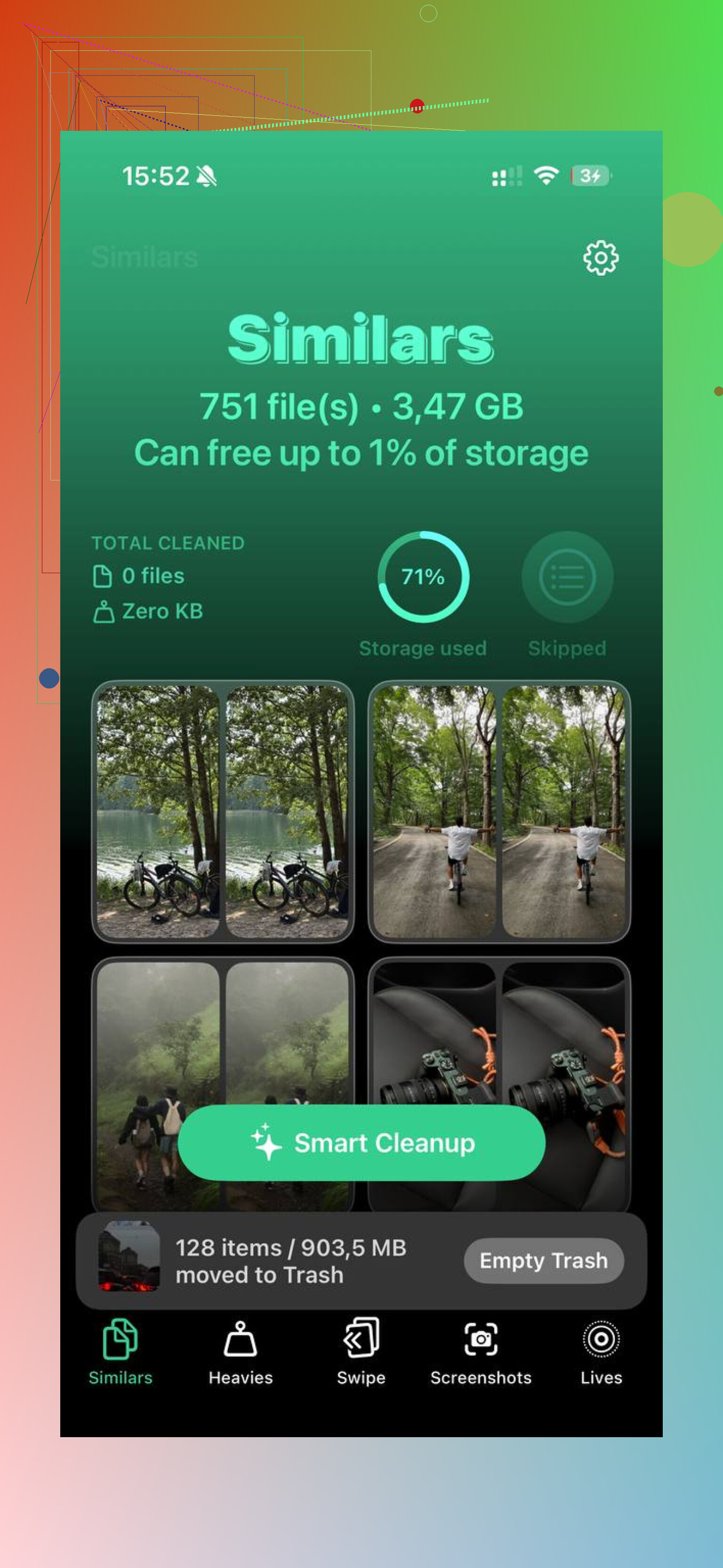
The built-in iPhone Storage view helps with app sizes, but it does a poor job showing which files in your photo library are eating space. I found Clever Cleaner useful for spotting the worst offenders fast.
The Heavies tab puts the biggest files at the top. Mine was full of 4K clips, screen recordings, and a few giant downloaded videos I forgot about. Seeing them sorted by size saved time.
The Similars tab groups near-duplicate photos and picks a Best Shot. I had burst shots and repeat pics clogging things up, and going group by group was faster than doing it manually.
The Screenshots tab was the one that got me, tbh. I did not think screenshots mattered much until I saw the total. Over a gigabyte gone to random receipts, maps, memes, and shipping confirmations. Dumb, but there it was.
Everything runs on the device, so your files are not being shipped off somewhere else while it scans.
After I cleared about 15GB, the reported storage stopped bouncing around as much and the lag I was seeing mostly went away.
1 Like
If Photos did shrink and total storage did not, I’d look at sync and cache, not the Photos app itself.
A few things people miss.
-
iCloud Photos sync lag.
If iCloud Photos is on, your phone has to update the local database after big deletions. Go to Photos, tap your profile icon, and check sync status. If it says syncing or restoring, wait until it finishes. Keep the phone on Wi-Fi and charging for a bit. -
Messages is often the hidden problem.
Deleted photos from your library do nothing for photo and video attachments inside iMessage. Go to Settings, General, iPhone Storage, Messages, then review Large Attachments. I’ve seen 5GB to 20GB sitting there. Easy to miss. -
Downloaded media from apps.
Netflix, YouTube, Spotify, Podcasts, TikTok drafts, CapCut exports. All of those keep local files. The storage bar won’t feel honest if those apps are bloated too. Offload and reinstall the worst ones if needed. Annoying, yep. -
Optimize iPhone Storage setting.
If Photos is set to Download and Keep Originals, your phone keeps full-res copies even with iCloud Photos on. Switch to Optimize iPhone Storage in Settings, Photos. Space usually drops after the phone has time to swap originals for smaller local versions. -
Storage graph lag is normal, but not forever.
I disagree a bit with @mikeappsreviewer on trusting Finder numbers more. Sometimes Finder is cleaner, sometimes it is stale too. The best check for me is this. Note the Used number, restart, connect to power, leave it locked for 30 to 60 mins on Wi-Fi, then recheck.
If you want to find large files fast, Clever Cleaner helps sort heavy videos, duplicates, and screenshots without a ton of poking around. This review of the Clever Cleaner app for iPhone is a solid read too, see why this free iPhone cleaner app stands out.
If the number still looks broken after all this, post your iPhone model, iOS version, and what categories are largest. That narrows it down fast.
What jumps out to me is that deleting photos does not always free the same category you think it should. @mikeappsreviewer and @waldgeist already covered the usual lag/sync stuff, but I’d check one more annoying iPhone behavior: shared storage pools inside apps.
For example, if those videos were edited in Photos, CapCut, Instagram, or saved from Messages, iOS may still have rendered copies, drafts, or cached previews sitting somewhere else. So Photos drops a bit, but total Used barely moves. Super dumb, but very iOS.
A few things I’d do that are different from the usual checklist:
- Open Files app > On My iPhone and look for giant folders from editing apps
- In Photos, check for downloaded offline media in Hidden too, if you use it
- Open the apps you use for video editing/social posting and clear drafts/exports manually
- Check Voice Memos, GarageBand, and Downloads in Safari. People forget those all the time
Also, I slightly disagree with the “just wait longer” advice. Sometimes waiting does nothing because the problem is not indexing, it’s leftover app storage.
If you want a faster visual way to find the actual heavy stuff, Clever Cleaner is useful for spotting large videos, duplicate shots, and screenshot clutter without digging through five menus. This quick Clever Cleaner iPhone storage cleanup demo gives a simple look at how it works.
If the storage bar is still stuck after that, I’d honestly do one test: record the category sizes, restart, then check whether System Data or specific apps quietly grew back up. That usually exposes the real culprit.
One thing I’d add to what @waldgeist, @stellacadente, and @mikeappsreviewer said: sometimes the space is freed, but APFS snapshots or a backup process make it look like nothing changed.
Check this:
- Settings > Your Apple ID > iCloud > iCloud Backup
- If a backup is running or recently failed, storage can look weird until iOS settles down
- If you use a Mac, connect the phone and see whether a local backup starts or hangs
Also, Live Photos are sneaky. Deleting “photos” may include short video components, but if you exported or duplicated them before, copies can live elsewhere.
I’d also look at:
- Books downloads
- Mail with large attachments
- Safari Reading List offline saves
- third-party cloud apps that cache files locally
Slight disagreement with the “restart and wait” camp: if the number stays wrong for more than a few hours, it usually means another category is replacing what you deleted.
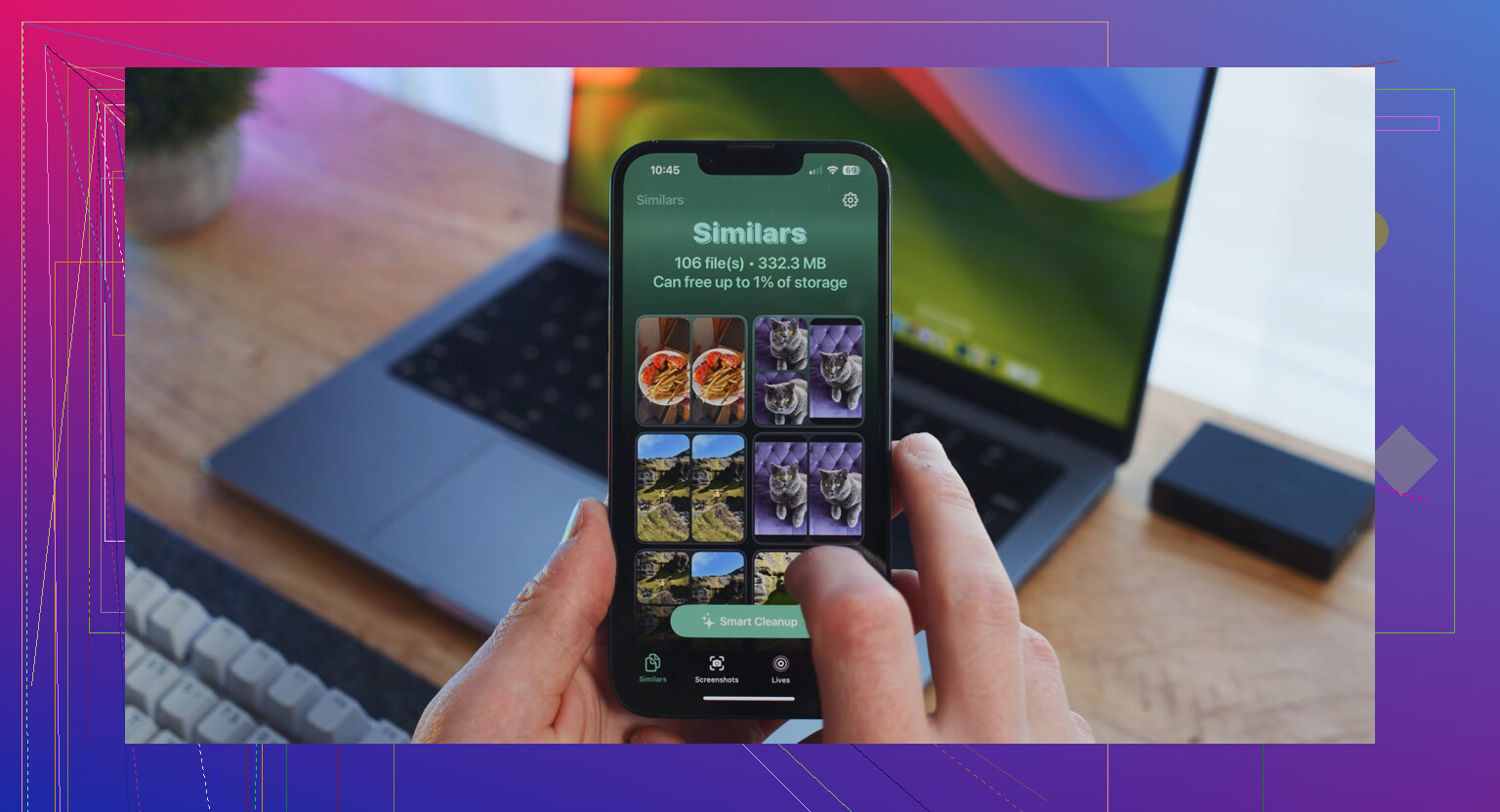
If you want a quick scan, Clever Cleaner is decent for surfacing heavy videos and duplicates.
Pros: simple, fast visual sorting, helps find obvious junk.
Cons: won’t fix system-level reporting bugs, won’t clear every app cache, still needs manual review.
So if Photos went down but Used did not, I’d suspect backups, Mail, Messages attachments, or app caches before blaming Photos itself.