My iPhone storage is almost full, and I’m not sure which files are safe to delete or where to find them. I need help organizing files, removing unnecessary downloads, and freeing up storage without losing anything important.
Start with Settings > General > iPhone Storage and wait for it to finish calculating. That will show you where the space is actually going. On iPhones, “junk” usually means duplicate photos, large videos, downloads, message attachments, and app caches. It’s rarely a pile of hidden system files that a cleanup app can magically remove.
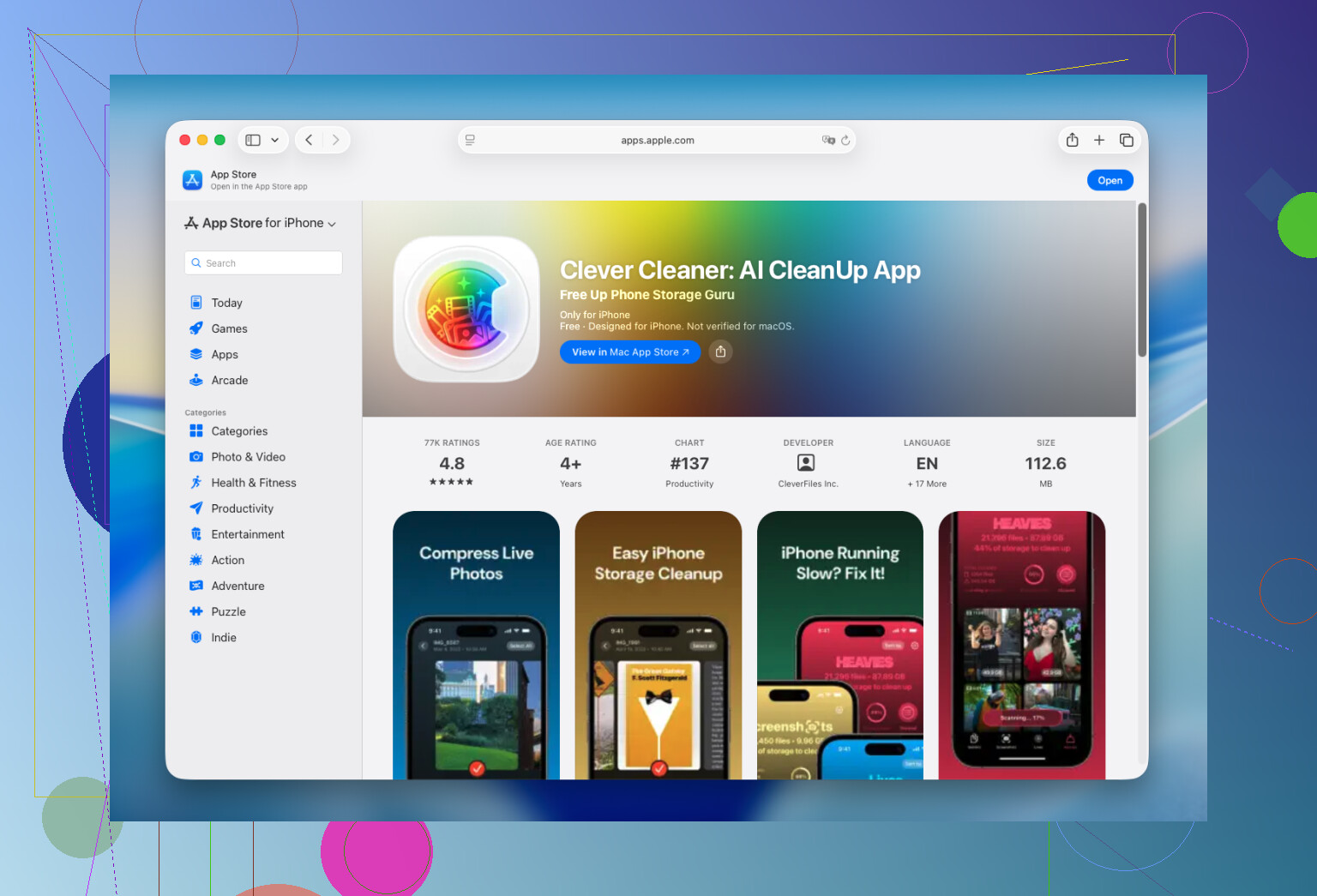
Photos are usually the biggest target. If they’re taking up 40 or 50 GB, clearing Safari data for a few hundred megabytes won’t make much difference. I got tired of manually sorting through thousands of pictures, so I use Clever Cleaner. It groups duplicate and similar photos, screenshots, Live Photos, and large videos into separate sections. Smart Cleanup handles the obvious clutter, while Swipe mode lets you review pictures individually when you have more time.
I’ve found a lot of blurry photos and accidental screenshots that way. The app analyzes the library on the phone, doesn’t have ads, and the free version is enough for routine cleanup.
After photos, I usually check a few other places:
- Remove apps that haven’t been opened in months. Offload them instead if you want to keep their data.
- Look inside Netflix, Spotify, YouTube, and similar apps for forgotten downloads.
- Open the Files app and clear out the Downloads folder.
- Check old Messages conversations for large video attachments. You can remove those without deleting the whole conversation.
- Clear the cache inside apps that provide that option, such as Telegram.
Also check the Recently Deleted album after removing photos and videos. I once deleted hundreds of items and wondered why the storage number barely changed. They were all still sitting there. Emptying that album freed several gigabytes immediately.
There isn’t really a way to delete iPhone junk “once and for all.” App Store cleaners can’t access hidden iOS caches or system files because of Apple’s security restrictions. iOS handles most system storage on its own, so the useful cleanup work is managing your photos, videos, apps, downloads, and attachments.
Doing this for 15 or 20 minutes once a month is much easier than waiting for the “iPhone Storage Almost Full” warning. That’s the routine I use on my own phone and when helping my parents. It keeps cleanup manageable and avoids having to scramble for space before recording a video, installing an update, or downloading another app.
1 Like
Deleting a photo from your iPhone can remove it from iCloud and every synced Apple device too. Before any big cleanup, copy irreplaceable photos and files somewhere separate, then consider turning on “Optimize iPhone Storage” if you use iCloud Photos. That can reclaim space without making you decide what to permanently erase.
Don’t mass-delete anything in the Files app until you check whether it’s stored under iCloud Drive, since that deletion can sync across devices too. Start with Browse > On My iPhone and Downloads, sort by size, and remove obvious installers, ZIP files, and old PDFs. Then empty Files > Recently Deleted, or the space may not come back right away.

Expect this to be a sorting job, not a one-tap cleanup. The biggest trap is assuming everything shown in the Files app is only stored on the phone. Check whether you’re browsing “On My iPhone,” iCloud Drive, or another cloud service before deleting anything.
@zeropilot’s sync warning applies here too. Deleting an iCloud Drive file can remove it from iCloud and your other devices. If you only want to reclaim phone space, long-press the file and choose “Remove Download” when that option appears. The file stays in iCloud, but its local copy is removed. Files under “On My iPhone” need to be copied somewhere safe before deletion.
For downloaded movies, podcasts, music, and maps, clean them up inside the app that created them rather than hunting through Files. Those offline downloads are easy to forget and can take far more space than documents. Afterward, restart the phone and give the storage screen a little time to recalculate, since it often doesn’t update immediately.
The Optimize iPhone Storage tip from @zeropilot only works if your iCloud plan is actually big enough to hold everything. The free 5GB won’t cover a real photo library, so you either end up paying for more storage or the optimization does almost nothing. That’s the part nobody mentioned. Worth checking your iCloud tier before you rely on that setting. For the photo sorting itself, Clever Cleaner is fine as a first sweep to catch duplicates and blurry shots, but I’d treat it as a shortcut for the tedious part, not a reason to skip looking at your app downloads. Honestly the fastest win for most people isn’t photos at all, it’s one or two streaming apps sitting on gigabytes of forgotten offline downloads.