I’m trying to free up storage on my iPhone, and Twitter/X is taking up a lot of space. Before I clear the app cache, I want to know exactly what gets deleted, like saved logins, drafts, images, videos, or app settings, and whether it affects my account or tweets.
Yeah, that kind of crashing gets old fast, especially when you’re just trying to scroll normally and X decides to freeze or kick you out. One thing worth checking first is the app cache. Since the Twitter-to-X change, the settings are not exactly obvious anymore, and the cache can get pretty huge if it’s never been cleared. Some people have found several GB sitting there doing nothing useful.
Start with the cache option inside the app before you delete anything. It’s quicker than reinstalling and usually safe.
Clearing the X / Twitter cache from inside the app:
- Open X and tap your profile icon in the upper-left.
- Go to Settings and Support, then Settings and privacy.
- Find Accessibility, display, and languages.
- Tap Data usage, then scroll down to Storage.
- Open Media storage, tap Clear media storage, and confirm it.
- Go back, open Web storage, then choose either Clear web page storage or Clear all web storage.
Media storage is just the temporary copies of photos, videos, and GIFs the app keeps so your feed loads faster. Clearing it does not delete your posts, DMs, followers, bookmarks, or anything tied to your account. That stuff is stored on X’s servers, not just on your phone.
Web storage is a little different. Clear web page storage removes cached pages from sites you opened inside X’s built-in browser. Clear all web storage also removes cookies.
The login part matters. If you clear only Media storage or Web page storage, you should stay logged in. If you hit Clear all web storage, it can wipe session cookies, so expect to sign in again. Don’t use that one unless you know your password or have your login method ready.
If X keeps crashing after that, try going through iPhone storage instead. Go to iPhone Settings > General > iPhone Storage > X and use Offload App. That removes the app itself, but keeps your local documents and login data. Then reinstall it from the App Store. It’s a decent middle option when the app is acting broken but you don’t want to do a full delete-and-start-over.
One thing to keep in mind, though: clearing the X cache may fix app glitches, but it may not solve a storage problem for long. I ran into this before. I’d clear a couple GB from Twitter, think I fixed it, and then the “Storage Full” warning would come right back.
For most iPhones, the bigger storage problem is usually the photo library. High-res pictures, 4K videos, old screenshots, duplicate shots, all of that piles up way faster than one app cache.
That’s where a cleaner app can be more useful. I started using Clever Cleaner for that part because it’s free, has no ads, and doesn’t hide the useful stuff behind a subscription.
The Heavies tab is good because it sorts your media by file size, so you can immediately see which videos or photos are taking up the most space. It also shows the exact size of each screenshot, which is surprisingly helpful. The Similars tab is probably the most useful part if you take a bunch of the same photo trying to get the right shot. It groups near-duplicates so you can keep one and remove the rest without digging through everything manually.
The privacy side is also important. It processes your photos locally on the device instead of uploading them somewhere else for analysis.
So I’d look at it this way: clear the X cache if the app is lagging or crashing. But if your real issue is that your iPhone is out of space, the photo library is probably where you’ll get the most storage back. The X cache cleanup helps with the app. Something like Clever Cleaner helps with the bigger storage mess.
1 Like
The annoying catch is that the number in iPhone Storage may not drop right after you clear it inside X. iOS sometimes keeps showing the old “Documents & Data” size for a while, or the app rebuilds part of the cache as soon as you start scrolling again. So if you clear it and only get a tiny amount back, that does not always mean you did it wrong.
For what gets deleted: clearing media cache removes local temporary copies of images, videos, GIFs, thumbnails, and other feed media. It should not delete your tweets/posts, DMs, bookmarks, lists, followers, or account settings. Clearing web storage affects the little in-app browser, so cookies and site data from links you opened inside X can go away. That might log you out of websites opened through X, and depending on the option, possibly make X ask you to sign in again.
The bigger thing I’d be careful with is deleting the app instead of clearing cache. A full delete is more likely to wipe local-only stuff, especially unsent drafts. If you have any drafts you care about, copy them somewhere first. Offloading is safer than deleting, but if the goal is maximum space, a delete/reinstall usually clears more. It’s just the messier option.

Cache is disposable.
The only catch is that people use “cache” to mean three different things, and X does not delete all of them the same way. If you clear media storage inside X, you are basically telling it to throw away copies it made for convenience: timeline images, video chunks, GIF previews, avatars, thumbnails, and other stuff it can download again later. Your actual account content is not sitting only on your iPhone, so clearing that should not remove posts, replies, likes, bookmarks, DMs, followers, lists, or who you follow.
What it can do is make the app feel a little “fresh install” for a bit. Images may reload. Videos may buffer again. Profiles you recently opened might take a second longer to show. That is normal. It is not damage, it is just the app rebuilding the junk it used to have ready.
The web storage option is where I’d slow down. That is for links opened inside X’s built-in browser, not really your X timeline. If you have opened news sites, shopping pages, login pages, etc. through X, those pages can leave cookies and cached files. Clearing page storage removes the cached page files. Clearing all web storage is more aggressive because it can remove cookies too. That usually affects websites opened inside X more than your X account itself, but I still would not hit the “all” option unless you know your X login and any 2FA method is available.
A detail people forget: clearing X cache will not delete photos or videos you saved from X into the iPhone Photos app. Once something is in your camera roll, it is no longer X cache. It is part of your photo library. So if you saved a bunch of memes, clips, screenshots, or downloaded videos, clearing X will not touch those and it will not free that space. You have to delete those from Photos separately, then clear Recently Deleted if you actually want the storage back right away.
Drafts are the gray area I would treat carefully. Clearing media/web cache should not be the same as deleting app data, but drafts are often local and app-specific. If you have half-written posts in X that matter, copy them to Notes first. It takes ten seconds and avoids the most annoying possible outcome.
So the safe order would be:
- Copy any important drafts somewhere else.
- Clear media storage.
- Clear web page storage if you want.
- Avoid “clear all web storage” unless you are okay signing back into websites.
- Check iPhone Storage later, not immediately.
- If X is still huge, offload or delete/reinstall becomes the stronger option.
Deleting and reinstalling is the real reset. That clears more because iOS removes the app’s local container, but it is also the option most likely to wipe local-only bits. Offloading is gentler, but it may not recover as much because iOS keeps documents and data.
And I agree with the general point above that X is often not the main storage villain. If the iPhone is low on space, check Photos, Messages attachments, downloaded podcasts/music, and offline maps too. A cleaner app like Clever Cleaner can be useful for finding large or similar photos, but it will not clean X’s internal cache for you. Different problem, different cleanup.
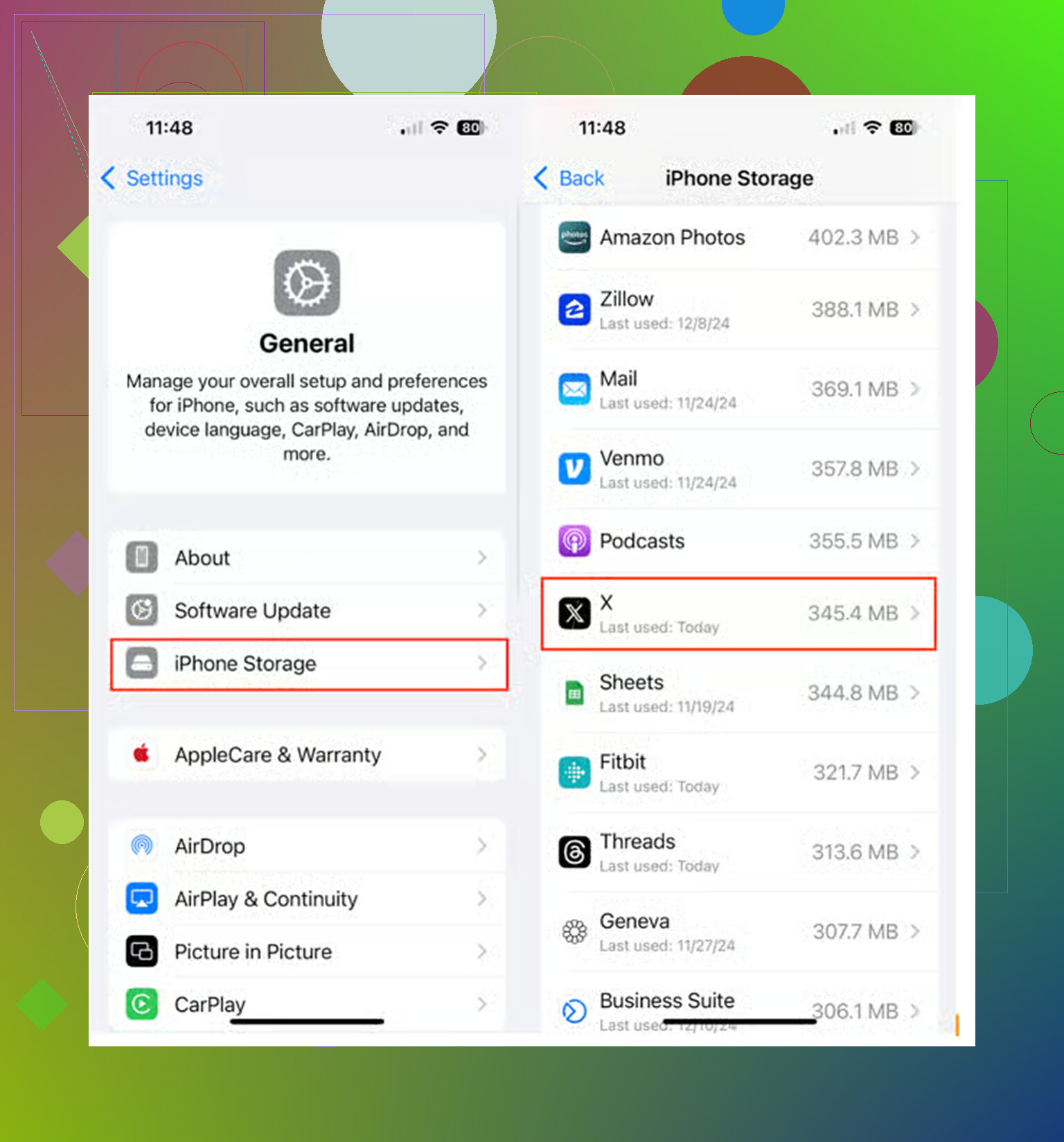
The iPhone storage screen lumps cache and real local data together, so the scary number you see for X is not a list of things that will all be deleted. “Documents & Data” can include cache, cookies from the in-app browser, drafts, local databases, logs, and whatever else the app keeps in its sandbox. X’s own clear-cache buttons only touch part of that pile.
I’d treat it like this: clearing media storage is low-risk and mostly removes copies of stuff you already viewed, like images, video bits, GIFs, thumbnails, and profile pictures. Those reload later. Clearing web storage is about sites opened inside X, so that can remove page files and possibly cookies for those sites. It does not delete your posts, likes, DMs, followers, bookmarks, or saved photos in the Photos app. Those are separate.
Where I slightly disagree with the “offload first” advice is storage recovery. Offloading is safer, but it often leaves the exact bloated “Documents & Data” part behind, which may be the part annoying you. If you want the cleanest reset, copy any drafts, make sure you can sign back in, then delete and reinstall X. If you just want the least risky cleanup, clear media storage first and see what iPhone Storage reports after a restart or a little time.
Half the reason that X storage number looks scary is that iOS counts space it fully intends to reclaim on its own. iOS marks a lot of app cache as purgeable, which means when your phone actually runs low, the system starts dumping it without asking you. So you can clear it by hand today, watch it climb back up in a week, and end up in the same spot. That is worth knowing before anyone spends twenty minutes hunting through X menus expecting a permanent fix.
The step-by-step from @mikeappsreviewer is accurate for actually finding the buttons, no argument there. But I’d set expectations lower on what it buys you. Media storage clears fine, then rebuilds the second you scroll a busy timeline again. If your goal is a cleaner-feeling app after crashes, sure. If your goal is reclaiming gigabytes that stay gone, this is not the lever.
On the offload versus delete thing that @cazadordeestrellas and @cazadordeestrellas keep circling, I lean toward delete and reinstall if space is the real problem. Offload genuinely tends to leave the bloated Documents and Data behind, which is usually the exact part you wanted gone. Just do the drafts backup first, because unsent drafts are the one thing that will quietly vanish and there’s no getting them back.
The point everyone here already landed on is the right one though. X is rarely the actual villain. Photos and Messages attachments eat storage at a pace one app cache can’t touch. A tool like Clever Cleaner is fine for spotting the giant videos and near-duplicate bursts fast, and the local processing is a nice touch, but treat it as the thing that finds the mess, not the thing that decides what you delete. Glance at your Messages attachment pile too. Years of forwarded videos and photos in threads add up more than people expect.