My USB drive suddenly stopped mounting on my Mac, and I keep getting the com.apple.diskmanagement.disenter error 49153 message when I try to open it. I need help figuring out if this is a macOS issue, file system corruption, or a problem with the USB drive itself because I have important files on it.
I ran into this with an external SSD on my Mac. Disk Utility saw the drive, Finder didn’t, and the error tied back to “com.apple.DiskManagement.disenter”. What I learned was simple. macOS knew the disk was there, but it failed at mounting the file system.
The usual causes were pretty boring. Bad unplug. Corruption in the file system. Wrong format for your setup. Sometimes macOS starts a repair in the background and then gets stuck there, which blocks the disk from showing up normally.
What I’d do first
I’d go from low-risk checks to file recovery. Not the other way around.
1. Stop a stuck fsck process
This one got me once on a large exFAT drive. macOS noticed the disk looked dirty and launched fsck in the background. The repair never finished, so the volume sat there like a brick.
Open Terminal and run:
sudo pkill -f fsck
Enter your password. You won’t see characters while typing. Mine looked frozen too, but it was taking input.
If the drive mounts right after this, don’t hang around poking at it. Copy off your important stuff first. I mean first. Treat the disk like it might drop again in ten minutes.
2. Check the full device tree in Disk Utility
Disk Utility hides part of the layout unless you tell it not to. Open it, hit View, then Show All Devices.
You should see something closer to the real stack:
- the physical drive
- a container, if one exists
- the volume you were trying to mount
Run First Aid in order from the top down. Start with the physical disk. Then the container. Then the volume.
I wouldn’t quit after one failed pass. I’ve seen a second run fix directory issues the first pass missed. Not always, still worth trying before moving on.
3. Reset the user session
Some of this feels like a macOS session problem rather than pure disk damage. I’ve had Disk Utility act weird, then the drive mounted after logging out and back in.
If you want a cleaner test, switch to another user account on the same Mac and try mounting it there. If it works in the other account, your main profile might be carrying bad preferences, permission weirdness, or some cached junk.
4. Turn off Time Machine for a bit
If this disk was ever used with Time Machine, I’d pause that first. Go into System Settings and disable automatic backups, then try the drive again.
I saw one case where macOS kept treating the disk like a backup target and wouldn’t leave it alone. Turning Time Machine off broke the loop.
5. Stop repairing if First Aid keeps failing
This is the part where I got stubborn once and made things worse. If First Aid keeps spitting errors and the volume still won’t mount, I’d stop trying to force repairs.
When the file system is damaged, repeated repair attempts or writes to the same disk can make recovery harder. If the files matter, switch goals. Don’t fix the disk yet. Get the data out.
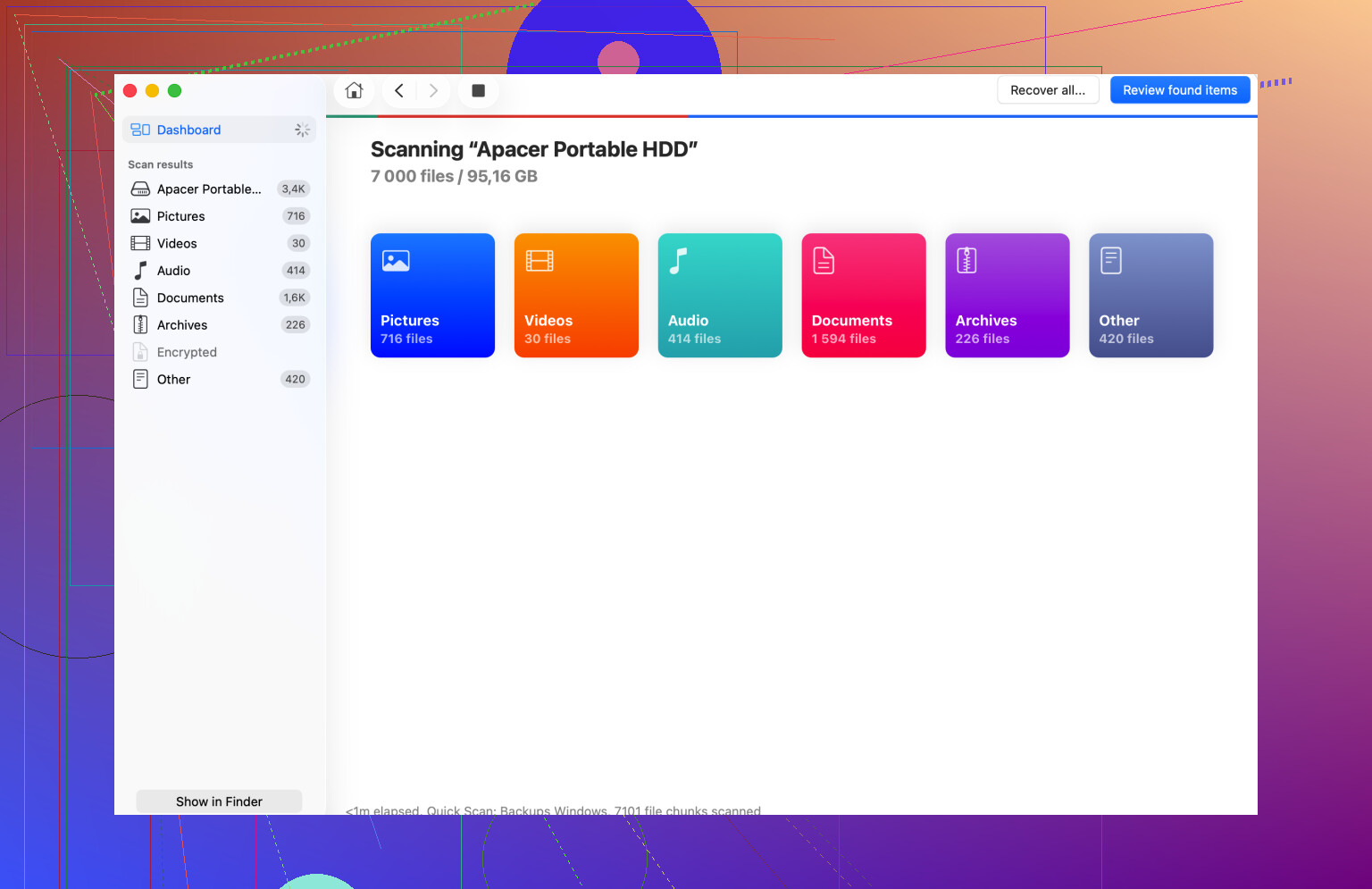
A recovery app is often the next move. Disk Drill is one option. It reads the raw disk data even when Finder won’t mount the volume, and in some cases it pulls back files or enough folder structure to sort through what’s left.
Save recovered files to a different drive. Not the broken one. I know that sounds obvious, but people do it when they’re tired.
6. Wipe and reformat after the data is safe
Once your files are off, then erase the disk in Disk Utility. Select the physical drive, not only the volume, and use Erase.
Format choice depends on where the drive will live:
- APFS for newer Mac-only use
- Mac OS Extended Journaled for older Mac workflows
- exFAT if you need Mac and Windows on the same drive
I’ve had fewer weird exFAT issues when the format was done on macOS instead of some random TV, camera, or Windows box.
The short version
If your disk shows in Disk Utility but won’t mount, I’d try this order:
- Kill a stuck
fsckprocess - Show all devices and run First Aid top-down
- Log out, log back in, or test another user account
- Temporarily disable Time Machine
- Move to recovery if repairs keep failing
- Erase and reformat only after the files are safe
The one rule I stopped ignoring was this. Recover first. Reformat second.
And yeah, eject your external drives before unplugging them. I used to rush it. This is what I got for that.
1 Like
49153 usually means macOS sees the USB device, but chokes when it tries to mount the volume. I’d split it into 3 buckets. Hardware, partition map, or file system.
I agree with some of what @mikeappsreviewer said, but I would check hardware earlier than user session stuff. A bad cable, weak USB hub, or dirty port causes a ton of these mount fails. Plug the drive straight into the Mac. No hub. Try a diff port. If it is a desktop drive, use its own power brick.
Then look in Terminal, not Finder.
Run:
diskutil list
If the drive appears, note the identifier, like disk4. Then run:
diskutil info /dev/disk4
Look for:
Partition Map Scheme
File System Personality
Read-Only Media
S.M.A.R.T. status, if supported
If the partition map is damaged, First Aid often won’t fix much. I’ve seen drives show up as empty space or with a weird generic partition type after a bad unplug. In those cases, data recovery first makes more sense than more repair attmpts.
Next, check the system log while plugging it in:
log stream --predicate ‘process == ‘diskarbitrationd’’ --info
This often tells you more than the popup error. If you see “unsupported filesystem”, the disk format is the issue. If you see I/O errors, think failing hardware.
If the files matter, Disk Drill is a solid next step. It’s useful when a USB drive won’t mount on Mac and throws com.apple.diskmanagement.disenter error 49153. Scan the disk, recover to a different drive, then wipe the problem one after.
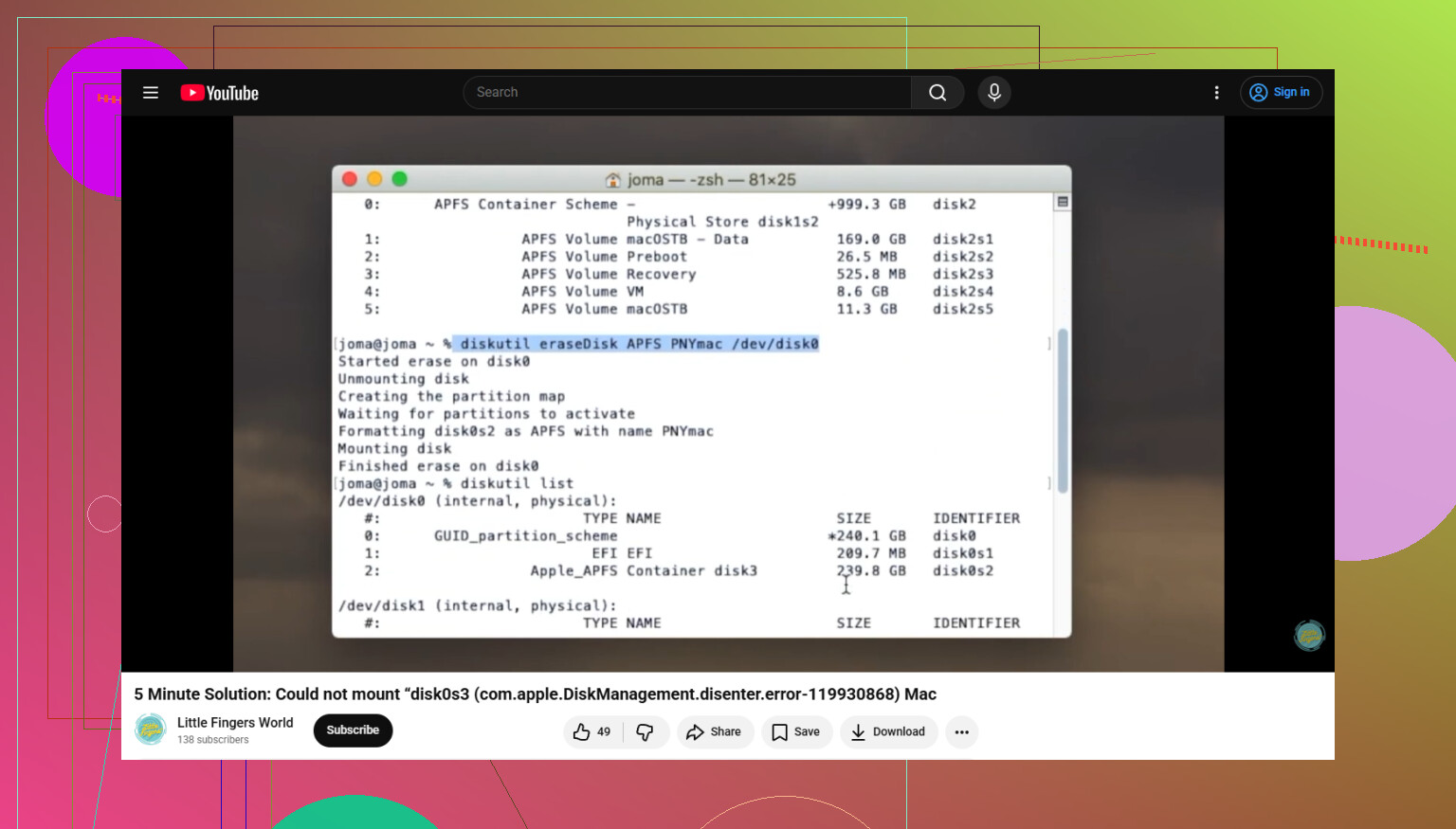
If you end up erasing it in Terminal, this guide is clear:
format a problem drive in Terminal on Mac
One more thing. Test the USB on another Mac or a Windows PC. If both fail, your drive is the problm, not macOS.
49153 is one of those annoyng Mac errors that tells you almost nothing useful. I’d actually separate one thing from what @mikeappsreviewer and @cazadordeestrellas covered: before assuming corruption, check whether the volume is simply not auto-mounting because of stale mount metadata.
In Terminal, try:
diskutil list
Find the USB volume identifier, then try a manual mount:
diskutil mountDisk /dev/diskX
or if it has a specific volume slice:
diskutil mount /dev/diskXs1
If manual mount works, the disk itself may be mostly fine and Finder or Disk Arbitration is what’s acting dumb.
Also worth checking:
mount
If the drive is already mounted invisibly or in read-only mode, it can look “dead” in Finder when it really isn’t. Sometimes it lands under /Volumes with a weird duplicate name. Open /Volumes in Finder or run:
ls /Volumes
Another angle: if the USB was encrypted before, macOS may fail with a generic disenter error when the unlock process breaks. Check if Disk Utility shows it as locked, not broken.
I mildly disagree with doing too many repair passes if the drive clicks, disconnects, or takes forever to enumerate. At that point, stop. That’s not a software day, that’s a hardware day.
If the data matters, Disk Drill makes sense because it can scan a drive that won’t mount and recover files to another disk before you erase anything. After recovery, reformat and retest the USB on the Mac.
For a cleaner walkthrough, this guide on fixing Mac DiskManagement disenter errors on USB drives is pretty easy to follow.
If manual mount fails instantly, post the output of:
diskutil info /dev/diskX
```<div><img src='https://www.embedgooglemap.net/community/uploads/default/original/Com.apple.diskmanagement.disenter-Error-49153-On-USB-Drive-3296-2.png' alt='Com.apple.diskmanagement.disenter Error 49153 On USB Drive' width='' height=''></div>I’d add one check the others only touched indirectly: rule out a bad GPT/APFS handoff.
If diskutil list shows the physical USB fine, but the APFS container or partition size looks wrong, try:
diskutil verifyDisk /dev/diskX
gpt -r show /dev/diskX
That tells you whether the GUID partition table itself is malformed. I slightly disagree with doing too much session tweaking before this, because 49153 is often lower-level than Finder weirdness.
Also check whether the drive is throwing bridge chipset issues. Some USB SATA enclosures show up in macOS but fail mounting due to flaky controller firmware. If you can, remove the SSD/HDD from the enclosure and test it in another adapter.
Another angle: Safe Mode. Booting macOS Safe Mode disables some third-party extensions and login items. If the USB mounts there, the disk may be okay and something in normal boot is interfering.
If the files matter, clone first if possible, then recover from the clone. That is safer than repeated direct scans on a dying disk. If cloning is not practical, Disk Drill is reasonable for a non-mounting USB.
Disk Drill pros
- can scan drives that refuse to mount
- good preview and simple recovery flow
- useful before reformatting
Disk Drill cons
- recovery success depends on actual disk health
- deep scans can take a long time
- best results usually require another drive for recovered files
So my order would be: verify GPT, test enclosure/adapter, try Safe Mode, then recovery. @cazadordeestrellas, @ombrasilente, and @mikeappsreviewer already covered the standard mount and repair paths well, so I’d use this as the next branch, not the first repeat.