I imported photos from my iPhone to my computer and now want to delete them from the iPhone to free up storage. I’m worried that deleting photos from my iPhone might also remove them from iCloud Photos. Can someone explain how iCloud photo syncing works after importing?
The big thing to get straight first is this: Apple treats backup and sync as two different things. A lot of the confusion comes from that. If iCloud Photos is turned on, your iPhone, Mac, and iCloud library are all tied together. So yes, if you delete a photo from the iPhone while iCloud Photos is active, it can disappear from iCloud and your other synced devices too.
That’s also why the “Delete items after import” option in Photos on the Mac sometimes isn’t there. Apple basically sees the devices as sharing one photo library, not as one device holding the originals and the other just getting a copy.
If your goal is “keep these on my Mac, but remove them from my phone,” turn off iCloud Photos on the iPhone first. Go to Settings > Photos > iCloud Photos. Once that’s off, the phone is acting more like its own separate library, so deleting photos from it shouldn’t wipe out the copies already imported to the Mac.
For deleting a lot of stuff from the Mac side, I’d skip the Photos app and use Image Capture. It’s already on every Mac, even though Apple doesn’t exactly put it front and center. Plug in the iPhone, open Image Capture, choose the phone, then press Command+A to select everything. There’s a small red delete button near the bottom. It’s much more direct than Photos and doesn’t get tangled up in the same sync behavior.
If you already imported everything and just want to clean up from the iPhone itself, use the Imports album. In Photos, go to Albums and look under Utilities. That album is useful because it groups photos by when they were imported, so you’re not digging through years of random pictures. To select a bunch quickly, tap “Select,” touch one photo, then drag your finger across and upward. You can mark hundreds pretty fast that way.
One annoying catch: deleting the photos does not immediately free the space. They go into Recently Deleted and sit there for up to 30 days, still taking up storage. Go to Albums > Recently Deleted and hit “Delete All” if you actually want the space back. After that, check Settings > General > iPhone Storage. If the number still looks wrong, restart the phone and give iOS a minute to recalculate.
I ran into this because my iPhone started acting awful. Keyboard lag, camera taking forever to open, apps crashing for no obvious reason. I thought the phone itself was failing, but it only had around 800MB free. Once storage gets that low, iOS just doesn’t have enough room for temporary files and the whole thing starts dragging.
Even after clearing the imported photos, there was still a ton of junk left. Near-duplicate shots, old screenshots, huge 4K screen recordings, all the usual clutter. Going through that manually was miserable, so I tried Clever Cleaner.
I’m normally suspicious of cleaner apps because a lot of them are full of ads or locked behind subscriptions, but this one was actually useful. It’s free, with no paywalls, ads, or subscriptions. The other good part is that the scanning happens on the phone, so your photos aren’t being uploaded somewhere else.
The Heavies tab sorts media by file size, which is how the biggest space hogs show up fast. In my case, a few 2GB videos were doing most of the damage. The Similars tab groups near-identical photos and suggests a “Best Shot” to keep. It also shows the file size for screenshots and duplicates before you delete anything. I cleared another 12GB that way, and the phone stopped lagging right after.
So before deleting anything, make sure the imports are really on the Mac, check whether iCloud Photos is turned on, and don’t forget to empty Recently Deleted. If the phone still feels slow after that, the leftover hidden clutter is usually the next place to look.
1 Like
Do not tap through the iCloud Photos prompt without reading it. If you turn iCloud Photos off, the phone may ask whether to remove local copies or download originals, and that choice matters, especially if “Optimize iPhone Storage” was on. Before deleting anything, check that the computer import is a real copy: open a few photos/videos from the computer, confirm they are not just thumbnails, and ideally make a second backup to an external drive or cloud folder. Once iCloud Photos is still on, deleting from the iPhone means deleting from the iCloud Photos library too. If you only want space back on the phone while keeping iCloud intact, the safer Apple-approved route is usually Settings > Photos > Optimize iPhone Storage, not manual deletion.
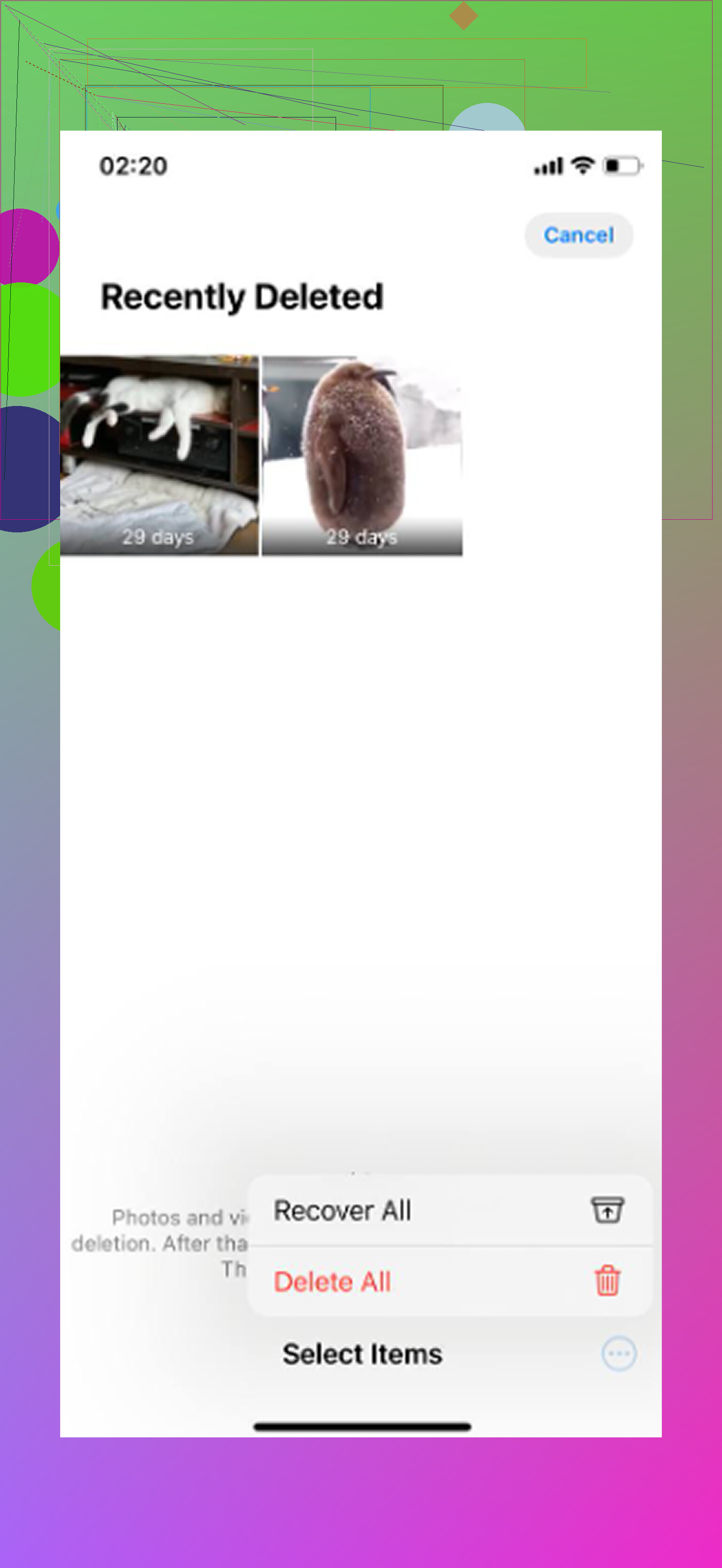
Don’t delete the phone copy until you know whether iCloud Photos is syncing that library. If iCloud Photos is on, the delete button is not “remove from this iPhone.” It means “remove from my iCloud Photos library,” and that deletion will usually sync to iCloud and your other Apple devices.
I’d be a little careful with the advice to simply turn off iCloud Photos and then start deleting. That can be fine, but it depends on what you choose when the phone asks about removing or downloading photos. If Optimize iPhone Storage was enabled, some items on the phone may not be full originals anyway. Before doing anything destructive, check your imported photos outside the Photos app if possible, such as in a regular folder on the computer, and open a few videos too. Videos are where bad imports or missing originals tend to show up first.
The cleanest split is: iCloud Photos for syncing, computer import/export for archiving. If you want the photos to stay in iCloud, don’t manually delete them from the iPhone while iCloud Photos is on. Use Optimize iPhone Storage instead. If you want them only on the computer and no longer in iCloud, then deleting is fine, but understand you are deleting from the synced library, not just trimming phone storage. Also check Recently Deleted afterward, since space will not fully come back until those are cleared.
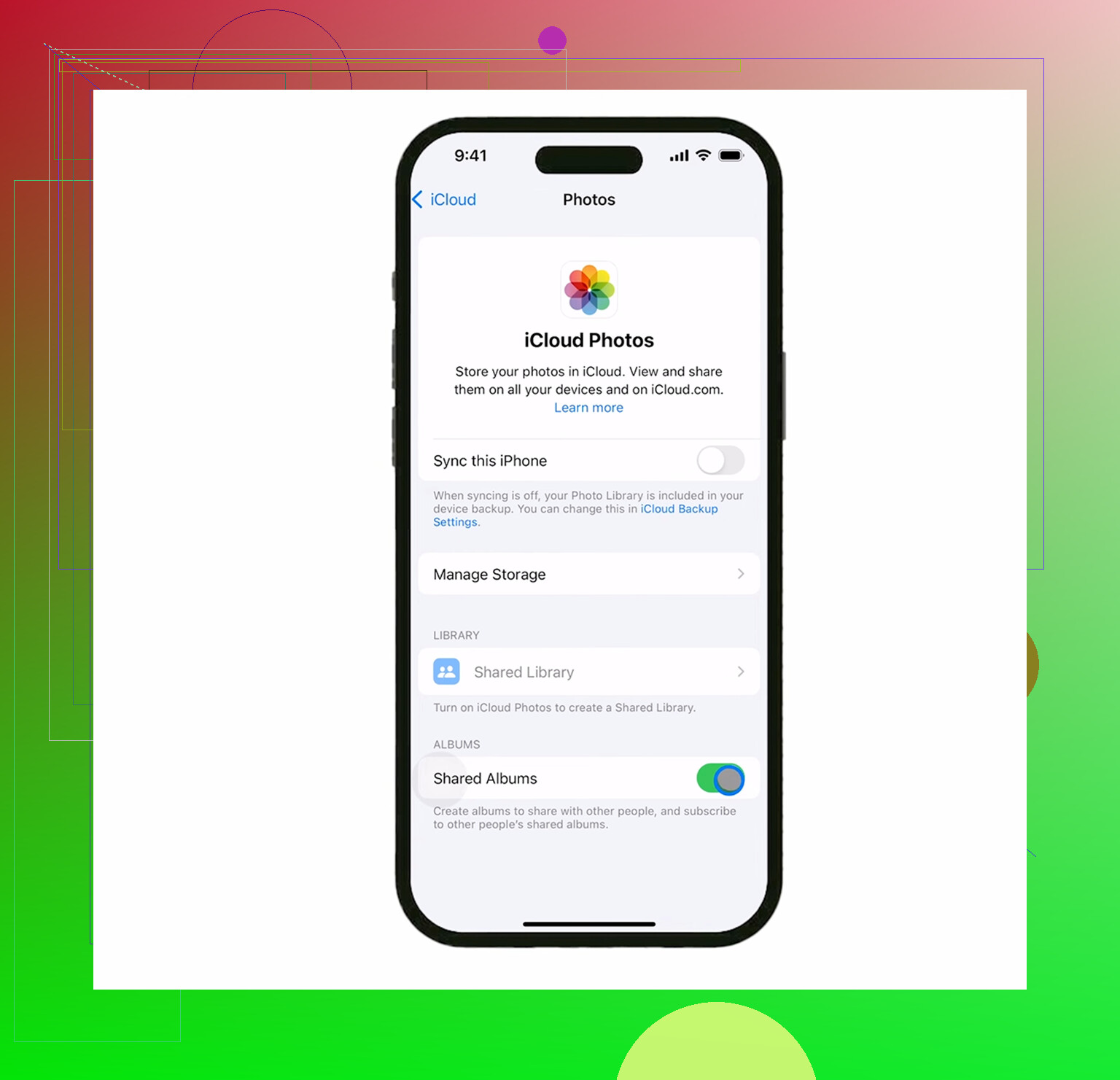
Turning off iCloud Photos is not a magic safety switch. If iCloud Photos is still on when you delete, those deletions sync to iCloud too, so use Optimize Storage if you only want phone space back. Before deleting anything, check the imported files outside Photos and maybe compare with iCloud.com so you know which copy you’re actually keeping.