My iPhone storage keeps filling up because I put off cleaning out photos and videos until I get the storage full warning. I’m looking for practical tips to organize, back up, and delete iPhone photos without losing anything important.
The biggest thing I’d avoid is trying to clean the whole library manually in one marathon session. I did that with roughly 55,000 photos and videos, and it was miserable. Hours of scrolling, tapping, deleting, second-guessing stuff, and by the end I barely felt like I’d made a dent.
What helped was splitting the job up and letting the right tools handle the annoying parts.
For basic cleanup, the Photos app is still a decent starting point. Don’t tap photos one at a time if you can avoid it. Use the swipe-select gesture to grab a bunch at once. I’d also work through albums instead of the full library, since it’s easier to stay focused when you’re only looking at screenshots, downloads, videos, or one specific category.
Some albums also have a Select All option, which is easy to overlook. If you open an album full of junk screenshots or images you already know you don’t care about, that saves a ton of time.
Where the Photos app started falling short for me was duplicates. Apple’s Duplicates album is fine for exact matches, but my problem was mostly near-duplicates: burst shots, five or ten versions of the same photo, old screenshots, Live Photos I didn’t need, and big videos quietly eating storage.
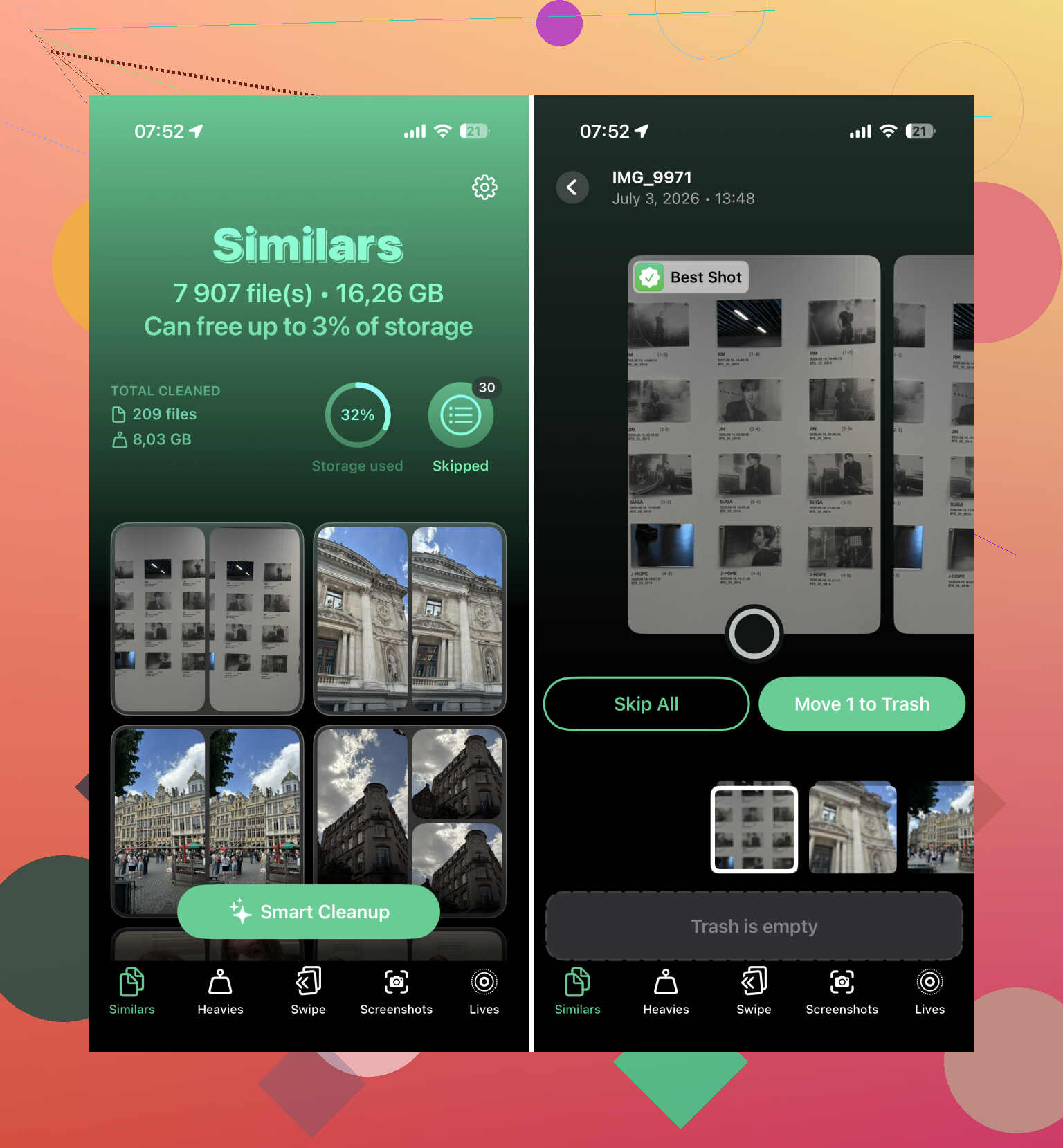
That’s where Clever Cleaner ended up being the biggest time saver.
It grouped similar photos, picked what it thought was the best shot, separated screenshots, found large videos, and gave me the option to turn Live Photos into still images when I didn’t care about keeping the motion. That was way better than staring at a giant camera roll. I still checked everything before deleting, but I was reviewing sensible groups instead of going photo by photo through tens of thousands of items.
The swipe-style review also made it feel less tedious. What looked like a several-weekend project turned into something I got through over a couple evenings.
If you’re trying to reduce iCloud storage too, just remember that iCloud Photos is synced. Deleting something from your iPhone deletes it from iCloud Photos as well. That’s useful when you’re cleaning up on purpose, but it can be a problem if you expected those photos to stay available on another device.
Also, empty Recently Deleted when you’re done. A lot of people forget that step. Until those files are permanently removed, they can still take up storage, so your iCloud number may not drop as much as expected right away.
After duplicates and obvious junk, I’d go after the big stuff first. For me, the biggest wins were:
- long videos I forgot about
- screen recordings
- old screenshots
- Live Photos
- random images saved from messaging apps
Deleting a few large videos freed up more space than removing hundreds of normal photos.
One last thing that helped was doing a final pass on a computer. After clearing out the obvious mess, I connected my iPhone to my Mac and reviewed the rest on a bigger screen. It’s much easier to compare similar shots and clean up albums when you’re not squinting at your phone.
I wouldn’t try to finish it all in one day. That’s what made it feel impossible the first time. Now I just spend 10 to 15 minutes every week deleting recent screenshots, blurry shots, and duplicates before they build up again. Much easier than waiting until the library is massive.
That combo was the fastest approach I found.
1 Like
Do not treat iCloud Photos as a backup before you start deleting. It’s a sync service, so if you delete a photo on the phone, that deletion can follow it everywhere. That’s the mistake that catches people, especially when they’re panic-cleaning after the storage warning pops up.
I agree with the earlier point about clearing big videos first, but I’d make a separate copy before doing any serious cleanup. Plug the phone into a computer and import the photos, or use an external drive, Google Photos, OneDrive, Dropbox, whatever you actually check and understand. Then spot-check a few random older photos and videos from that backup before deleting anything. Don’t just trust that “backup complete” means every Live Photo, edited version, or video made it over the way you expect.
My routine would be boring but safer: back up first, delete obvious junk on the phone, empty Recently Deleted, then wait a day before doing another round. The waiting part sounds unnecessary until you realize you deleted something from a trip, a receipt, or a message screenshot you still needed. Cleaner apps can be useful for sorting duplicates and screenshots, but I wouldn’t let any app mass-delete without reviewing the picks. The goal is to stop storage warnings, not create a new problem where your only copy is gone.
The sneaky downside of waiting for the warning is that the phone may be too full to make the cleanup easy. Imports can fail, iCloud sync can stall, thumbnails get weird, and apps start hoarding “System Data” because there isn’t much breathing room. So I wouldn’t wait until zero space unless you enjoy fighting the phone while trying to rescue it.
I agree with @codecrafter on not treating iCloud Photos like a separate backup. Before deleting, I’d check two places: Settings > General > iPhone Storage, and then the Photos section inside it. Sometimes Photos is not even the worst offender. Messages, WhatsApp, downloaded music, podcast episodes, or app caches can be holding a lot of saved images and videos too. Deleting 800 photos won’t feel like much if there are five giant videos sitting in a message thread.
My lazy version would be: keep “Optimize iPhone Storage” on if you use iCloud Photos, export anything important to a real second location once in a while, then do small cleanup passes by media type. Videos first, then screen recordings, then screenshots. Don’t start with normal photos unless you’re already backed up and patient. Photos are emotionally annoying to sort; videos are usually where the space is. And after deleting, empty Recently Deleted only when you’re sure, because that’s your last easy undo button.
Waiting until it says full is too late, because you may not have enough free space left for a clean backup, import, or update.
Set a personal floor instead, like “when I drop below 20 GB, I clean.” I’d rather delete one month of screenshots every Sunday than do emergency photo surgery while the phone is already choking.