I accidentally deleted the wrong folder from an exFAT external drive and need help with file recovery. I stopped using the drive right away, but I’m not sure if the data is still recoverable or what recovery software or steps are safest to try without overwriting anything.
If this is an exFAT external SSD and you deleted the wrong folder, the first move is simple: stop touching the drive. Don’t copy anything onto it, don’t save files to it, don’t run random fixes, and don’t format it because Windows or macOS suggested it. Deleted data often stays on the drive until something new overwrites that space, so every write makes recovery harder.
exFAT is usually pretty workable for recovery after accidental deletion. In a lot of cases, deleting a folder mostly removes the file system references and marks the space as free. The actual file contents may still be there, assuming the drive hasn’t been used much since.
If the drive still mounts or at least shows up in Windows or macOS, I’d try recovery software before repair tools. Disk Drill is a good option for this kind of thing since it handles exFAT and can scan for deleted files, corrupted volumes, and some formatted drives.
The safest order would be:
- If the SSD is acting flaky, disconnecting, or throwing errors, make a disk image first and scan that instead of the original drive.
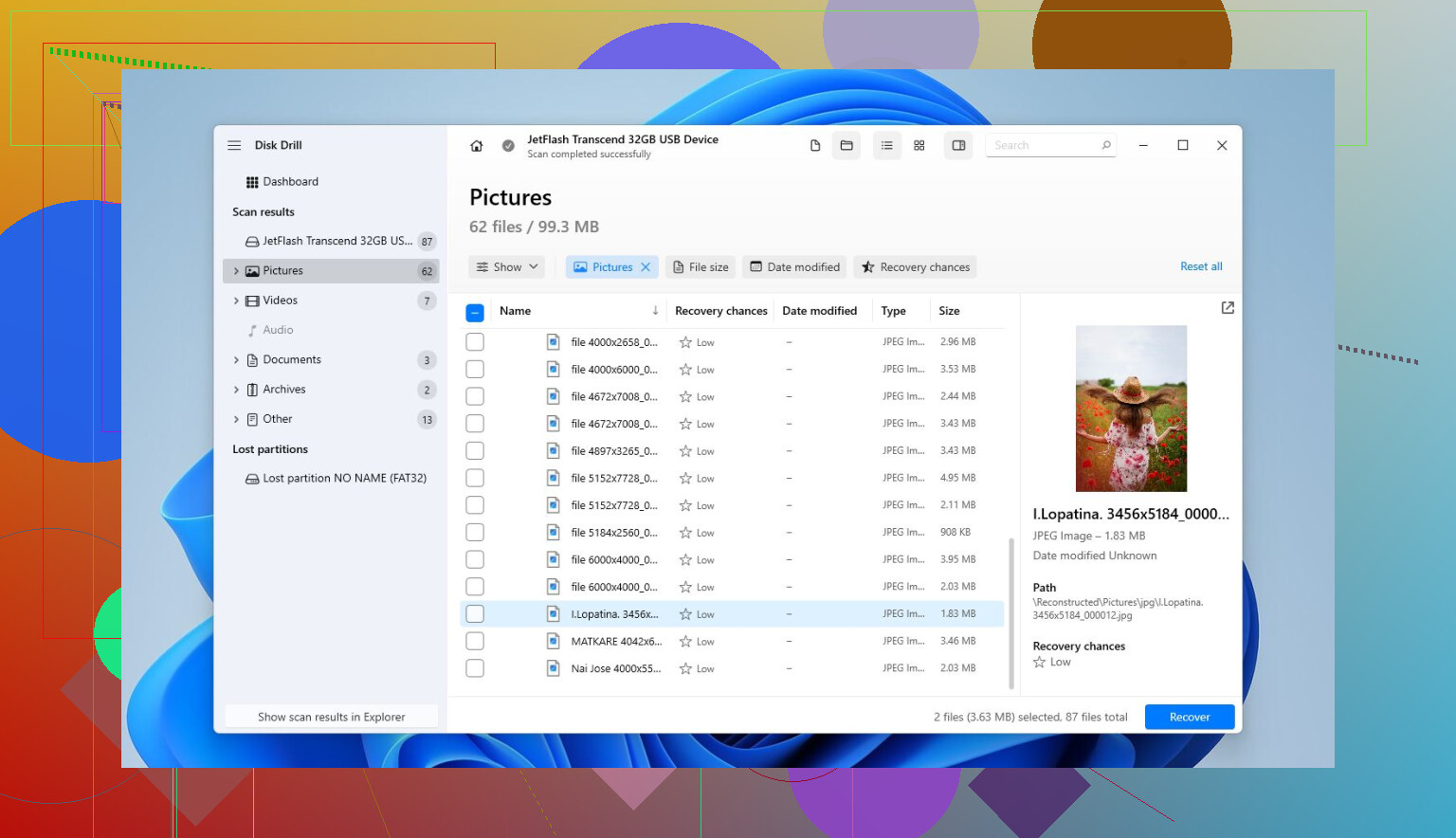
- Run a Universal Scan.
- Use preview before recovering. If your photos, videos, documents, etc. preview correctly, that’s usually a decent sign.
- Recover the files to a different drive. Never save recovered files back to the same exFAT drive you’re scanning.
If the issue is corruption rather than deleted files, I’d still pull the data off first. Repair tools and formatting can make a bad situation worse if the files are still recoverable.
A mistaken quick format is also worth scanning. Quick format usually rebuilds file system metadata without wiping all the old file contents. Recovery can still be pretty good if you stopped using the drive right away. A full format is much worse because it writes over the data, so the odds drop a lot.
If the drive shows as RAW, gives errors when you open it, or Windows says it needs to be formatted, don’t click through that prompt yet. Recovery tools can sometimes read a damaged file system even when the operating system can’t open it normally.
Before going too far, check the drive health too. On Windows, CrystalDiskInfo is useful and free. Disk Drill also has SMART monitoring. If you see a bunch of reallocated or pending sectors, or the drive starts clicking, vanishing, freezing, or disconnecting during scans, stop DIY recovery and look at a professional service instead.
So the short version:
- Deleted the wrong folder? Yes, recovery is worth trying.
- Corrupted exFAT drive? Recover first, repair later.
- Quick formatted it? Still possible, especially if you stopped using it.
- Thinking about formatting before recovery? Don’t. Get the data off first, then fix or reformat the drive.
The main thing that decides your chances is how much the drive was used after the files disappeared. If you stopped right away, you’re in a much better position.
1 Like
The ugly catch with exFAT on an external SSD is TRIM. If the enclosure and OS passed a TRIM/UNMAP command after deletion, the “deleted but still sitting there” idea may not hold up, because the SSD can treat those blocks as cleared. That does not mean you should give up, but it does mean previews matter more than the file list. Recovery apps may show the old folder names while the actual files are empty or damaged. I’d still scan it, and Disk Drill is fine for that if you want a simpler interface, but don’t judge success until you can preview the important files and recover them to another drive. If previews fail across the board, it’s probably not the software being bad, it may be the SSD having already discarded the data.

Expect this to be recoverable only if the space has not been trimmed or reused, so treat the drive like evidence rather than a normal disk.
The folder name showing up in a recovery scan is not the win by itself. On exFAT, recovery tools can often rebuild the directory listing, especially if the deletion was recent, but the actual file contents are the real test. This is where I agree with @hoshikuzu: previews matter. A tool saying “2,000 files found” can still mean “2,000 filenames found, half of the contents are zeros or junk.”
The part people sometimes miss is that mounting the drive can create small writes. macOS may drop indexing or trash metadata on external drives. Windows might write recycle bin or volume info. Usually that is not enough to ruin everything, but if the deleted folder had lots of small files, even little writes can overwrite some directory/file data. So from here, do not browse the drive “just to check.” Do not run chkdsk, First Aid, fsck, repair, optimize, defrag, or anything that claims to fix the file system. Those are for making a drive usable, not for preserving deleted files.
If the files matter a lot, I would make a byte-for-byte image first even if the drive seems healthy. Not because recovery scans are supposed to write to it, but because you only get one clean starting point. Once you have an image, you can scan that image with Disk Drill or another recovery app without worrying that the original drive is being poked over and over. If the drive is small enough and you have spare storage, this is worth the extra time.
If you skip the image because the data is not worth that much effort, at least do the scan in the least destructive way:
Plug it in only when you are ready to scan.
Ignore any “this drive has problems” or “format this drive” prompts.
Scan it, preview the important files, then recover to your internal drive or another external drive.
Do not recover back to the same exFAT drive.
Do not judge by thumbnails alone if these are photos or videos. Open a few recovered copies from beginning to end if they are important.
Disk Drill is fine if you want the easier interface, but I would not buy anything until it shows useful previews of the files you care about. That is especially true with SSDs. If previews work, great. If the file list looks perfect but every preview fails, paying for recovery probably will not magically change that. Try another scanner if you want a second opinion, but do not keep writing to the original drive while testing.
Another practical detail: folder recovery can be messier than file recovery. You might not get the exact old folder tree back. Some files may appear under a reconstructed folder, lost files, found files, or grouped by type. That does not automatically mean the recovery failed. It just means the file system metadata was incomplete. For photos, PDFs, Office files, ZIPs, and videos, signature-based recovery can still pull usable files even when the original path is gone. The annoying part is you may lose names and dates.
If this was an external hard drive, I would be more optimistic. If it was an external SSD, I would be more cautious because of TRIM/UNMAP like already mentioned. Same deletion, same exFAT, totally different odds depending on whether the drive/enclosure/OS actually passed the discard command. There is no reliable way to tell after the fact just by looking at the folder list in a recovery app.
So yes, it is still worth trying, especially since you stopped right away. Just do not “fix” the drive first, do not use it for storage, and do not pay for a recovery app based only on names in the scan results. Pay attention to previews and recovered sample files. That will tell you more than any percentage estimate.
Deleted does not automatically mean recovery software is the next step. If this was a normal Delete key / right-click delete and not Shift+Delete, not emptied Trash, and not deleted from a camera/TV/file manager, first check the Recycle Bin on Windows or Trash on macOS with the external drive attached. exFAT externals can have their own hidden trash/recycle folders, and the OS may show those files as if they’re in the regular trash. Do not empty it while “cleaning up.”
If the folder is sitting there, copy the important stuff out to another drive instead of doing anything fancy. Restoring may put it back on the same exFAT disk, which is probably fine if it is truly just in Trash, but copying to a separate disk is the safer habit when you’re already nervous about the volume.
If it is not in Trash/Recycling Bin, then yes, treat it like deleted data and scan. I agree with the others about previews, but I’d be more suspicious of “nice looking” recovered folders than of messy results. A perfect folder tree with broken files is worse than an ugly “lost files” pile full of working documents. Test a few big files too, not only tiny JPEGs or PDFs. Videos, ZIPs, catalogs, project files, and databases are where partial recovery becomes obvious.
Disk Drill is fine as a first pass if you want something easy to operate, but don’t let any recovery app talk you into “repairing” the drive before recovery. Scan, preview, recover to a different disk, then open the recovered copies from the new location. If the stuff is business-critical or irreplaceable family media, make an image first or stop and price a lab before you turn a recoverable mistake into a science project.