My iPhone found a lot of duplicate photos after I restored from backup and synced everything again. I’m trying to merge duplicate photos on iPhone without losing edits, dates, or albums, but I’m not sure the best way to do it. I need help figuring out the safest method to clean up my photo library.
Your iPhone already includes a duplicate remover, so I’d start there.
Open Photos. Scroll down to Utilities, or on newer iOS versions go through Collections > Utilities. Tap Duplicates. Then hit Select, Select All, and Merge.
What happens next is simple. iOS removes the extra copies and keeps one file, along with the metadata it still has available. One thing I noticed after a big import, the Duplicates album didn’t fill up right away. The phone needed time to scan in the background, so some matches showed up later.
Where this falls short is with lookalike photos. It works on identical files. It does not do much for five shots of the same dog taken half a second apart, burst photos, or those almost-the-same pictures you forgot to clean up after a trip. I ran into this myself. I merged everything Apple found, then my library still looked messy.
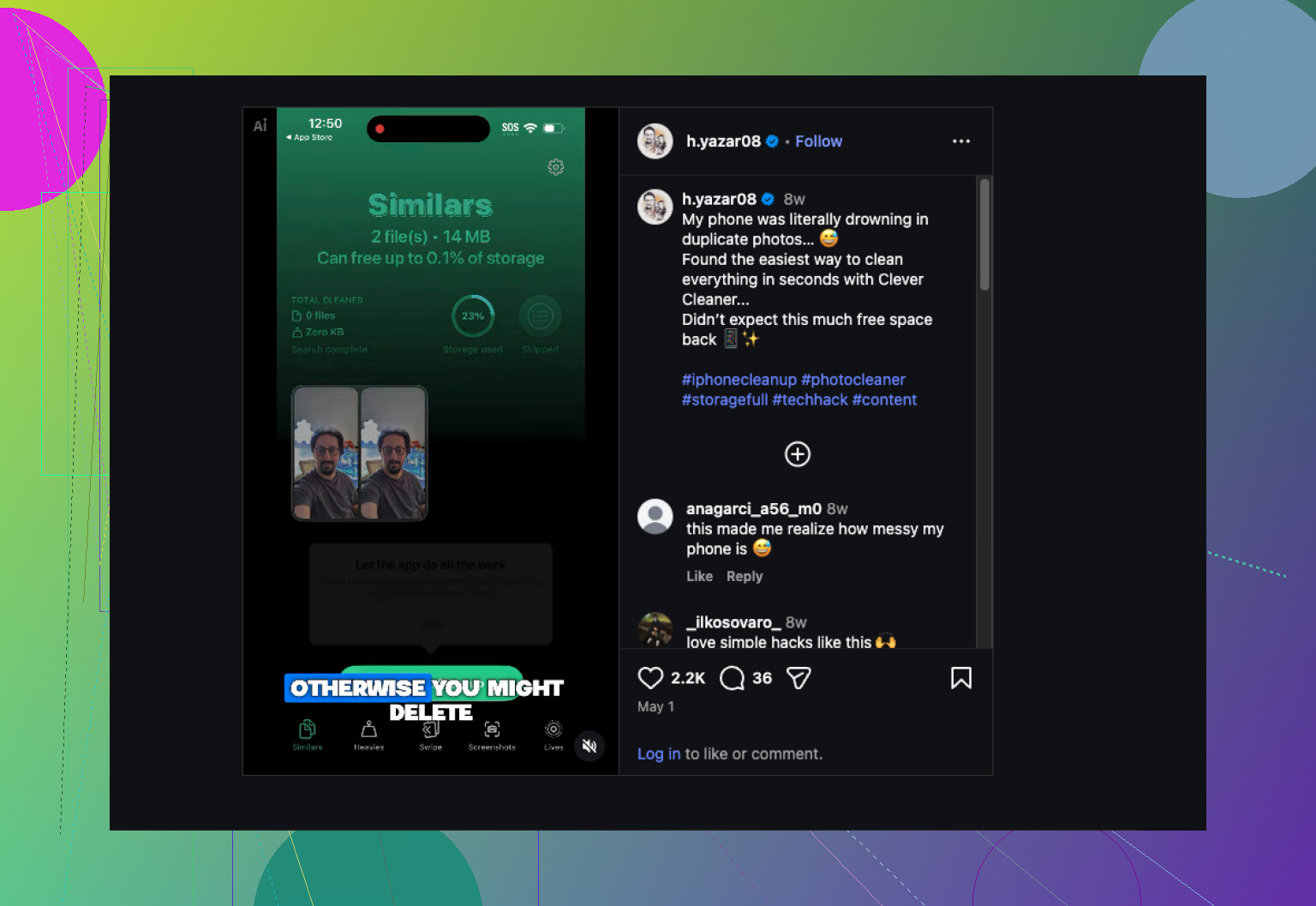
That pushed me to try Clever Cleaner. My photo library had piled up over years, somewhere in the tens of thousands, and most of the junk was similar images, not exact duplicates.
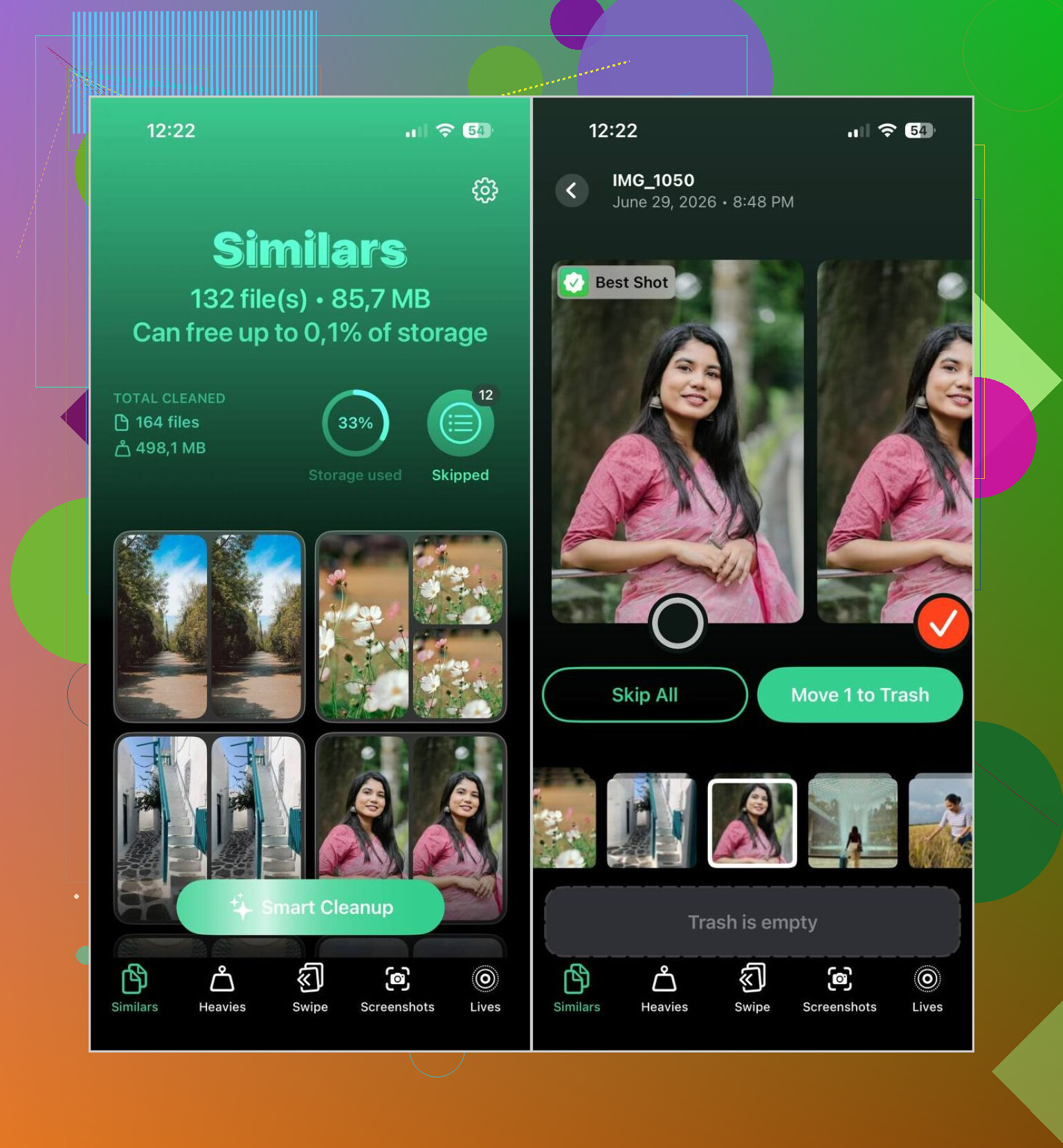
What stood out to me was how it checks the image content instead of only matching file copies. It groups near-identical photos together, marks the one it thinks is the best, and lets you keep its pick or override it. If your library is huge, this saves a lot of manual sorting.
This is the way I’ve been using it:
- Install Clever Cleaner.
- Let it scan your photo library.
- Open the Similars section.
- Run Smart Cleanup, or go group by group yourself.
- Restore anything you want to keep.
- Confirm the cleanup.
- Clear Recently Deleted if you want the storage space back right away.
For me, the AI picks were solid more often than I expected. I still check the groups before deleting stuff, because I don’t trust any app blind, but I rarely needed to change its keep suggestion.
I also kept using the extra tools, which ended up being more useful than I thought:
- Heavies shows your biggest photos and videos first, so you can spot what is eating storage.
- Video Compression shrinks large videos without throwing them away.
- Screenshots pulls old screenshots into one section, which makes cleanup faster.
- Lives converts Live Photos into still images when you don’t care about the motion part.
- Swipe gives you a quick left-right sorting flow, one month at a time.
If your issue is true duplicates, Apple’s built-in tool is enough. If your problem looks more like camera-roll clutter from similar shots, I had better luck with the second route.
1 Like
I’d be careful with merge tools if your main goal is keeping edits, album placement, and original dates. Apple’s merge works fine for true dupes, but after a restore I’ve seen it keep the “wrong” copy once or twice, usualy when one version came from Messages or another app import.
What worked better for me was this order:
- Wait 24 to 48 hours after the restore.
- Keep iPhone on Wi-Fi and charging.
- Let Photos finish indexing first.
- Check whether duplicates are local or also in iCloud Photos on another device.
- Merge in small batches, not all at once.
- Spot check edited pics and favorites after each batch.
Reason is simple. Post-restore libraries are messy for a bit. Face data, album refs, and sync status catch up later. If you merge too fast, you make cleanup harder.
I slightly disagree with @mikeappsreviewer on one part. I would not rush straight into bulk merge, even with Apple’s tool. Safer to test 10 to 20 groups first.
If your library is giant and the built-in finder misses near-duplicates, Clever Cleaner is worth a look. I’d still treat it as a second pass, not the first. This thread on the best iPhone app for removing duplicate and similar photos covers the type of cleanup you’re talking about.
Also, if albums matter a lot, make a fresh backup before touching anything. Bit boring, saves pain later.
I’m a little more cautious than @mikeappsreviewer here. Apple’s merge tool is fine, but after a restore/sync mess, I’ve seen Photos treat “duplicates” weirdly for a day or two. So my rule is: don’t clean up the same day you restore. Let the phone finish syncing, indexing, and pulling metadata back first or you can end up keeping the less-useful copy. Kinda annoyng, but real.
What I’d do:
- First, check whether the edits live in Photos edits or in a separate saved copy.
- Then compare a few duplicate pairs manually.
- If edited versions, favorites, captions, or album placement matter, test small batches only.
- If one copy is in iCloud and another is from Messages/files/import, be extra careful.
I also slightly disagree with @shizuka on backups being just “boring but smart.” For this job, a fresh backup is basically mandatory. Albums usually survive, but edge cases happen.
If Apple’s tool misses the bigger mess, use Clever Cleaner as the second pass, not the first. It’s better for similar photos and post-restore clutter than exact dupes. Also useful if your goal is to see a quick iPhone photo cleanup workflow for duplicates and similar shots.
Short version: wait, backup, test 10 to 20 merges, then scale up. Don’t just smash “merge all” and pray lol.