My iPhone storage is almost full because I have photos saved from several years, and deleting them one by one is taking forever. I’m looking for the fastest safe way to bulk delete iPhone photos by year or date range without accidentally removing anything I want to keep.
If your iPhone keeps yelling about storage, Photos is usually the first place worth checking. I thought I had already cleaned mine out, then found more than 18,000 pictures sitting there. There was no chance I was going through all of that one tap at a time, so I ended up using a few different methods depending on what kind of junk I was trying to remove.
The fastest approach depends on what you’re deleting. A small batch is fine in Apple Photos. Screenshots are easier through albums. Huge libraries are much less painful with a cleanup app or a computer.
Use the Photos app for smaller cleanup jobs
If you only need to delete a few hundred photos, or maybe clear out one trip, event, or random burst of pictures, the regular Photos app works well enough.
- Open Photos.
- Tap Select in the top-right corner.
- Drag your finger across rows of photos instead of tapping each one.
- For a big library, pinch out to the Months view first so you can grab larger groups faster.
- Tap the trash icon when you’re done selecting.
This gives you the most control, since you decide exactly what goes. The downside is that it gets annoying pretty quickly once you’re dealing with thousands of photos.
Delete whole media types when Apple already sorted them
For stuff like screenshots, screen recordings, and bursts, don’t waste time digging through your full camera roll. Photos already separates a lot of that into categories.
- Open the Photos app.
- Go to the Collections tab.
- Scroll down to Media Types.
- Open Screenshots, Bursts, Screen Recordings, or another category.
- Tap Select, then Select All.
- Delete the items.
This is one of the few spots where Apple actually gives you a Select All option, so it’s much quicker than manually dragging through everything.
Use Clever Cleaner if your library is huge
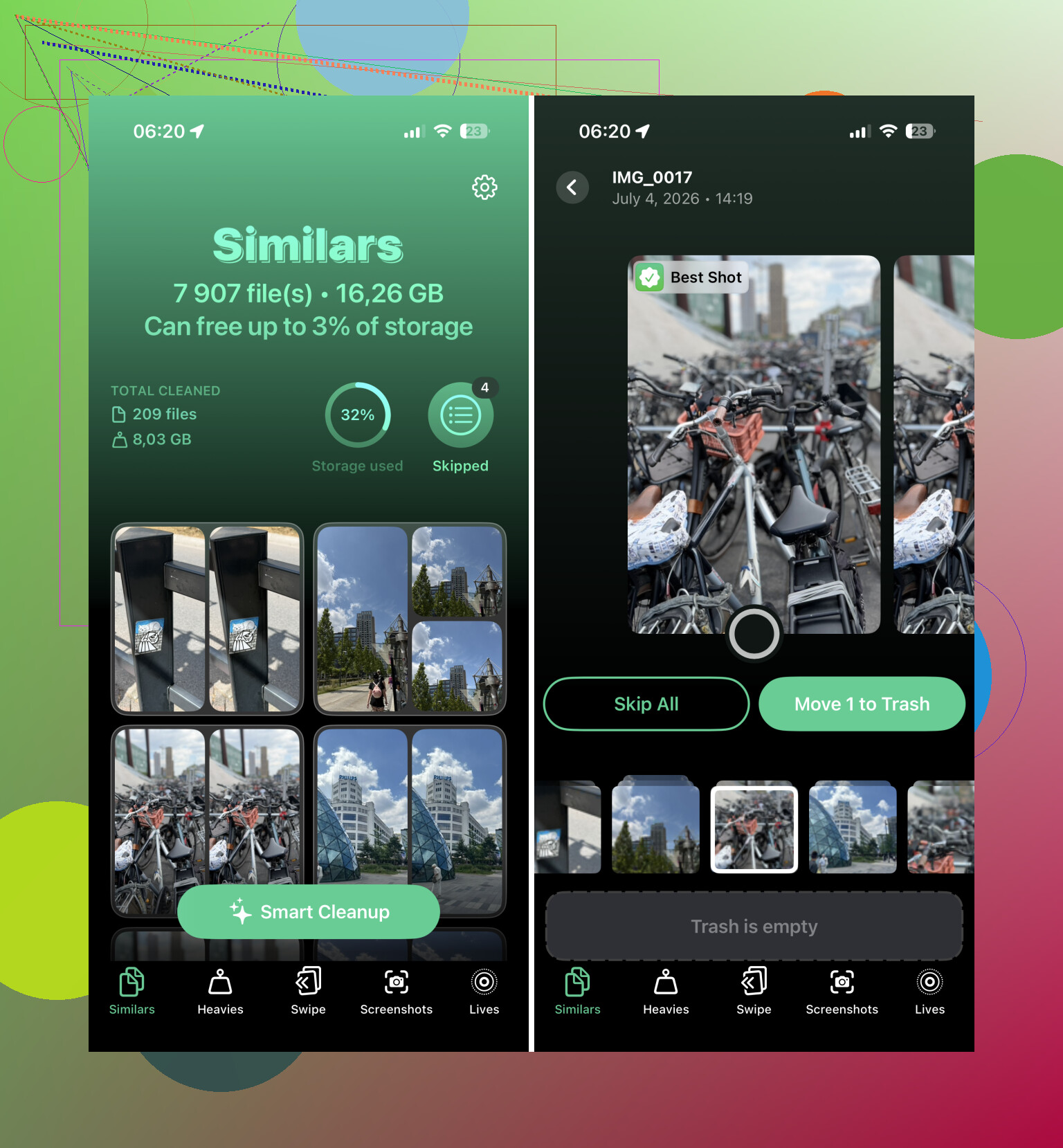
For a really large photo library, this was the biggest time saver for me. Clever Cleaner sorts your photos into cleanup-friendly groups instead of making you hunt through the whole library yourself.
- Install Clever Cleaner and open it.
- Check the Similars section, where it groups nearly identical photos and suggests the Best Shot to keep.
- Swipe away duplicate or similar shots you don’t want.
- Use the Screenshots section if you want to bulk-delete screenshots.
- Look at Live Photos if you want to turn them into regular still photos to save space.
- Check Heavies for large videos, since deleting one big video can free up more space than removing a ton of normal photos.
I’m usually skeptical of cleaner apps because a lot of them are packed with ads or push subscriptions, but this one is free and handled a large library better than I expected.
Use a computer for mass deleting
Once you’re talking about several thousand photos, a computer is just easier. A keyboard and mouse beat dragging around on a phone screen.
- Go to iCloud.com on your computer if you use iCloud Photos.
- Sign in.
- Use Shift-click to select large ranges of photos.
- Delete what you don’t want anymore.
- Wait for the changes to sync back to your iPhone.
This is especially useful if you already know you want to remove big chunks of your library.
Factory reset only if you want everything gone
If you truly don’t need any photos, files, apps, or anything else on the phone, a factory reset is the fastest way to wipe it.
- Back up anything you might want later.
- Open Settings > General > Transfer or Reset iPhone.
- Tap Erase All Content and Settings.
- Follow the prompts to erase the device.
I wouldn’t do this if there’s anything important left on the phone. But if you’re selling it, giving it away, or just want a completely clean start, this clears everything much faster than deleting photos manually.
1 Like
Deleting photos stored only on the phone is very different from deleting photos while iCloud Photos is turned on. If iCloud Photos is enabled, deleting a year from the iPhone usually means deleting it from iCloud and any other Apple device using the same library. That is fine if that’s what you want, but it’s a nasty surprise if you were only trying to clear phone storage.
For deleting by year or date range, I’d use a computer first, not the phone. Go through iCloud Photos in a browser or the Photos app on a Mac, sort by date, click the first photo in the range, Shift-click the last one, then delete. It’s much easier to sanity-check “all of 2019” on a bigger screen than while dragging your thumb around for ten minutes. Before doing that, export or download anything you might want later. A separate backup matters because Recently Deleted is not a backup.
The other thing people forget is that space may not come back right away. After deleting, open Recently Deleted and clear it there too if you need the storage now. Cleaner apps like Clever Cleaner can be useful for duplicates, screenshots, and huge videos, but I wouldn’t use any app as a substitute for making a real backup before wiping whole years. For big date-range deletion, computer plus backup is slower to set up but safer.

The sneaky downside with deleting from the Years or Months view is that it may not show everything from that year. Apple’s Photos app can hide “visual clutter” in those views, like screenshots, receipts, similar shots, and other boring stuff, so it’s not the best place to do a true “delete all of 2018” cleanup. Use it to find the year, not as your final proof that the year is empty. Apple specifically says the Years and Months views are curated, and you need the full view if you want to see every photo and video. (support.apple.com)
For doing this on the iPhone itself, I’d use Search instead of endless scrolling. Open Photos, tap Search, and type the year, like 2017, or a tighter range like August 2017. Apple’s search supports dates such as month or year, so this is usually faster than trying to manually land on the right spot in the full library. (support.apple.com)
Then tap into the results, hit Select, and drag across rows to grab big blocks. It is still not as nice as a desktop, but it beats tapping every photo. I’d do it in chunks rather than trying to select five years at once, because the Photos app can get annoying if you accidentally lift your finger or select the wrong group.
My rough order would be:
- Search for one year, like
2016. - Switch to the view that shows all results if Photos offers a summary first.
- Select a manageable chunk.
- Delete it.
- Repeat for the next chunk or next year.
- Check Recently Deleted afterward.
The Recently Deleted part matters if your goal is storage today. Deleted photos and videos normally sit there for 30 days before they are permanently removed, and you can recover them during that time unless you manually clear them. (support.apple.com)
I agree with @voyageurdubois on the iCloud warning, but I’d make it even more blunt: if iCloud Photos is on, you are not just “removing from this iPhone.” You are deleting from the iCloud Photos library, which means the deletion syncs to other devices signed in with the same Apple Account. That is great if you want the photos gone everywhere, terrible if you thought you were only freeing local space. (support.apple.com)
If you only want to make the phone stop being full, check Settings > Photos first. If iCloud Photos is on, “Optimize iPhone Storage” may be the better move than deleting whole years. It keeps smaller versions on the phone and full versions in iCloud. That does not help if your iCloud storage is full too, but it’s the safer option when you still care about the pictures.
Clever Cleaner and similar apps are better for the messy stuff, like duplicates, screenshots, and giant videos. I would not use any cleaner app as the main tool for “delete every photo from 2020 through 2022,” because date range cleanup needs your eyes more than an algorithm. But it can be useful after the big deletion pass, especially for videos, since a few long clips can take more space than hundreds of regular photos.
For the fastest safe method, my vote is still: computer for huge year ranges, iPhone Search for smaller year/month chunks, and clear Recently Deleted only after you are sure. The extra five minutes of checking is cheaper than realizing a synced library wiped the only copy.