My SD card suddenly says it’s corrupted and needs to be formatted, but it has all my photos on it. I can’t open the files on my phone or computer, and I really need help recovering the pictures without losing everything. What should I try first to fix the corrupted SD card and save my photos?
I’ve been burned by bad SD cards enough times that I stopped treating the first pop-up as helpful. If your camera, phone, or PC says the card needs formatting, pause there. Don’t do it yet if your photos, clips, or docs still matter to you.
The first thing I do is stop using the card. No more shots, no file copies, no retries if I can avoid them. Every write cuts into your odds of getting clean recovery.
My order is always the same. Recover data first. Try repairs after.
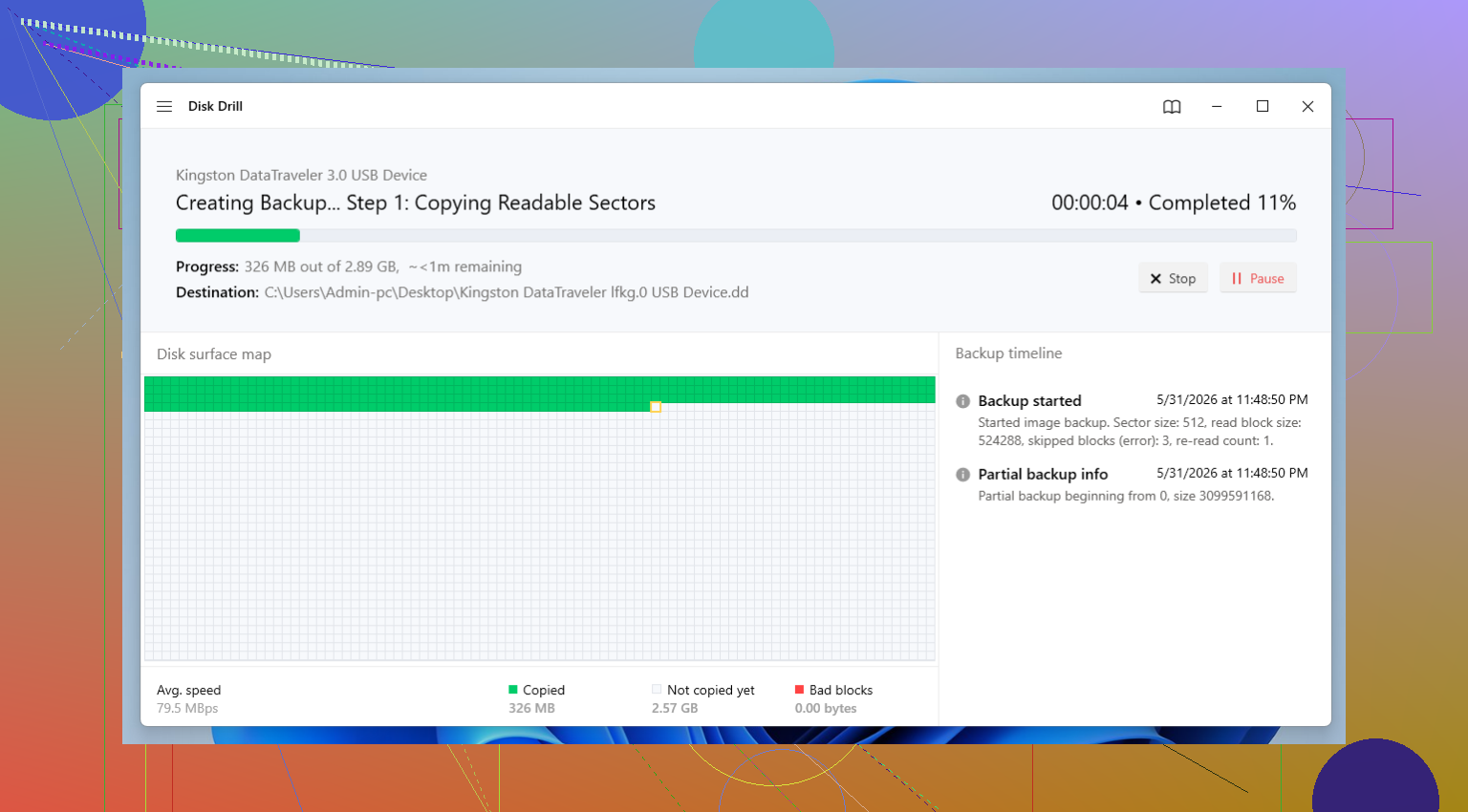
For recovery, I stick with dedicated tools instead of random fixes built into the OS. The one I’ve had the best luck with is Disk Drill. I used it on deleted files, cards Windows called RAW, and cards with file systems gone sideways. The part I like most on flaky media is the byte-to-byte backup option. If the card keeps disconnecting or feels like it’s dying, make an image first, then scan the image. You put less stress on the original card, which matters.
After the scan, check previews, recover what you need, and save everything to a different drive. Not back onto the same SD card. I know that sounds obvious, but I’ve seen people do it in a panic.
Method 1: Rule Out the Reader
I’d start here because this one wastes the least time. A bad adapter or card reader can look like card corruption.
- Take the SD card out and try a different reader or adapter.
- Plug it into another USB port.
- If you have access to another computer, test it there too.
I’ve had cards look dead on one laptop and open fine on another. Cheap readers do fail. More than people think.
Method 2: Give It a Drive Letter in Windows
Sometimes the card shows up in Disk Management but not in File Explorer. Windows sees it, then forgets to assign a letter.
- Press Windows + X, then open Disk Management.
- Find the SD card in the list.
- Right-click its partition and choose Change Drive Letter and Paths.
- Pick Add or Change.
- Assign an unused letter, then click OK.
Then check File Explorer again.
Method 3: Use Windows Error Checking
This is the simple built-in repair step. Sometimes it fixes small file system damage and saves you from doing more.
- Open File Explorer.
- Right-click the SD card and open Properties.
- Go to the Tools tab.
- Click Check under Error Checking.
- Let Windows scan and repair what it finds.
If the problem is minor, this might be enough.
Method 4: Run CHKDSK
If the point-and-click tool doesn’t help, I move to CHKDSK. It’s more direct, and sometimes ugly, but it has saved cards for me.
- Insert the card and note the drive letter.
- Search for Command Prompt.
- Right-click it and run it as administrator.
- Type chkdsk X: /r, replacing X with the SD card letter.
- Press Enter and wait.
I’d still be careful here. CHKDSK is a repair tool, not a recovery tool, so I’d only run it after pulling off the files you care about.
Method 5: Restore the Partition with TestDisk
If the partition is missing or the card shows as unallocated, TestDisk is worth trying. It’s not friendly. It works, though.
- Download and open TestDisk.
- Select the SD card.
- Accept the partition table type it suggests.
- Choose Analyze, then run Quick Search.
- Look through the partitions it finds.
- If you spot the right one, use Write to restore the partition table.
I fumbled through TestDisk the first time. The menus feel old and a bit rough. Still one of the better free options if your partition vanished.
Method 6: Format the Card
If none of the repair steps pan out, format is the last move. Last, not first.
- Open File Explorer.
- Right-click the SD card and choose Format.
- Pick exFAT for most newer SD cards.
- Leave allocation unit size on default.
- Click Start.
By this point, your important files should already be copied elsewhere, so formatting isn’t wiping your only copy.
One more thing. If a card corrupts, gets repaired, then corrupts again a week later, I stop trusting it. I’ve tried giving cards a second life for dashcams and throwaway transfers, and even then some of them kept acting weird. Flash storage wears out. Repeated corruption is often the warning sign. If the files matter, replace the card and move on. Saves a lot of pain later, tbh.
1 Like
Do not format it yet. I know @mikeappsreviewer already covered the usual recovery-first flow, and I agree with most of it. I only differ on repair timing. I would avoid any repair command until I know the photos are copied off. File system fixes sometimes reshuffle damage and make photo recovery worse.
My order:
- Lock the card if it has the tiny write switch.
- Put it in a stable reader, not your phone.
- Check if the computer sees the card size correctly. If a 128GB card shows 0 bytes or nonsense capacity, this points more to hardware failure.
- Make a full image of the card first if the card disconnects, freezes, or reads slow.
- Scan the image, not the card, with Disk Drill or PhotoRec.
- Recover files to your computer’s internal drive.
PhotoRec is ugly, but it ignores the broken file system and hunts by file signatures. That helps when folders are gone. Downside, file names and folder structure often get trashed. Disk Drill is easier if you want previews and sorting before recovery.
If your photos came from an Android phone, also check whether they were syncing to Google Photos, OneDrive, iCloud, Dropbox, or the camera brand’s app. People forget this step all the time and spend hours recovering files they already had in the cloud.
One more thing people miss. Clean the card contacts with a dry microfiber cloth. No liquids. A dirty contact edge causes read errors more often than you’d think.
If the card gets hot, disconnects a lot, or makes Windows hang, stop messing with it. That usually means the card is dying, not ‘corrupted’. At taht point, image first or send it to a pro if the photos matter a ton.
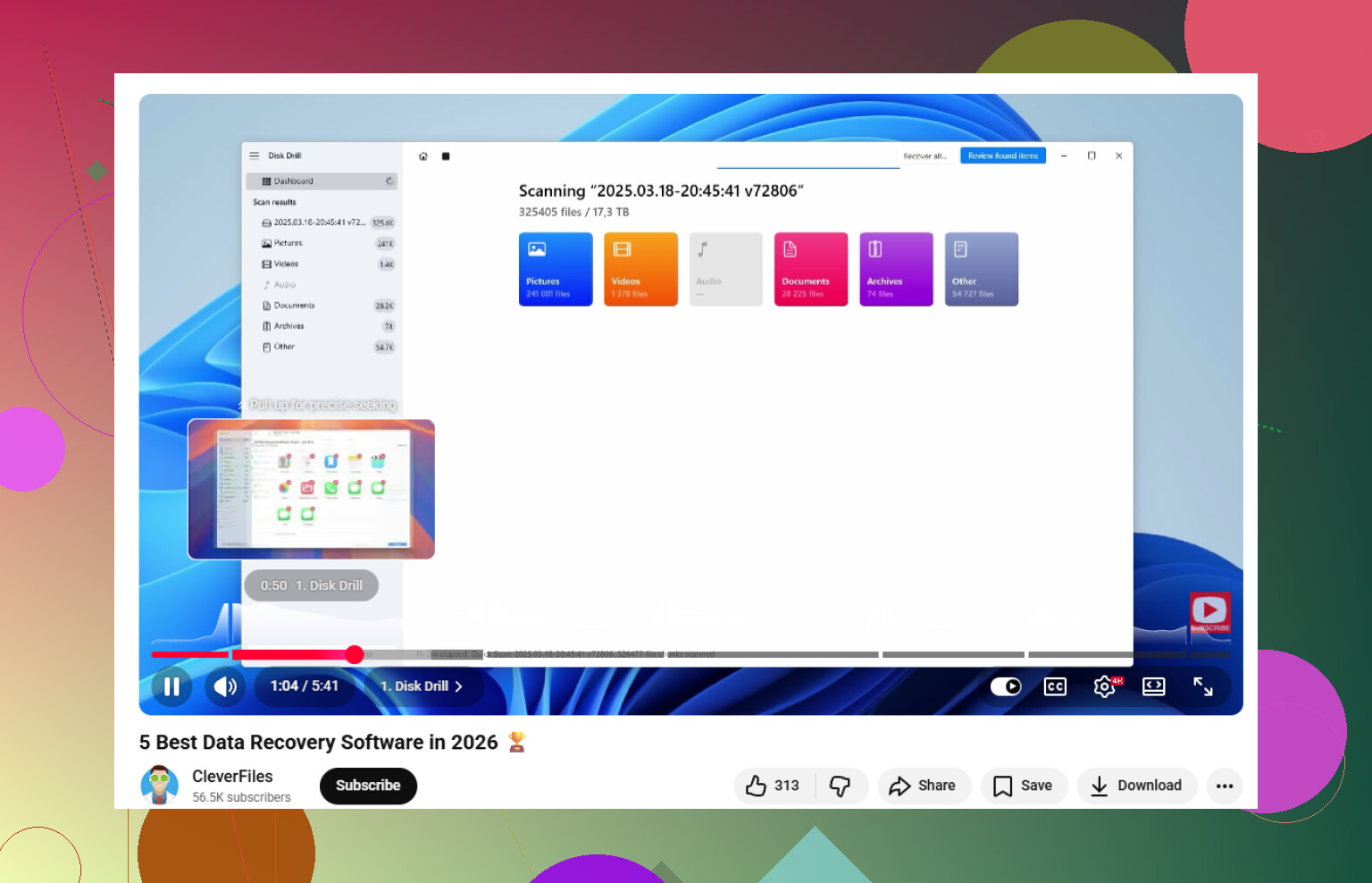
If you want a solid walkthrough for recovering photos from a corrupted SD card, this video helps: a top data recovery software guide for SD card photo recovery.
Don’t try to “fix” the card first. That’s the part I slightly disagree on when people rush into CHKDSK or repair tools. @mikeappsreviewer and @vrijheidsvogel are right about recovery-first, but I’d be even more strict about it: if the photos matter, treat the card like evidence, not storage.
A couple things I’d add that haven’t been stressed enough:
- Check the card on Linux if you can. Sometimes Windows throws the format message way too fast, while Linux can still mount it read-only and let you copy files.
- If the card came from a phone, connect the phone by USB and see whether the pics are still visible through DCIM/MTP. Weirdly, I’ve seen that work when a direct card reader didn’t.
- Look at Event Viewer in Windows for disk/read errors. If you’re getting I/O errors, CRC errors, or constant disconnects, stop poking it. That usually means physical failure, not just file system corruption.
- If the card is microSD in a full-size adapter, replace the adapter first. Those things fail alll the time.
My move would be:
- Stop using it.
- Test a different adapter/reader/computer.
- If it shows the correct size, make an image or at least scan with recovery software.
- Recover files to another drive.
- Only after that, try repairs or reformatting.
For actual recovery, Disk Drill is a solid pick because it’s easier to sort through photos and preview what’s salvageable. If the file system is toast, signature-based recovery can still pull JPG/MP4/RAW files even if folders are gone. Just expect filenames may be a mess.
Also, before spending hours on recovery, check cloud sync. Google Photos, iCloud, OneDrive, Dropbox, Samsung gallery sync, camera app backup. Boring step, but sometimes it saves your butt.
If the card gets super slow, hot, or keeps vanishing, that’s not “corruption,” that’s a dying card. At that point, less messing around = better odds.
For more practical reading on best ways to recover photos from a corrupted SD card, that thread is worth checking too.