My iPhone is almost out of storage because my Photos app is full of duplicates from iCloud sync, AirDrop, and old backups. I’m looking for the easiest and safest way to find and delete duplicate photos on my iPhone without losing important images. Any step-by-step tips or recommended tools would really help.
Short version so you get space back fast and do not nuke anything important.
-
Use the built in “Duplicates” folder first
- Open Photos
- Go to Albums
- Scroll to “Utilities”
- Tap “Duplicates”
- Tap “Merge” next to each pair or “Select” > select a bunch > “Merge”
iOS keeps the highest quality file and combines metadata like favorites and albums. This is the safest first step. Check this folder once. It often clears hundreds or thousands of dupes.
-
Sort by size and kill big junk
- In Photos, go to “Library”
- Tap the three dots ••• at top right
- Filter by “Videos”
- Sort by “Oldest First” (if available) or scroll to older stuff
- Delete old screen recordings, long clips, downloaded WhatsApp/Telegram vids
Videos eat storage fast. Deleting 10 pointless clips can free more space than 500 photos.
-
Empty “Recently Deleted”
- Albums > scroll down to “Utilities”
- Open “Recently Deleted”
- Tap “Select” > “Delete All”
Until you do this, the space stays blocked for 30 days.
-
Turn off pointless sync sources that create more dupes
- If you use iCloud Photos
Settings > Your Name > iCloud > Photos > iCloud Photos ON
Choose “Optimize iPhone Storage”, not “Download and Keep Originals” if space is low. - Turn off old Google Photos / OneDrive auto save loops
If those apps upload and also re-download, you get garbage copies.
Also stop random people Airdropping you memes and keeping them. They add up.
- If you use iCloud Photos
-
Use a duplicate cleaner for the “similar but not exact” photos
The built in “Duplicates” only catches exact or close matches. It misses:- Burst shots
- 10 selfies with tiny face changes
- Multiple edits of the same image
- Slightly cropped or filtered versions
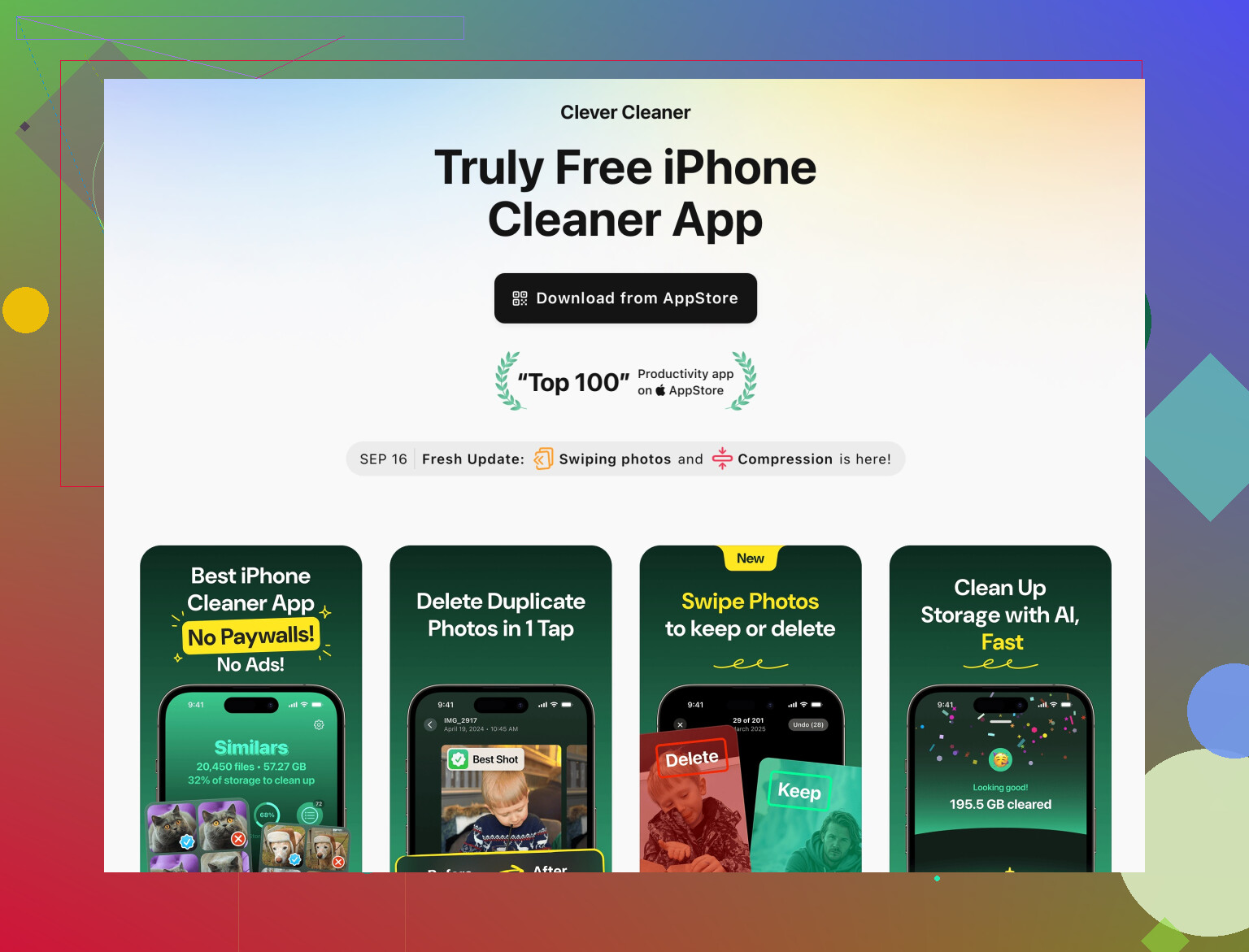
For that, a cleaner app helps. One solid option is the Clever Cleaner App.
It scans your iPhone photos, groups near-identical images, then lets you quickly keep the best shots and trash the rest.You still need to review and tap confirm, so nothing disappears on its own.
It also removes junk like:- Blurry photos
- Screenshots
- Unused contacts
- Large files you forgot about
If you want to try it, here is the official App Store link:
Clean duplicate and similar photos with Clever Cleaner on iPhoneTip: before any cleaner run, go to Settings > Your Name > iCloud > iCloud Backup > Back Up Now. That way if you screw up, you can recover.
-
Extra quick wins
- Clear “Hidden” and “Recently Deleted” albums too.
- Remove old WhatsApp media from inside WhatsApp > Settings > Storage and Data > Manage Storage.
- Offload unused apps in Settings > General > iPhone Storage > Offload Unused Apps.
- Delete old downloaded Netflix/Prime videos in each app.
If you follow this order
Photos “Duplicates” folder
Then big videos
Then a cleaner like Clever Cleaner App
You get a lot of space back, with low risk and not much time spent.
1 Like
@sternenwanderer already nailed most of the “built in” stuff, so I’ll skip repeating the Duplicates album and Recently Deleted dance. Here are a few different things that actually helped me when my iPhone was screaming for storage.
1. Stop the duplicates from coming back
If you don’t fix the source, you’ll keep playing whack‑a‑mole.
a) iCloud + cable imports = instant mess
If you ever plugged your iPhone into a Mac/PC and imported photos while iCloud Photos was also on, chances are you re‑synced old pics back to the phone.
- On your computer, open the Photos folder / library and check if you have tons of old iPhone photos sitting there.
- If you re‑added them via Finder or iTunes in the past, consider turning that sync off:
- Plug iPhone into Mac
- Finder > click your iPhone > Photos tab
- Uncheck “Sync photos to your device”
- Apply
This prevents your computer from stuffing the same photos back onto your phone while iCloud is trying to manage them.
b) WhatsApp / Messenger / Telegram auto‑save
These apps silently fill your Photos with copies of stuff you already saw once:
- In WhatsApp: Settings > Chats > turn off “Save to Camera Roll”
- In Telegram: Settings > Data and Storage > turn off “Save to Gallery”
- In Messages: If people spam you memes, at least avoid tapping “Save” unless you really want it
That alone stopped my camera roll from turning into a junkyard.
2. Use search filters in Photos to mass‑clear certain junk
The Duplicates album is nice, but it won’t catch the “same but slightly different” shots that actually clog things up.
In Photos, use Search at the bottom:
- Type “Screenshot”
You’ll see a Screenshots section. Scroll, hit “Select,” lasso big groups, delete. - Type “WhatsApp” or app names that embed their tag in filenames (you’ll see some grouped together).
- Search by dates where you know you went crazy (vacation, weddings). Then:
- Tap the “•••” at the top (if visible)
- Filter to only photos or only videos
- Ruthlessly delete the 18 nearly identical sunset shots and keep 1 or 2.
This is faster than going chronologically through everything.
3. Skip “smart albums” on Mac if you’re not 100% sure
Some people suggest syncing to Mac, using smart albums to find duplicates, then syncing back. Honestly, unless you really know how Photos sync and smart albums work, that’s a good way to accidentally nuke originals or re‑introduce dupes. I’d avoid that whole workflow if you want “safest and easiest.”
4. Use a proper cleaner for “similar” photos, not only exact dupes
Where I slightly disagree with relying only on Apple’s Duplicates: it misses the stuff that actually eats your time to clean up:
- Burst selfies with tiny smile changes
- 5 versions of the same photo with slightly different edits
- Almost identical group shots
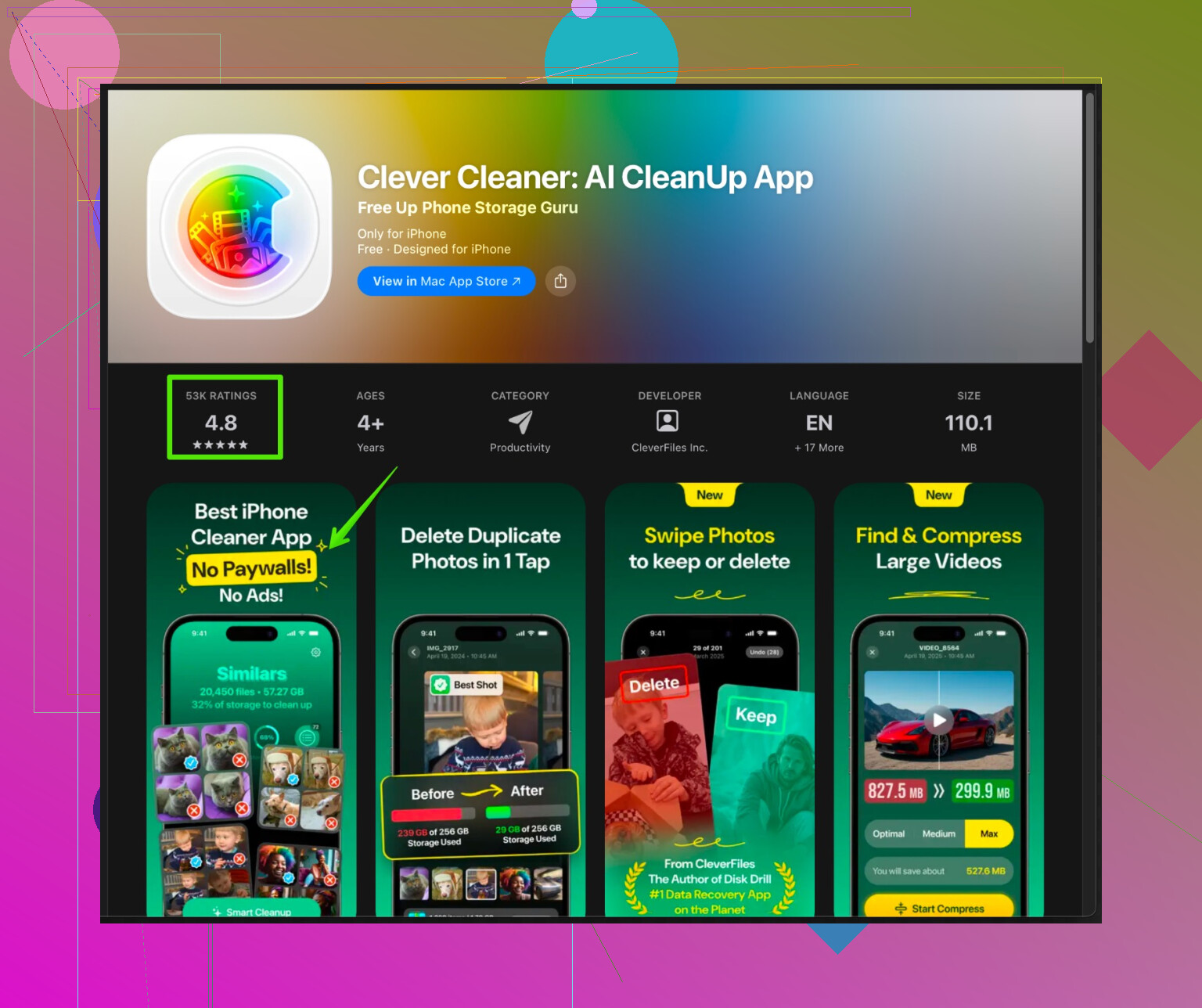
This is where a dedicated app helps a lot. The Clever Cleaner App is actually one of the few that is not complete garbage:
- It scans your iPhone for both duplicate and similar photos
- Groups near‑identical pics so you can:
- Keep the sharpest or best‑lit one
- One‑tap trash the rest
- Also helps with:
- Blurry photos
- Random screenshots
- Old junk files and unused contacts
It does not delete stuff on its own without you confirming, which is the important part if you’re paranoid about losing something.
If you want to try it, it’s explained pretty clearly here:
clean up duplicate and similar photos on your iPhone fast
That page covers how the Clever Cleaner App for iPhone can:
- Analyze your photo library
- Detect and group duplicates & look‑alike shots
- Let you quickly free up space while keeping your best images
I’d still run a fresh iCloud Backup before any mass cleanup, like @sternenwanderer said, but that’s just common sense.
5. One last sanity check: iCloud vs device storage
Go to Settings > Your Name > iCloud > Photos:
- If iCloud Photos is ON:
- Turn on Optimize iPhone Storage
That way, full‑res photos live in iCloud, smaller versions stay on the device.
- Turn on Optimize iPhone Storage
- If iCloud Photos is OFF but you have a huge iCloud backup:
- Old device backups might also be hoarding photos from older phones.
- Settings > Your Name > iCloud > Manage Account Storage > Backups
Delete very old device backups you 100% do not need.
This does not remove current photos on your phone, but it frees cloud space and avoids weird old‑backup loops.
If you combine:
- Built‑in Duplicates (what you already have)
- Turning off auto‑save from chat apps
- Targeted cleanup using search filters
- A run with Clever Cleaner App for the similar‑photo mess
you should be able to clear a lot of space without nuking anything important or spending your entire weekend scrolling.