I accidentally deleted important photos from my Canon camera before backing them up, and I really need help getting them back. The memory card is still in the camera, and I have not taken any new pictures because I do not want to overwrite anything. What is the best way to recover deleted Canon camera photos safely?
I’ve run into this with Canon SD cards more than once, and the first move is boring but important. Stop using the card now. Every new shot, even a throwaway test pic, eats into your odds of getting the old files back.
If you want the best shot at recovery, do this first and do it in this order:
- Don’t take any more photos. One new file is enough to overwrite old data.
- Don’t poke around in the camera menus trying random fixes. Even normal camera activity risks extra writes to the card.
- Don’t format the card. If your computer pops up a format message, cancel it.
- Pull the SD card out of the camera. If it has a little lock switch on the side, flip it to read-only and leave it there until you scan it on a computer.
Why deleted photos sometimes come back
Canon cameras don’t keep a trash folder on the card. When you delete a photo, the camera usually marks the space as free instead of wiping the photo data right away. So the image often still sits there for a while. The problem starts when new data lands on top of it. Once overwritten, it’s gone for real.
One quick thing I’d check before messing with recovery tools is the image.canon app, if you had it connected before. Sometimes there’s a cloud copy sitting there for up to 30 days. If nothing shows up there, move to recovery software.
Use a computer and a USB SD card reader. Don’t connect the Canon body with a USB cable for this. I’ve had better results treating the card as its own device.
A couple tools worth trying
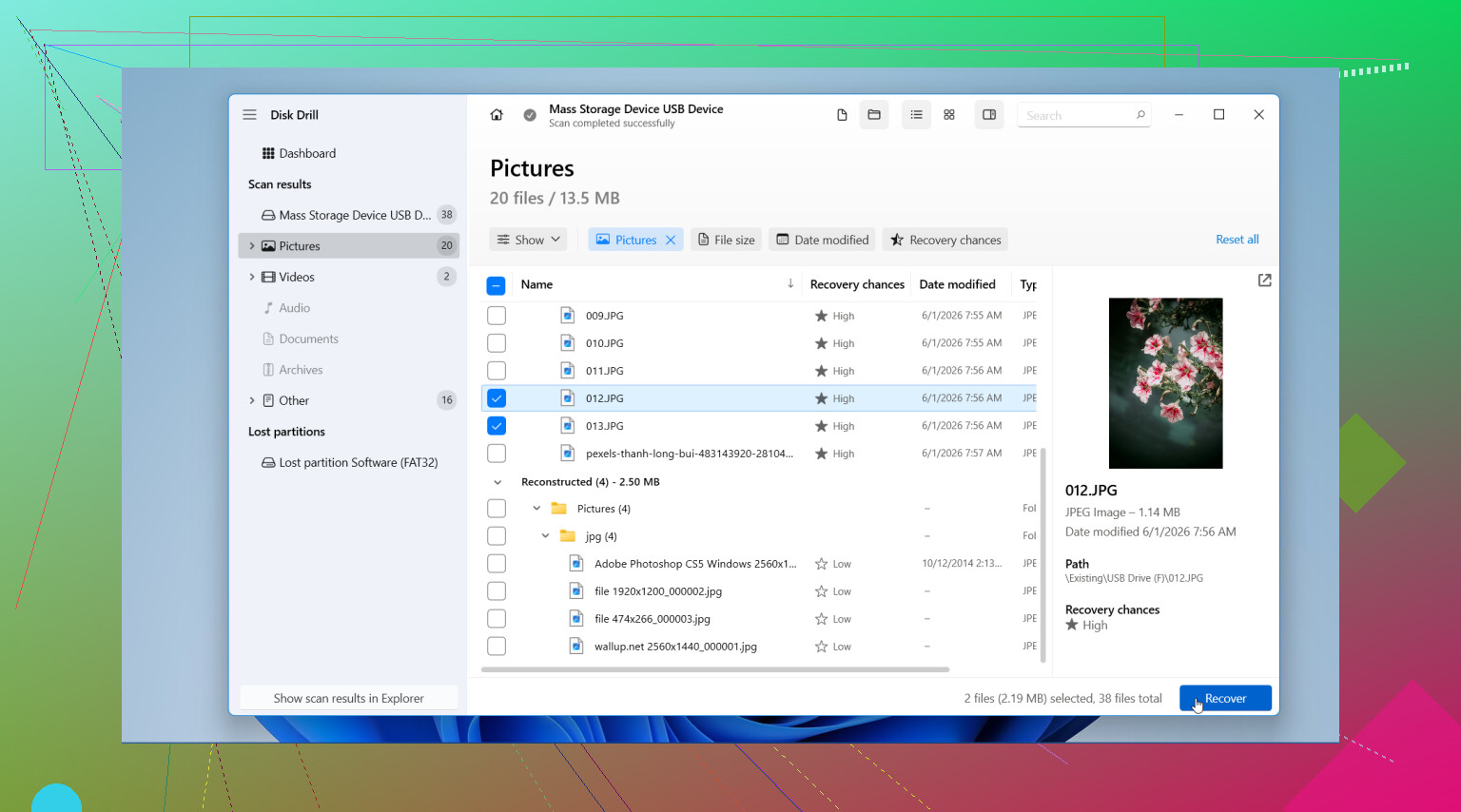
This is the one I’d start with. The layout is clean, it’s easy to sort through results, and it tends to do well with photo recovery from SD cards. It also handles Canon RAW files like CR2 and CR3, which matters if you didn’t shoot JPEG only. Preview works well too, so you can check files before restoring them. On Windows, the first 100MB is free, which is enough for a quick test run.
- PhotoRec
If you don’t want to spend anything, this one is solid. It’s open-source and digs deep. The downside is the interface. It runs in a text window, and the file names usually won’t come back the way they were. It works, but it feels old-school and a bit unforgiving if you haven’t used tools like this before.
How I’d do the recovery
- Install the recovery app on your computer drive, not on the SD card.
- Put the card into a USB card reader and start a scan.
- Wait. Big cards take a while, and some scans crawl.
- Filter results to images so you’re not sorting through junk.
- Preview what it finds before restoring anything.
- Save recovered files to a different drive. Not the same SD card. If you write recovery output back onto the card, you risk wiping out the stuff you’re trying to save.
If you stay careful, your odds are still decent. I’ve seen cards look hopeless and still give back most of the photos. After you recover what matters and make backups, then format the card in the camera before using it again.

1 Like
You did the most important part already. You stopped shooting. That keeps your odds decent.
I agree with @mikeappsreviewer on avoiding new writes to the card, but I’d add one thing first. Check every place the photos might already exist before you run recovery. Look at your computer imports, phone gallery, Adobe Lightroom cache, Google Photos, OneDrive, Dropbox, and Canon image.canon if you ever turned it on. I’ve seen people spend an hour scanning a card for pics they already had synced.
If the files are only on the SD card, use a card reader and scan the card on a computer. I’d start with Disk Drill because it handles Canon photo formats well, including CR2 and CR3, and the preview helps you spot the right files fast. If a quick scan misses stuff, run a deep scan. Deleted photos often show up there.
One place I slightly disagree with the usual advice, don’t spend too long trying a bunch of different recovery apps one after another. Some tools nag you into “repairing” the card or writing temp data. Pick one solid option first, scan, recover to your computer, then review.
A few practical tips:
- Recover to your desktop or external drive, never back to the SD card.
- Sort results by file type and date.
- RAW files are often bigger, so be patient. A 64GB card scan often takes 20 to 60 minutes.
- If filenames are gone, use thumbnails and capture times to identify shots.
Also, this short guide on SD card photo recovery is worth a look:
easy SD card recovery tips for deleted camera photos
If Disk Drill finds previews, your chances are prety solid. If it finds nothing, stop messing with the card and look into a pro recovery shop before doing enything else.

Since you have not taken new photos, you still have a real shot at getting them back. That part matters more than people think.
I mostly agree with @mikeappsreviewer and @espritlibre, but I’d be a little more strict about one thing: I would stop using the camera entirely until the card is out. Even turning it on repeatedly can trigger small writes on some models. Paranoid? Maybe. But deleted-file recovery is basicly a race against overwriting.
A couple extra things to try that they did not really get into:
-
Check if the photos were “protected” in-camera before deletion
Some Canon bodies handle protected images differently in playback behavior. It usually won’t save you from deletion if they’re truly gone, but if you deleted from a filtered view or only one folder, make sure you browse the whole card structure on a computer. I’ve seen images “missing” that were just in a different DCIM subfolder. -
Make an image of the SD card first
If the photos are very important, the safer move is to clone the card to an image file before scanning. Then run recovery against the image, not the physical card. That way, if the card starts acting weird or a tool misbehaves, you still have the original data frozen in time. This is the part most casual guides skip. -
If your Mac or PC offers to “fix” the card, say no
Repair tools can sometimes change the file system enough to make later recovery harder. People click that stuff out of habit and then wonder why results got worse.
For software, Disk Drill is still a sensible pick because it’s easy to preview Canon JPG, CR2, and CR3 files and recover them to another drive. That preview feature is honestly the big time-saver. If it shows proper thumbnails, your chances are usualy decent.
One more thing worth reading if you want more Canon-specific memory card recovery discussion: Canon camera SD card photo recovery advice from Reddit
If Disk Drill or another scanner finds nothing at all, don’t keep hammering the card with app after app. That’s where I slightly disagree with the “try everything” mindset people sometimes have. At that point, a pro recovery service is the smarter next step. More expensive, yes, but if the pics matter, worth considering.
One angle I’d add to what @espritlibre, @viajeroceleste, and @mikeappsreviewer said: check whether you deleted only the index, not the image data the camera can still’t display. Some Canon cards end up with broken folder records, and recovery apps find more if you scan by file signature instead of relying on the card’s directory tree.
So my order would be slightly different:
- Take the card out and leave it out.
- If the photos are critical, make a byte-for-byte image of the SD card first.
- Run recovery on the image, not the card.
- Use one tool that can do both deleted-file scan and RAW signature scan.
Disk Drill is fine for that because it previews Canon JPG/CR2/CR3 well.
Pros:
- easy to use
- preview is genuinely useful
- handles RAW formats nicely
- less painful than command-line tools
Cons:
- free recovery is limited on some systems
- deep scans can return messy filenames/folders
- not always the strongest option if the card has serious file system damage
Small disagreement with the usual advice: I would not spend too much time checking every sync app unless you know you enabled them. If this happened recently, the best odds are still on the SD card itself.
If recovery finds partial files, save everything anyway. JPEGs can sometimes be repaired later even when they look broken at first.