I found a large batch of older iPhone photos that were saved as Live Photos, and I want to disable the Live setting on all of them without editing each one individually. I need a quick way to bulk turn off Live Photos to save time and make my photo library easier to manage.
Live Photos looked neat when I first used them. Then my storage started disappearing. They sit in this awkward middle spot, bigger than a normal photo, less useful than a real video. For most stuff, I’d rather keep a plain image or record a proper clip and be done with it.
The annoying bit is how easy they stack up. You forget the Live toggle is on, snap a pile of random shots, and later your library is full of tiny motion files you never meant to keep. The fix is simple enough. You don’t need to trash everything. You can pull out the still frame and keep it as a standard photo.
TL;DR
If you only need to fix a handful, use the Photos app and pick Duplicate as Still Photo. If you want to stick with Apple’s own tools and don’t mind a little setup, use Shortcuts. If your library is a mess with hundreds or more, Clever Cleaner is the quickest route because it handles conversion and cleanup in one pass.
1. Duplicate as Still Photo
Best for: a small number of Live Photos.
What happens: Photos saves the still frame as a separate regular image. The original Live Photo stays where it is. I liked this part when I wanted to compare results first. The tradeoff is obvious, storage doesn’t go down until you remove the original yourself.
Steps:
- Open the Live Photos album in Media Types.
- Tap Select, then choose the shots you want.
- Hit the three-dot menu.
- Tap Duplicate.
- Pick Duplicate as Still Photo.
Keep this in mind: this makes a second file. It does not free space on its own. If your goal is storage cleanup, delete the original Live Photos after checking the copies, then clear Recently Deleted too. If you skip tha part, iPhone keeps those files around for 30 days.
2. Cleaner apps
Best for: big libraries with a lot of old Live Photos.
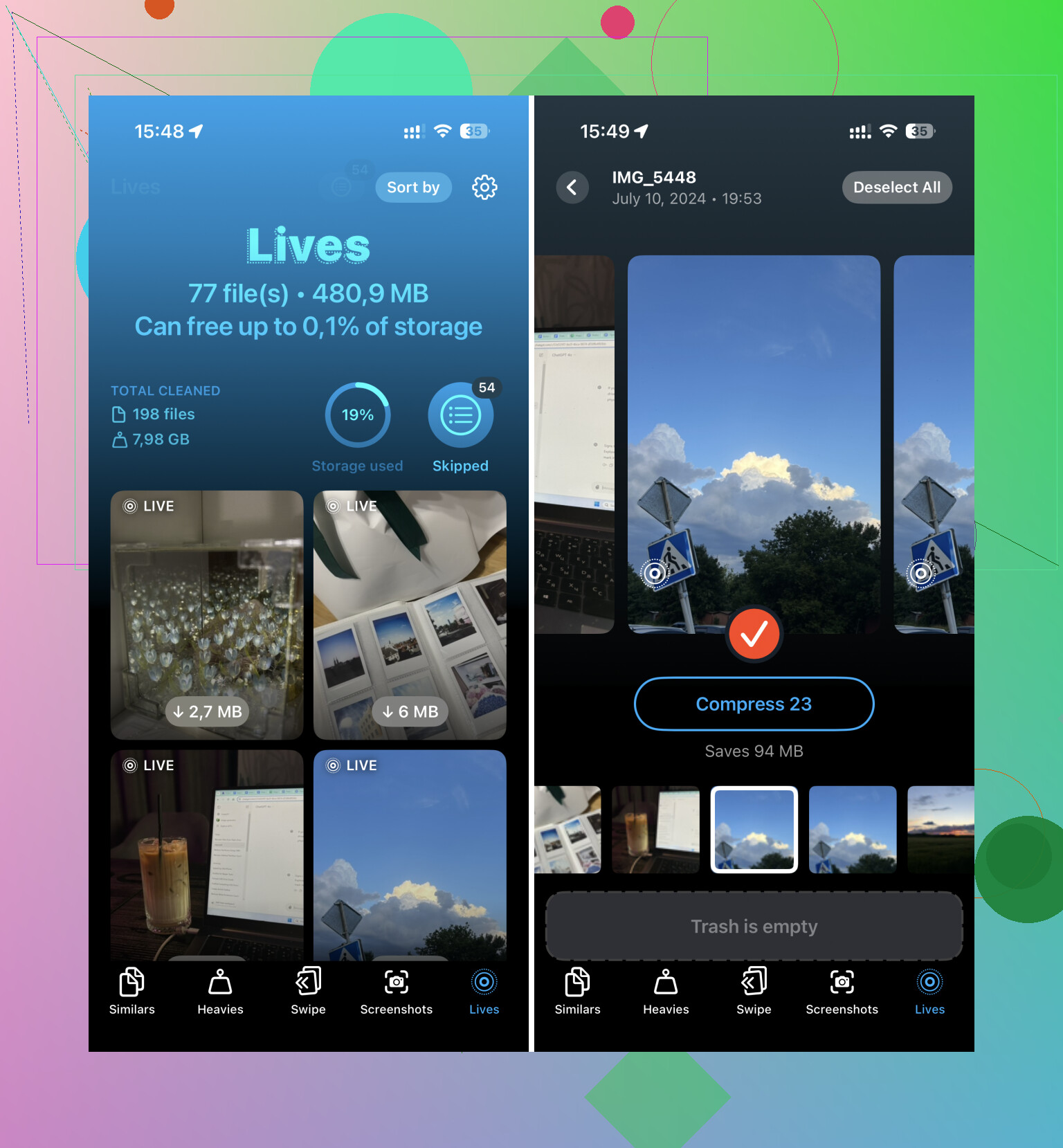
What happens: Clever Cleaner made more sense for bulk cleanup when I looked at the options. It has a Lives section, scans the moving photos, shows what is eating the most space, and lets you turn them into stills in one workflow. The useful part is you don’t have to bounce back and forth doing manual cleanup after each batch. It also helps remove the original motion versions.
Steps:
- Open Clever Cleaner.
- Go to the Lives section.
- Sort by date or file size.
- Tap Select All if you want to handle the whole batch.
- Tap Compress.
- Check the storage estimate.
- Choose whether to delete the original Live Photos or leave them in temporary trash first.
Keep this in mind: even though the button says Compress, the end result is a high-quality still image with the motion part removed. If your main goal is to clear space fast, this is the least tedious option I found.
3. Shortcuts app route
Best for: people who want to stay inside Apple’s own system and don’t mind setting up a shortcut once.
What happens: this method automates the boring part. Instead of opening Live Photos one by one, Shortcuts finds them and saves still versions as normal image files. It gives you more control than the built-in duplicate option. It also takes longer to set up, and you still have to delete the originals on your own after.
Steps:
- Open Shortcuts and create a new shortcut with the + button.
- Add Find Photos.
- Set the filter to Photo Type is Live Photo.
- Add Repeat with Each.
- Inside the loop, add Convert Image and choose JPEG or HEIF.
- Add Save to Photo Album.
- Run the shortcut.
Keep this in mind: this saves new still copies, but it does not remove the original Live Photos. You still need to go back into the Live Photos album and delete those manually if you want the space back.
After you clean up the old ones, turn Live Photo off so the problem doesn’t creep back in. Open Camera, switch Live Photo off, then check Settings > Camera > Preserve Settings > Live Photo. If that setting is enabled, your iPhone remembers your choice instead of quietly flipping Live Photos back on later. That one setting saved me from doing this cleanup twice.
1 Like
There isn’t a true Apple one-tap switch for old Live Photos. Apple lets you turn Live off for new shots, not bulk-remove the motion part from photos already saved. So if you want all the old ones changed at once, your best path is a batch conversion workflow.
I’d push back a bit on @mikeappsreviewer here. Shortcuts is fine for tinkerers, but for a big library it gets clunky fast, and you still end up cleaning duplicates after. Photos app duplication is even slower if you have hundreds.
What worked better for me was Clever Cleaner. It groups Live Photos, lets you sort older ones first, then batch-convert them into still images so your library shrinks without tapping each photo one by one. If your goal is storage, this is faster than making copies and hunting down originals later. It also helps you clean iPhone storage by finding large media, duplicate shots, and other space hogs in the same app, which saves time.
If you want to see a walkthrough, this helped: watch how to clean up Live Photos and free iPhone storage
One more thing. After you fix the old pics, turn off Live in Camera and enable Preserve Settings. Otherwise iOS loves to sneak it back on. Super annyoing.
There’s no real Apple “convert all existing Live Photos to regular photos” button, which is the part that annoys everybody. So on the core question: no, not natively in one tap.
I kinda disagree with @mikeappsreviewer on one thing though. Duplicating as still photo is fine for testing, but for a huge batch it’s more of a workaround than a solution, because now you’ve made a second mess and still have to delete the originals. @kakeru is closer to the truth there.
If you want bulk handling, your realistic options are:
- export/convert in batches, then delete originals
- use a cleanup tool that specifically handles Live Photos better
That’s why apps like Clever Cleaner make more sense for old libraries. It’s basically an iPhone storage cleanup app that helps find Live Photos, large files, duplicates, and similar junk without making the process weirdly manual. Not magic, just less tap-tap-tap nonsense.
Also, if you want another discussion on cleanup workflows, this thread is decent: better ways to free up iPhone storage and clean media clutter
One more angle nobody mentions enough: if those old Live Photos matter, archive them first before flattening them into stills. You can’t get the motion bit back later. I learned that the dumb way lol.
And yeah, after cleanup, turn Live Photo off in Camera and enable Preserve Settings, or iOS will kindly “help” you make the same mistake agian.
You can’t truly “turn off” Live on old photos in place. That’s the annoying part. I agree with @kakeru and @viajeroceleste on that. Where I slightly differ from @mikeappsreviewer is that Apple-only tricks are fine for small batches, but for a huge backlog they feel like busywork.
One thing not mentioned enough: if these Live Photos are synced to iCloud Photos, bulk changes can take a while to propagate, and deleting originals after conversion will hit all devices. So check that before going wild.
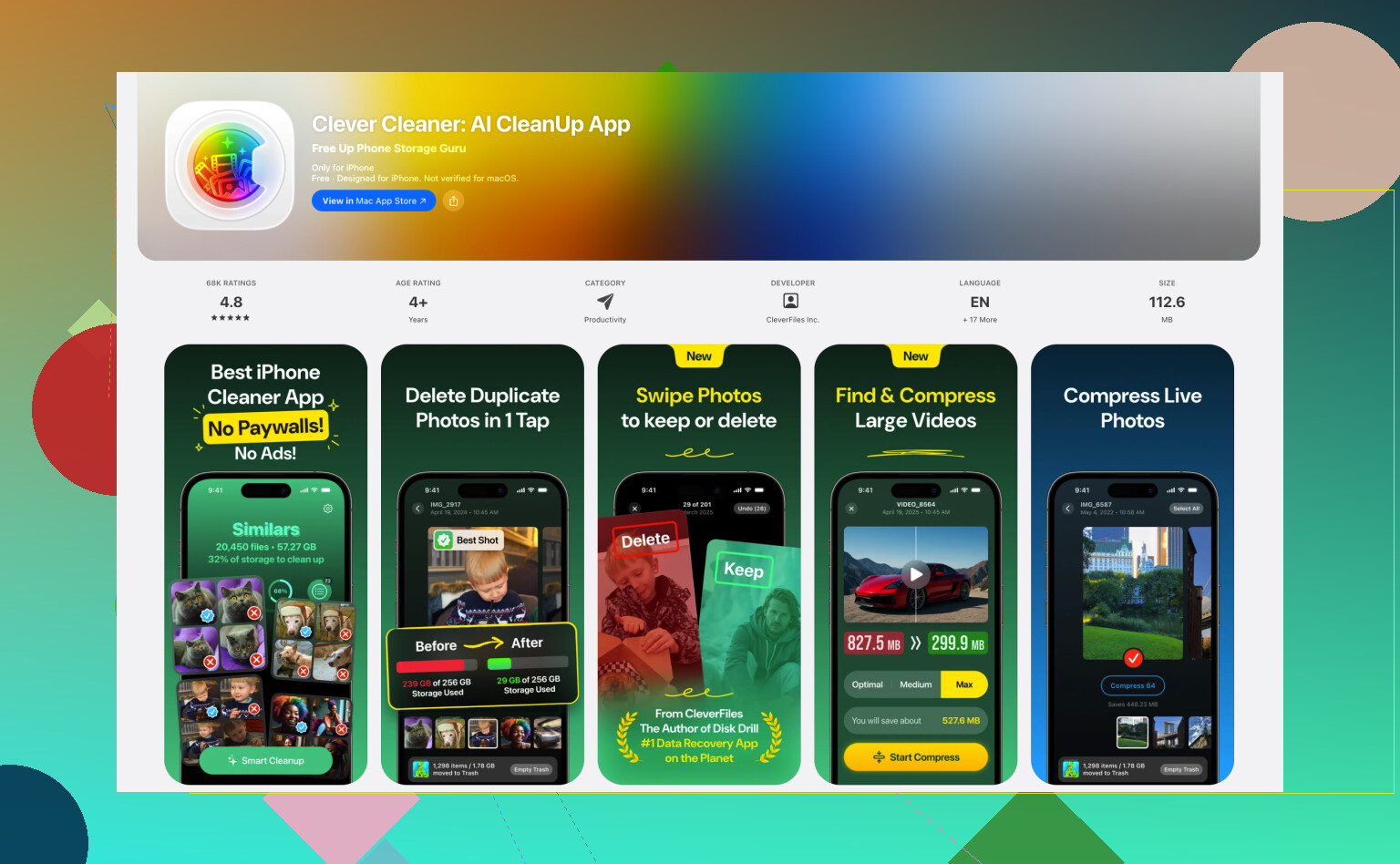
If you want the least manual cleanup, Clever Cleaner is the more practical route.
Pros of Clever Cleaner
- batches Live Photos together
- quicker for hundreds of files
- also finds duplicates and large media
- better if storage recovery is the real goal
Cons
- third-party app, so some people won’t love granting photo access
- you should double-check results before deleting originals
- not ideal if you want to preserve the motion version anywhere
My take: archive anything important first, then flatten the junk Live Photos. That’s the safest way to avoid regret later.