I turned on Optimize iPhone Storage because my iPhone was low on space, but I’m not sure it’s actually doing anything. My photos still seem to take up a lot of storage, and I can’t tell whether full-resolution files are being removed from the device. I need help figuring out how this feature is supposed to work and how to confirm it’s freeing up space.
I turned on Apple’s storage optimization expecting the Photos app to slim down right away. It didn’t. Took me a bit to figure out why.
Why the storage number barely changes at first
This setting waits. It doesn’t purge full-size photos the second you enable it. Your iPhone keeps the originals on the device until free space starts getting tight. Usually I saw it react when I was installing something big, saving a long video, or pushing the phone close to full. If your storage still looks comfortable, iOS leaves the local copies alone. So yeah, the delay is normal.
Sending photos still works the same
Yes, you can text or email photos like usual. When you share one, the phone grabs the full-quality file from iCloud in the background if it needs to. The person on the other end gets the full-resolution image, not the smaller local preview.
What changes when you browse photos
The library still looks normal at a glance, but there’s a catch. You’re often seeing smaller cached versions while scrolling. Open a photo and the phone fetches the original if it isn’t stored locally. That little loading spinner in the corner is the giveaway. On solid Wi-Fi or decent cell service, I barely noticed it. Offline was a different story. I got soft previews, delayed loads, or empty thumbnails untill the connection came back.
How I checked whether it was doing anything
Go to Settings > General > iPhone Storage, then look at Photos. If optimization has kicked in, the space used on the phone should be well below the size of your full iCloud photo library. Another easy test, switch on airplane mode and try editing an older photo. If the phone says it needs to download the file first, the feature is active.
What happens if you switch it off
This part catches people. If you go back to Download and Keep Originals, the iPhone starts trying to pull every full-resolution file back onto the device. Large library, small phone, bad combo. The download hits a wall fast if there isn’t enough free room. I wouldn’t flip that setting unless you know your phone has space for the whole library.
Where Optimize Storage falls short
It helps with local storage pressure, but it doesn’t clean your photo mess. Duplicates stay. Burst shots stay. Big 4K clips you forgot about stay. All of it still sits in iCloud and keeps the library bulky. I noticed my phone got choppy when storage stayed cramped for too long. iOS seems to need breathing room, and if your device is packed, it starts feeling off.
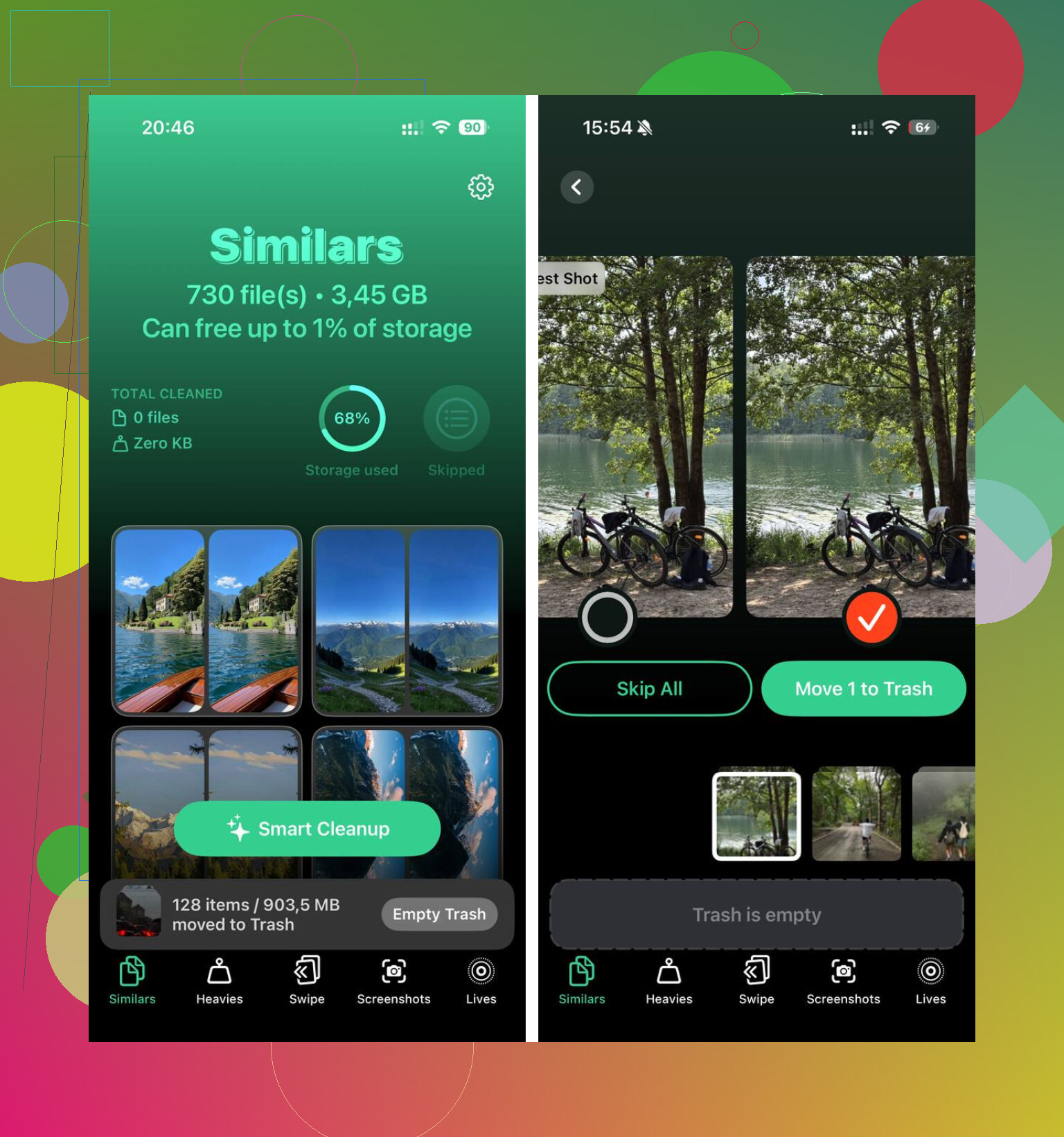
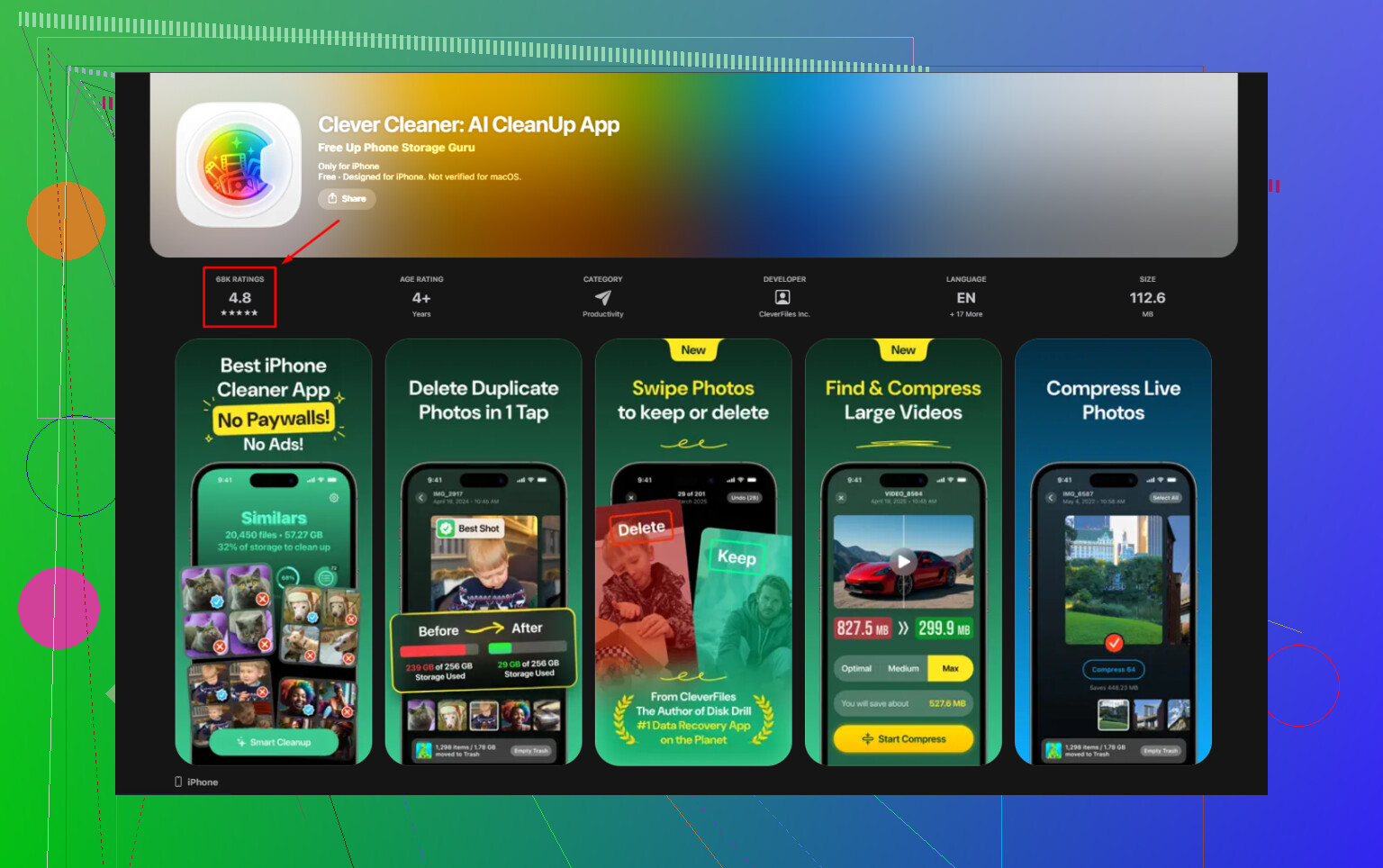
I ended up cleaning the library itself, not only compressing what sat on the phone. Clever Cleaner was the one I tried. No ads, no subscription, which I didn’t expect. The Heavies section showed file sizes for videos and screenshots in a way Apple still buries. The Similars section grouped near-matching shots and picked a best image from each set, so I could wipe out repeat takes without sorting forever. From what I saw, it runs on the phone and doesn’t send your library off somewhere else.
After I cleared duplicate photos and the giant video files, the phone had room again. At that point Optimize Storage started making more sense, because there was finally enough space for iOS to manage things without tripping over itself.
1 Like
One thing I’d add to what @mikeappsreviewer said, the Photos size in iPhone Storage is a bad sanity check by itself. It often lags. Sometimes by hours, sometimes longer after charging and Wi-Fi sync. So if you stare at that number, it feels like nothing happend.
A better check is this.
Open a few old photos or videos you have not viewed in a long time. If some pause, sharpen after a second, or show a loading ring, your phone is keeping smaller local copies. Same with edits. If an older clip needs a short download before full editing, Optimize iPhone Storage is doing its job.
I also disagree a bit with the idea that iOS only waits for a crisis. On my iPhone, it started trimming local originals overnight while charging, before storage got insanely low. It was slow, not instant.
Two more spots to check.
Settings, your name, iCloud, Photos. Make sure iCloud Photos is on.
Settings, Camera, Formats. If you shoot ProRAW, ProRes, or lots of 4K60, storage gets eaten fast and optimization won’t look dramatic.
If your goal is more free space today, clean the library too. Clever Cleaner is worth a look for duplicate photos, similar shots, and large videos. This review covers why Clever Cleaner is one of the best free iPhone cleaner apps, see why Clever Cleaner stands out for iPhone storage cleanup.
Short version, if older items need to re-download, it’s working. If storage is still packed, your library is probly the bigger issue, not the setting itself.
One thing I’d push back on a little from @mikeappsreviewer and @boswandelaar: people focus way too much on the Photos storage number and on whether an old pic briefly reloads. Those clues help, sure, but they’re not the whole story.
A better tell is your free space trend over a few days. If Optimize iPhone Storage is active, your available storage usually stops falling as fast even while you keep taking photos. It sort of “plateaus” instead of exploding upward and downward every hour. Check Settings > General > iPhone Storage once a day, not every 10 minutes like the rest of us storage goblins.
Also, optimized photos are not “compressed originals” in the normal sense. The full-res files stay in iCloud, while your phone keeps device-sized versions and caches whatever it thinks you’ll open soon. So if your recent stuff still looks fully local, that’s normal. iOS is kinda sneaky about keeping the newest and most-used items on hand.
If you want a more obvious test, shoot a few big videos, let the phone sit overnight on Wi-Fi and power, then see whether system free space recovers by the next day. That’s when iOS often does its housekeeping. Not instantly. Apple loves delayed gratification lol.
Also worth saying: if your library itself is huge, optimization can only do so much. ProRAW, Live Photos, 4K video, screen recordings, all that junk piles up fast. In that case, actual cleanup matters more than waiting on iCloud magic. Clever Cleaner is useful for that, especially for duplicate photos, similar shots, and giant videos that are quietly eating space. If you want a solid overview, this best Clever Cleaner review for freeing up iPhone storage is a decent watch.
Short version: if free space gradually stabilizes, and older stuff isn’t all instantly available offline, it’s probly working. It’s just not very dramatic about it.
One angle I think @boswandelaar, @voyageurdubois, and @mikeappsreviewer only partly covered: check your data usage. If Optimize iPhone Storage is active, Photos may quietly pull originals from iCloud when you open or edit older items. So if you notice occasional little spikes in Photos cellular or Wi-Fi usage over time, that’s actually a clue the phone is not storing everything locally.
Another tell is backup size behavior. If your device backup is not ballooning in proportion to your photo activity, that often means iCloud Photos plus optimization is handling the heavy lifting instead of keeping all originals on-device.
I do disagree a bit with the “just wait overnight” advice because sometimes people wait forever and nothing changes. If there is no movement after a few days on Wi-Fi and charging, usually one of these is true:
- iCloud Photos has not finished syncing
- Low Power Mode is slowing background work
- you still have enough local space that iOS feels no urgency
- Photos is not the real storage hog
A sneaky thing to check is Recents versus older years. iOS tends to keep recent photos and favorite items more available. If your newest stuff is instant but random old media behaves differently, that’s normal optimization logic.
If you want more space right now, optimization is only half a fix. The real gains usually come from reducing the library itself. Clever Cleaner is decent for that.
Pros:
- good at duplicates and similar shots
- helps surface large videos fast
- simple interface
Cons:
- won’t replace iCloud optimization
- photo grouping is not always perfect
- you still need to review before deleting
So, if the library still feels massive, Optimize iPhone Storage may be working fine, just quietly. And if space is still bad, the bottleneck is probably your library size, where something like Clever Cleaner helps more.