I accidentally deleted several important files on my Windows 10 PC and need to restore them from the Recycle Bin. I’m not sure whether to use built-in restore options, File History, or recovery software. What’s the safest way to recover deleted files without overwriting them?
If you emptied the Recycle Bin and then realized an important file was in there, don’t assume it’s gone for good right away. Sometimes Windows has only marked that space as reusable, and the actual data can still be sitting there until something new overwrites it.
The main thing is to stop writing anything to that drive. Don’t download files, install recovery tools there, copy stuff onto it, or let updates run if you can avoid it. The more the drive gets used, the worse your odds get.
Before doing anything else, check the Recycle Bin one more time. Search for the file name, but also look for the folder it came from. It’s easy to miss a file if it was deleted inside a larger folder. If you find it, right-click it and choose Restore.
If the bin is actually empty, check whether Windows already has a backup copy. Go to the folder where the file used to be, right-click the folder, and choose Restore previous versions. Pick a version from before the deletion, open it, and copy the file somewhere safe.
You can also try this path:
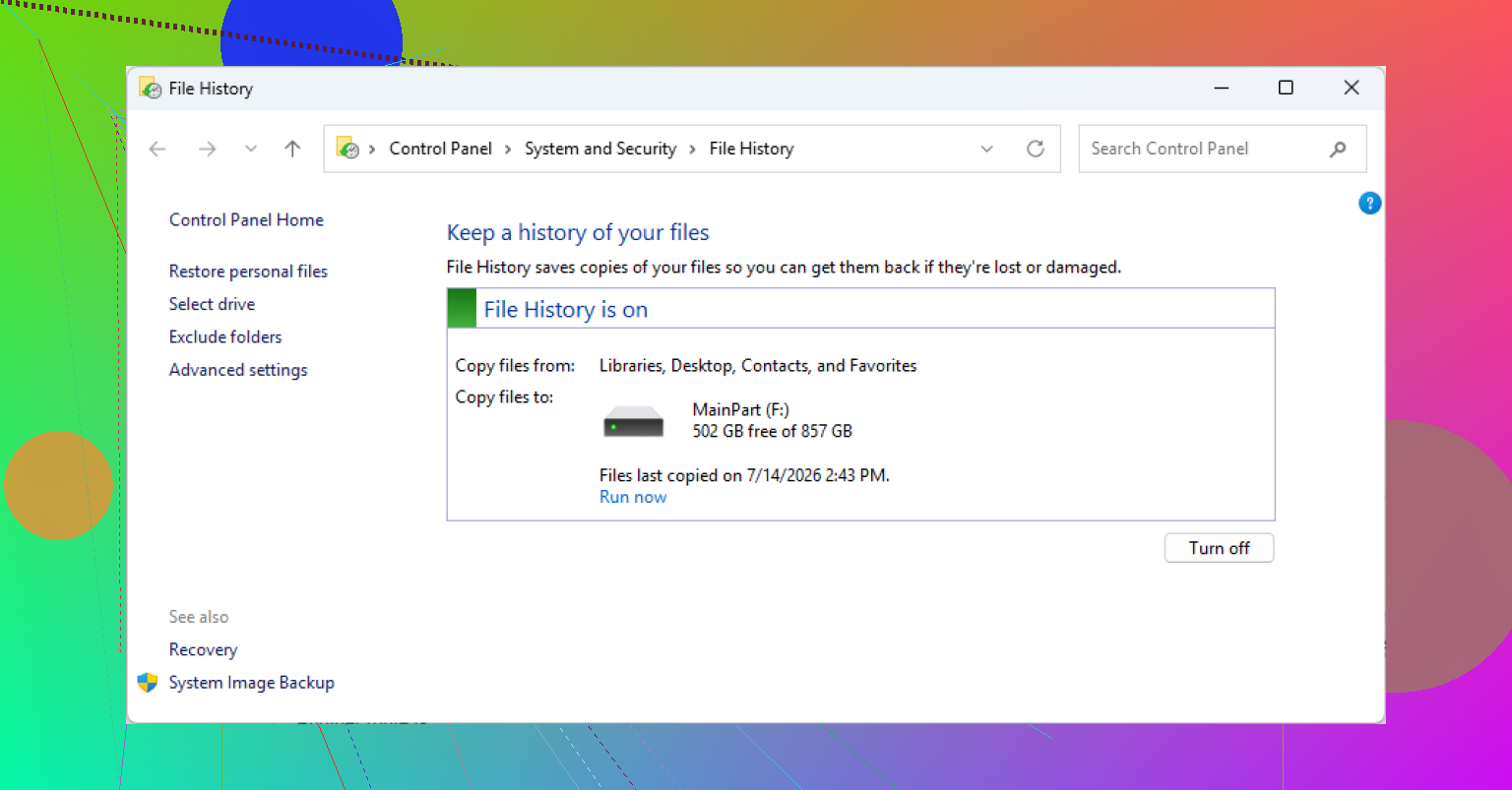
Control Panel > System and Security > File History > Restore personal files
That lets you browse older backed-up versions of folders like Desktop, Documents, and Pictures, assuming File History was enabled.
If there’s no backup, a recovery app like Disk Drill is one option. It can scan for deleted files on common Windows file systems, including NTFS and FAT32.
Just don’t install it on the same drive you’re trying to recover from. Put it on another drive, then open it, choose the affected drive, and click Search for lost data.
Once the scan finishes, use the preview feature before recovering anything. If a file previews properly, that’s usually a good sign that some or all of it is still readable. It still doesn’t guarantee the recovered file will be perfect, though.
When you recover the files, save them somewhere else, ideally an external drive or a different internal disk. Saving them back to the same drive can create the exact overwrite problem you’re trying to avoid.
Also, check the current licensing limits before assuming how much you can recover for free. On Windows, some recovery may be available without paying, depending on the software’s current policy.
One last thing: SSDs are tougher. Many modern SSDs use TRIM, which can clear deleted blocks in the background. Once that happens, recovery may not be possible. If the deleted file was on an SSD, stop using the computer as soon as you can and check backups or recovery options right away.
1 Like
If the files are still sitting in the Recycle Bin, recovery should be boring: open it, search by name or sort by deletion date, right-click the files, and choose Restore. Be aware that Restore sends them back to the original folder, which can be annoying if you do not remember where they came from. If you want more control, you can drag the files out of the Recycle Bin to your Desktop or another folder instead.
A catch people miss is that not every deletion goes through the Recycle Bin. Files deleted with Shift+Delete, from some USB drives, network shares, command-line tools, or certain synced folders may skip it entirely. If the missing files were in Desktop, Documents, or Pictures, check OneDrive too, because Windows 10 often has those folders tied to OneDrive and it has its own recycle bin online. That can be faster than running recovery software.
For File History, it only helps if it was turned on before the deletion. Same with “Previous versions.” They are worth checking, but they are not magic undo buttons. If those fail, then recovery software is the last-resort path, and @mikeappsreviewer’s warning about not writing to the same drive is the important part. Disk Drill or any similar tool should be run from another drive if possible, and recovered files should be saved somewhere else. I would treat scan results as “maybe recoverable” until the file actually opens normally, especially for large videos, archives, databases, or anything that was on an SSD.

Recovery software should not be your next step if the files are still visible in the Recycle Bin. In that case, use the Recycle Bin itself because that is the cleanest restore Windows can do. Switch it to Details view, enable or look at the “Original Location” and “Date Deleted” columns, then restore only the files you actually need. If you are unsure where they will go, copy or drag them to a new folder first instead of hitting Restore on a huge mixed batch.
A small trap here is that the Recycle Bin is per user and per drive. If the files were deleted while logged into another Windows account, or from another internal drive, you may not be seeing the right bin contents. Same goes for cleanup tools. Pause Storage Sense, disk cleanup apps, or anything like CCleaner until you are done, because they can empty the bin while you are still figuring it out.
File History and “Previous versions” are worth trying before any undelete tool, but only check the folder where the file originally lived. If there is no backup and the bin is empty, then Disk Drill or a similar recovery tool becomes a last resort, with the usual rule: install it somewhere else and recover to somewhere else. If this was on the system SSD, I would lower expectations a bit because Windows and TRIM may already have made the deleted data unrecoverable.

Restoring from the Recycle Bin is not the same thing as “recovering” a deleted file, so don’t jump to recovery software while the files are still listed there. If Windows can still see them in the Recycle Bin, use that first. It keeps the original path, file name, and basic metadata, which is a lot cleaner than scanning raw disk space and hoping the pieces are intact.
A detail people often miss: check whether the original folder still exists before you hit Restore. If you deleted a file from Documents\Taxes\2024, then later renamed or removed that folder, Windows may recreate folders or put things somewhere you are not expecting. For a small number of important files, I would open the Recycle Bin, switch to Details view, look at Original Location, then drag the files to a safe folder you create yourself, like Desktop\Recovered files. That avoids the “where did it go?” problem.
If you are restoring a folder, be more careful. A restored folder can contain old versions of files with names that match files you already recreated manually. Windows should warn about conflicts, but it is still easy to click through prompts too quickly. When in doubt, restore to a separate folder first, compare, then move things back yourself.
File History is the next sensible step only if the file is missing from the Recycle Bin or the restored copy is not the version you need. Go to the folder where it used to live and check previous versions there. Don’t waste time browsing random backup areas unless you know File History was enabled before the deletion.
Disk Drill or another undelete tool belongs near the end of the list, not the beginning. It makes sense if the Recycle Bin is empty, backups are not available, and the files matter enough to spend time scanning. But install and run it from another drive if possible, and recover to another drive. If the deleted files were on your Windows SSD, keep expectations modest because normal Windows activity can reduce the chance of getting usable files back.