My flash drive suddenly stopped opening, and now Windows says it needs to be formatted before I can use it. It has important photos and work files that I never backed up, so I’m trying to recover data from a corrupted USB drive without making things worse. What are the safest recovery steps or tools to try first?
Start with the boring checks first
I’d pause before throwing random recovery apps at a corrupted USB stick. What you do next depends on what kind of failure you’re looking at. I learned this the hard way after wasting time ‘repairing’ a drive when the controller was already going bad.
Here’s what I’d check right away:
- Does it show up in Disk Management?
- Is the reported size correct?
- Does Windows label it as RAW?
- Do you get a format prompt?
- Does the same USB show up on another computer?
- Does it disconnect on its own, lag badly, or act weirdly slow?
Those answers narrow it down fast.
If the drive appears in Disk Management and the capacity looks normal, I’d say your odds are still decent for handling it yourself. If it vanishes, keeps reconnecting, gets hot, or the connector looks bent or loose, I’d stop pretending it’s a file system issue. That starts to look like hardware trouble.
My order of operations
If the system still detects the USB at all, I’d try to copy data off before I ‘fix’ anything.
That matters more than people think. Corruption is often the visible mess, not the root cause. The drive might be wearing out underneath, and repair tools sometimes write changes you later regret. I’ve seen CHKDSK turn a bad situation into a worse one.
What I’d use
I’d go with Disk Drill.
The reason is simple. It does not depend only on the damaged file system. If Windows refuses to open the USB, Disk Drill still has a shot at reading the device directly and piecing files back together from raw data. In my use, it also did a better job keeping folder structure than a bunch of bargain-bin recovery tools. The preview feature helps too, since I don’t like recovering 40 GB of junk only to find broken files.
The part I would not skip
For unstable USB drives, the best feature is the Byte-to-Byte Backup option.
I’d make an image first. Full sector copy. Save it to another disk. Then do the recovery work on the image, not the USB itself.
That one step saves you from a lot of pain. If the flash drive gets worse halfway through, you still have a captured copy of its current state. I didn’t do this once, and yeah, I regretted it.
The workflow I’d follow
- Install Disk Drill on your computer.
- Plug in the USB drive.
- Open Disk Drill and pick Byte-to-Byte Backup.
- Create a full image of the USB and store it on a different drive.
- Mount or attach the image inside Disk Drill.
- Scan the image.
- Preview files before restoring them.
- Recover the important stuff to another storage device, never back to the same USB.
Only after recovery, try repairs
Once your files are safe, then I’d mess with the drive itself.
Depending on what you saw earlier, I’d try one of these:
- Run CHKDSK.
- Assign a new drive letter.
- Reinstall the USB drivers.
- Use Windows Error Checking.
- Do a full reformat.
I would not start there unless the files don’t matter. Repairs write changes. Sometimes those changes help. Sometimes they bury recoverable data.
When I’d stop doing it myself
I’d think about a recovery shop if any of these are happening:
- The drive is not detected at all.
- It has visible physical damage.
- The data matters for work, legal records, or anything you cannot recreate.
- The USB disconnects during scan or copy attempts.
At that point, more home testing can make things worse. If the controller is failing or the NAND has issues, repeated reconnect attempts are not doing you favors.
One last thing
After you recover the files, I wouldn’t trust the USB again if:
- The corruption showed up for no clear reason.
- It comes back after formatting.
- The drive stays flaky during normal use.
Flash drives wear out. Some die slowly, some die in dumb ways, some look fine until the next plug-in and then poof, gone. If a stick has already started acting sketchy, I’d replace it and move on.
1 Like
Do not format it yet. Windows throws that prompt when the file system is damaged, but the files are often still there.
I agree with @mikeappsreviewer on one thing first, stop writing anything to the USB. I disagree a bit on waiting too long to test file access, though. If the drive stays stable and shows normal size, I’d first try a simple read-only copy with something like TeraCopy or plain drag-and-drop for the most important folders. If it fails, switch to recovery fast.
My order would be:
- Try another USB port, prefer USB 2.0.
- Try another PC.
- Check Device Manager. If it appears without errors, that’s a decent sign.
- Use Disk Drill to scan the flash drive for lost files.
- Recover to your internal drive or another external disk, never back to the same stick.
Why Disk Drill. It handles RAW drives well, and photo recovery tends to be solid. On damaged flash media, I’ve seen it pull JPG, DOCX, PDF, and MP4 files even when File Explorer wanted a format first. Preview matters. If your photos preview cleanly, recovery odds are way better.
A few things people do wrong:
- They run format first.
- They run repair first.
- They keep unplugging and replugging 20 times.
- They recover onto the same USB. bad idea.
If the flash drive keeps disconnecting, gets hot, or shows 0 bytes, stop. That points more to failing hardware than file system damage. At that point, DIY gets risky.
Also, if you want a quick visual walkthrough, this Instagram video guide for USB data recovery shows the basic recovery flow in a simple way.
After you get your files off, wipe the drive fully and test it with H2testw or F3. If it throws errors, toss it. Flash drives fail in dumb ways, and once one goes weird, I dont trust it again.
Do not format it, and honestly I’m a little less eager than @mikeappsreviewer and @viajeroceleste to try every “repair” step even after detection checks. A flash drive that suddenly flips to RAW can still be readable, but every write is a gamble.
What I’d do first is check the SMART-ish behavior you can actually observe:
- does it freeze Explorer
- does copying one small file work
- does it report the correct capacity
- does it make Windows hang when plugged in
If it’s stable enough to stay connected, I’d use Disk Drill and scan it in read-only fashion before touching CHKDSK. Reason: CHKDSK is great when the filesystem metadata is only lightly damaged, but on cheap USB sticks it can also “fix” your directory structure into oblivion. Been there, was not fun lol.
One thing not mentioned enough: try recovering by file type first if the folder tree is trashed. Photos, PDFs, Office docs, vids, that stuff often comes back even when the original names don’t. Annoying, yes. Better than gone.
Also, if the drive shows up with the wrong size, like 32 GB becoming 8 MB, stop DIY. That smells like controller failure, not just corruption.
Recover everything to a different disk. Then retire the stick. Not “maybe reuse it later.” Retire it.
If you want more info on USB recovery options, this thread on how to recover files from a faulty USB drive that won't open is worth a read too.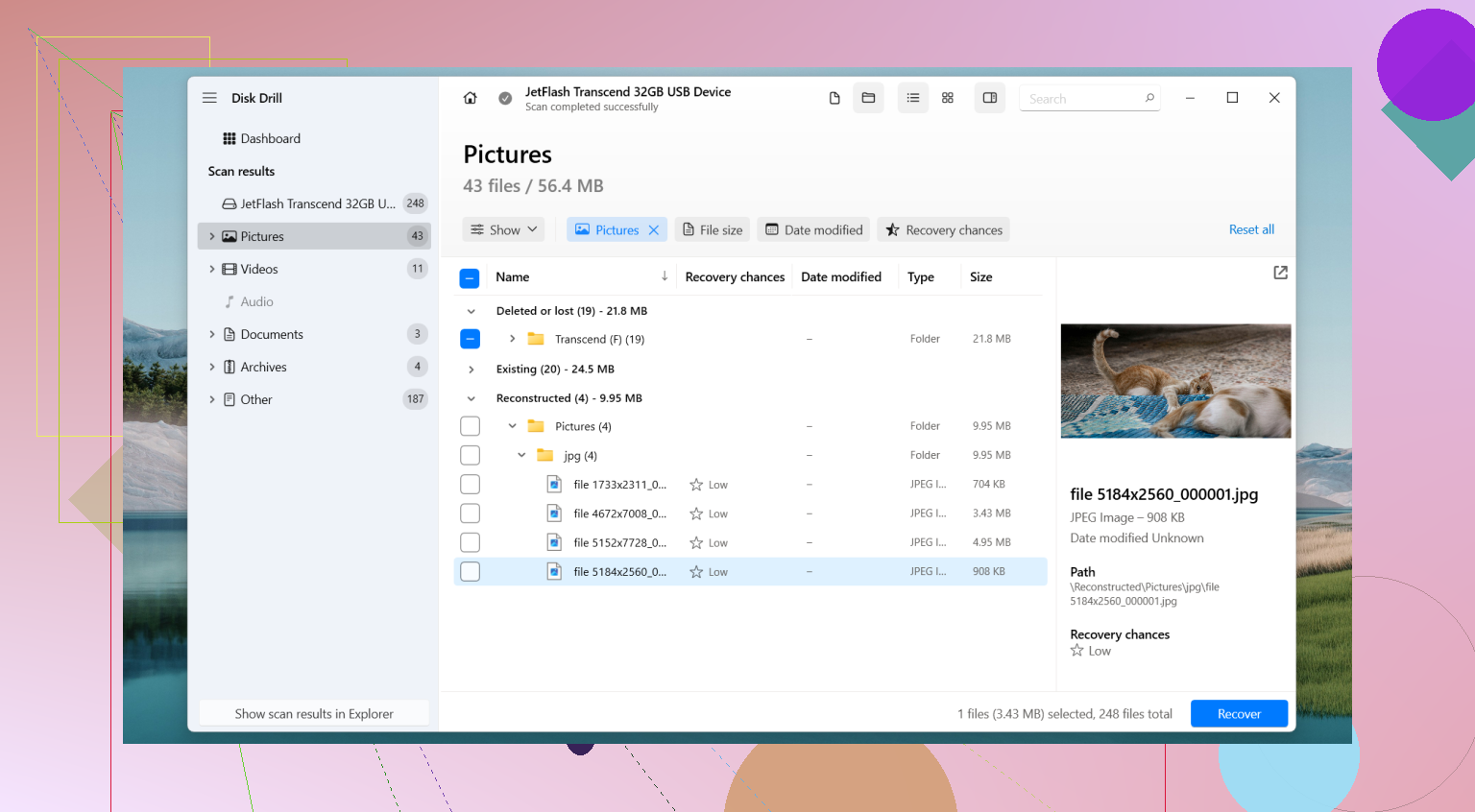
One thing I’d add to what @viajeroceleste, @sognonotturno, and @mikeappsreviewer already covered: check the USB in a Linux live session before doing anything invasive in Windows.
Reason I say that: sometimes Windows throws the format prompt too aggressively, while Linux can still mount the stick read-only and let you copy files out. You do not install Linux to the PC. Just boot from a live USB, open the file manager, and see whether the flash drive appears. If it does, copy the irreplaceable stuff first.
I slightly disagree with trying drag-and-drop early if Explorer hangs the moment the stick is inserted. In that case, skip Explorer completely and go straight to a read-only recovery approach. Less stress on a dying stick.
If Linux cannot read it either, then yes, Disk Drill is a sensible next move.
Disk Drill pros:
- easy previews
- good at finding common photo and document formats
- can work even when the partition looks broken
- byte-for-byte image option is genuinely useful
Disk Drill cons:
- deep scans can take a while
- recovered filenames/folders are not always perfect
- free recovery limits depend on version/platform
- not magic if the controller itself is failing
My extra tip: if the files are mostly photos, sort recovery priority by file type, not by folder. Photos and videos often recover cleaner than mixed project folders with lots of tiny metadata files.
If the drive starts vanishing from Disk Management, shows nonsense capacity, or becomes read-only by itself, stop testing and consider pro recovery. That usually means the problem is below the file system level.