Facebook is taking up a lot of storage on my iPhone, and I’m trying to free up space without deleting the app or using third-party cleaners. I’ve already checked iPhone Storage in Settings, but I’m not sure which built-in options actually reduce Facebook cache, documents, or app data safely. What settings should I use?
If Facebook is showing up as several GB in iPhone Storage even though the app download is much smaller, that’s usually the app’s local data piling up. iOS makes this more annoying than it needs to be because there isn’t a simple system-wide Clear Cache button like Android has. I’ve seen Facebook get ridiculously bloated too, including one case where someone had it sitting around 80GB.
The most reliable fix is boring, but it works: delete Facebook and reinstall it.
Clear Facebook storage by deleting and reinstalling
- Open Settings.
- Go to General.
- Tap iPhone Storage and let the app list load.
- Find Facebook and open it.
- Tap Delete App.
- Reinstall Facebook from the App Store.
This wipes the local Documents & Data stuff, which is where a lot of those cached images, videos, and temporary files sit. It does not delete your Facebook account, posts, photos, friends, or anything stored on Facebook’s side. It will log you out, though, so make sure you can sign back in before doing it.
Offloading usually is not enough
You may also see Offload App in the same iPhone Storage screen. That sounds useful, but for this problem it’s usually only a partial fix. Offloading removes the app itself while keeping its documents and data, which is often the exact storage you’re trying to clear. It might free a little space, but it usually won’t fix a badly bloated Facebook install.
Clear Facebook’s in-app browser cache
There’s one smaller cache you can clear inside Facebook without deleting the app. This is for the built-in browser Facebook uses when you open links from the app.
- Open the Facebook app.
- Tap Menu, the three-line icon in the bottom-right corner.
- Tap the gear icon for settings.
- Scroll to Preferences.
- Tap Browser.
- Next to Cookies and Cache, tap Clear.
That can help a bit, but don’t expect it to remove multiple GB of storage by itself.
The annoying part is that Facebook starts rebuilding cache as soon as you use it again. The app does this to make scrolling, previews, images, and videos load faster. So yes, deleting and reinstalling can give you quick breathing room, but the space can creep back pretty fast.
After fighting with this for a while, I realized Facebook was only part of the problem. The bigger storage hog on most iPhones is usually the photo library. Screenshots you forgot about, duplicate-looking photos, burst shots, screen recordings, and 4K videos can eat way more space than an app cache.
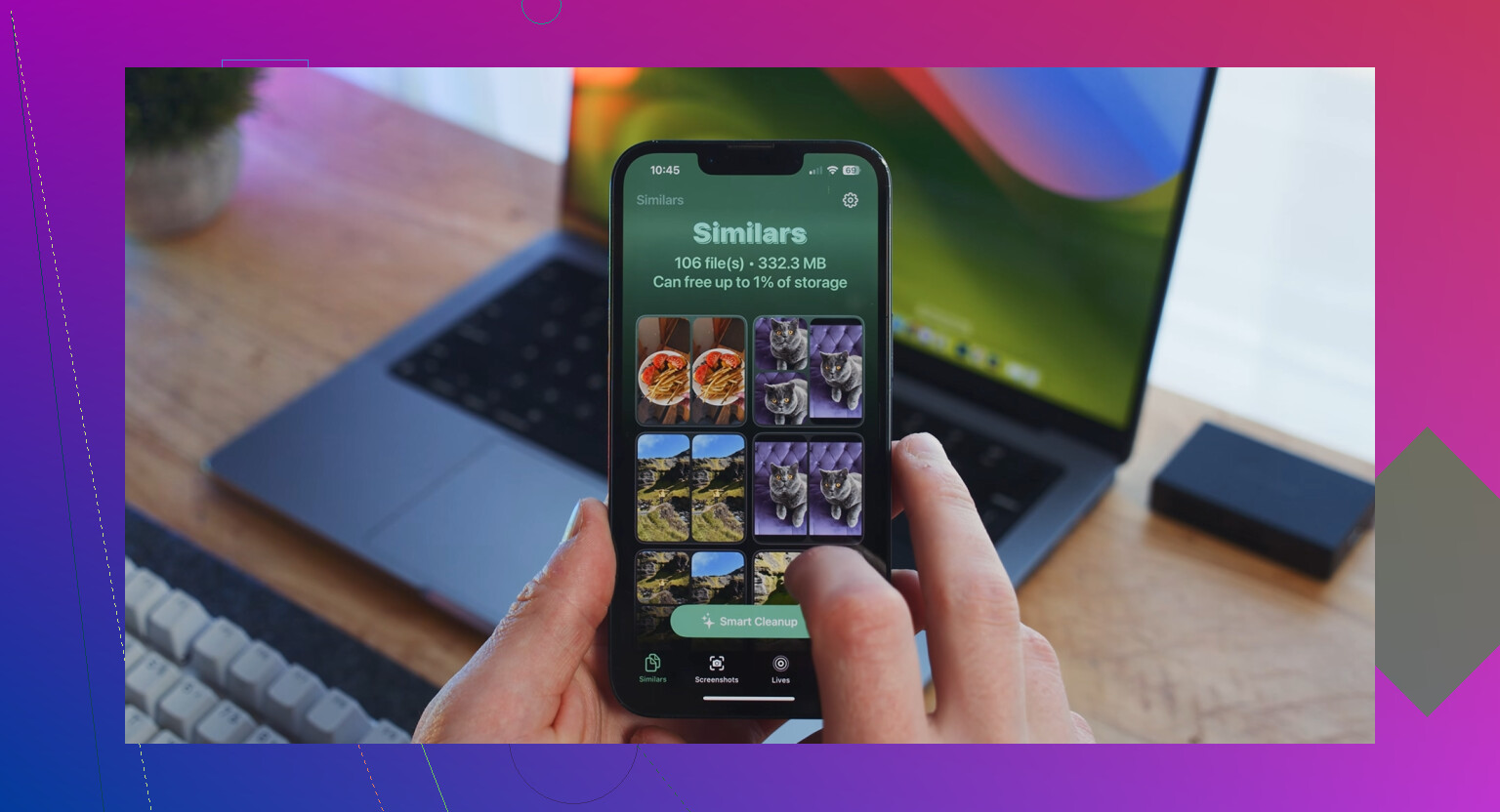
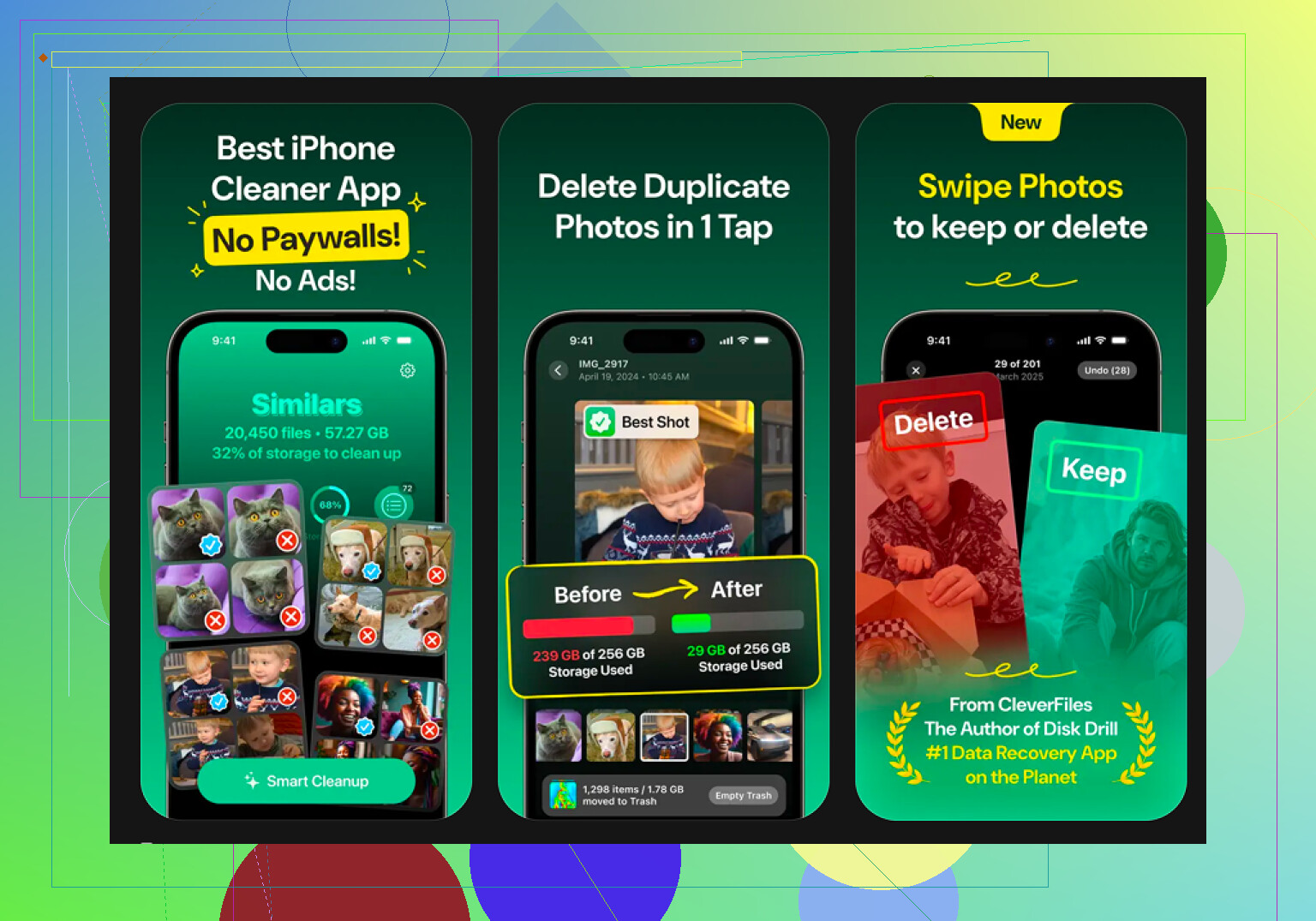
If your storage is still in the red after reinstalling Facebook, check your photos next. I ended up using Clever Cleaner for that. I’m normally suspicious of cleaner apps, but this one is free, has no ads, no hidden paywalls, and no subscription nagging.
The useful part is that it doesn’t just throw one vague “clean” button at you. The Heavies section shows your largest media files, so you can find the big screen recordings and long videos quickly. The Similars section looks for near-duplicate photos, like five shots of the same thing, and lets you keep the best one while removing the rest.
It also processes your photos on the device, which matters if you don’t want your library uploaded somewhere. Just keep expectations clear: it won’t clean Facebook’s cache or any other app cache because iOS doesn’t let third-party apps do that. It’s for cleaning up the photo library, which is often where the real storage problem is.
So for Facebook specifically, delete and reinstall it. For a longer-term fix, look hard at your photos and videos, because that’s usually where the biggest waste is hiding.
1 Like
Don’t clear Safari history expecting Facebook to shrink, because the Facebook app keeps its own data. If you refuse to delete/reinstall, the built-in route is basically limited to turning off Background App Refresh for Facebook and reducing media/photo access, but that mostly slows future buildup. @mikeappsreviewer is right that iOS doesn’t give you a real Facebook cache purge button.
Don’t trust the Facebook size number right after changing settings, because iPhone Storage can lag and keep showing the old amount for a while.
If you are strictly avoiding delete/reinstall, I’d treat this as damage control, not a real cleanup. Go to Settings, find Facebook, and turn off Background App Refresh. If you don’t need Facebook uploading from your whole camera roll, change Photos access to Selected Photos or None. You can also turn off Cellular Data for Facebook if you want to stop it from chewing through data while away from Wi-Fi, though that’s more about future use than storage.
The small caveat I think gets missed is that limiting Photos access does not remove Facebook’s existing local cache. It just reduces what the app can touch going forward. Same with autoplay/media settings inside Facebook, if you use them. They may slow the storage creep, but they won’t magically turn a 10 GB Facebook install back into a 300 MB one. If the goal is to reclaim space today, iOS still doesn’t give you much besides deleting the app data, which means deleting the app itself.
Skip the reinstall until you’re sure you can actually log back in. That’s the trap nobody flagged yet. If you’ve got two-factor on, use a password manager that autofills Facebook, or rely on Facebook remembering your device, deleting the app can turn a five-minute cleanup into an hour of code requests and ‘we don’t recognize this device’ screens. Confirm your login works before you wipe anything.
@mikeappsreviewer is right that delete-and-reinstall is the only real purge iOS gives you, and I won’t pretend otherwise. But here’s the thing everyone in the thread keeps circling around without saying outright: the cache comes back because you keep using the heavy app. So if storage is a recurring headache and not a one-time crunch, stop fighting the app and just use Facebook in Safari instead. Log in at the website, add it to your Home Screen if you want an icon. The mobile site handles messaging worse and notifications are clunkier, but it barely touches local storage because Safari manages that cache and you can clear it whenever. For people who only check Facebook occasionally, that solves the whole problem instead of resetting it every few weeks.
On the photos tangent, I think that’s slightly off-topic for the actual question, but not wrong. The tool that got mentioned is fine for chewing through duplicate screenshots and forgotten screen recordings, and it won’t touch app cache, which they were honest about. Just don’t let it distract you if your real issue is a 10GB Facebook install. Fix the thing you asked about first.
One correction on @sternenwanderer’s point about the storage number lagging: it’s real, but you can force it. Restart the phone after reinstalling, then check iPhone Storage again. The number updates a lot faster than if you just sit there refreshing the same screen and wondering why it still says 9GB.