I’m trying to clean up storage on my iPhone and noticed I have a lot of hidden photos saved. Deleting them one by one is taking forever, so I need help finding a way to remove all hidden photos at once without affecting the rest of my photo library.
The main thing that trips people up is that deleting from the Hidden album still does not really free the space right away. Those photos get moved into Recently Deleted first, and they can sit there for 30 days. So if your storage bar looks like nothing changed, that’s usually why.
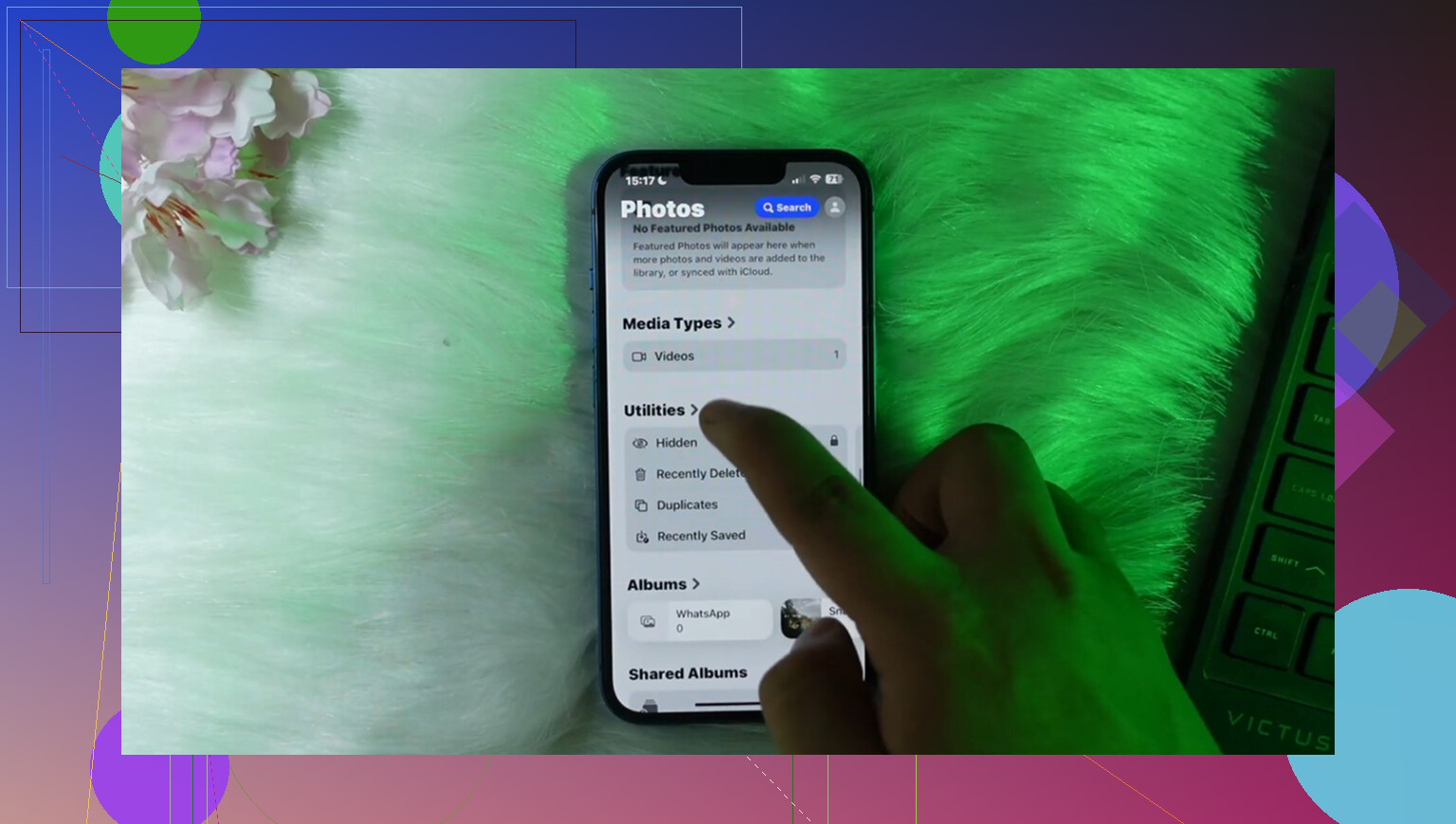
To clear it properly, open the Photos app, go to Albums or Collections on newer iOS versions, then scroll down to Utilities. That’s where Hidden should be. Tap it, unlock it with Face ID, Touch ID, or your passcode, then hit Select.
You do not have to tap every photo one at a time. If your iOS version shows Select All, use that. If not, tap one photo and drag your finger across and downward to keep selecting as the screen scrolls. Once everything is selected, tap the Trash icon.
After that, go back to Albums > Recently Deleted, unlock it again, tap Select, then choose Delete All. That’s the part that actually removes them from the phone and gives the storage back.
If the Hidden album is not showing under Utilities at all, check Settings > Photos and make sure Show Hidden Album is turned on. If that switch is off, the album is hidden from view even though the photos can still be taking up space.
One thing to be careful with: if iCloud Photos is enabled, deleting from Recently Deleted is not just local cleanup. It syncs across your iPhone, iPad, Mac, and iCloud.com too. So only hit Delete All if you really want those photos gone everywhere.
Once the Hidden album is handled, the bigger storage mess is usually the regular photo library. That’s where all the duplicate-ish shots, old screenshots, forgotten videos, and huge screen recordings pile up.
For that part, I’d use Clever Cleaner. A lot of cleanup apps are annoying because they look free until you try to delete anything, then suddenly there are ads or a paid plan. Clever Cleaner is actually free, with no ads, no paywall, and no weird bait-and-switch stuff.
The useful parts are the Heavies tab and the Similars tab. Heavies sorts your photos and videos by file size, which makes it easy to find some random giant screen recording. Similars groups near-duplicate photos so you can keep the best one and delete the rest faster. It also shows the exact file size for screenshots, which helps when you’re trying to clear space quickly.
It also processes your library on-device, so it is not sending your photos off to some server for analysis. Just know that it cannot touch the Hidden album because Apple blocks third-party apps from accessing that area. No cleanup app can get around that. You still have to clear Hidden and Recently Deleted manually, but for the normal camera roll, it saves a lot of time.
1 Like
Do not treat the Hidden album like a separate folder you can clear without touching the real photos. Hidden photos are still the same items from your photo library, just marked as hidden, so deleting them from there deletes the actual photo or video.
The fastest built-in way is still inside Photos: open Hidden, unlock it, tap Select, then use Select All if your iOS shows it. If it does not, the drag-select trick is the next best option. After you trash them, go to Recently Deleted and remove them there too if you want the storage back right away. Until then, they are basically waiting in a holding area.
I would not bother looking for a “delete all hidden photos” button in iPhone Storage or expecting a cleaner app to do it. Apps like Clever Cleaner may be useful for regular camera roll clutter, but Hidden is locked away from third-party apps by design. If you are trying to delete only the hidden stuff and leave everything else alone, do it from the Hidden album itself and double-check before emptying Recently Deleted, because that last step is the point of no easy return.

Deleting Hidden is not a local cleanup trick, it is deleting those photos from your library. If iCloud Photos is on, that delete follows your account, so it can remove them from your other Apple devices too. That is the part I would check before doing anything fast.
If you truly want them gone, the quickest route is still: Photos app, Hidden album, unlock it, Select, Select All if available, trash them, then go to Recently Deleted and delete them there. If Select All is missing, drag-select is the annoying workaround. There is no separate “empty hidden album” button that only clears the hidden section.
If your real goal is just freeing space on this iPhone, deleting may not even be the best first move. Check Settings > Photos and see whether Optimize iPhone Storage is enabled. With iCloud Photos, that can reduce local storage without you permanently deleting anything. And after you do delete, give the phone a bit of time and restart if the storage number looks stuck, because iOS does not always update the storage graph immediately.
Whether those hidden items are synced with iCloud Photos changes the safest way to do this. If iCloud Photos is on, I would not do the whole delete-all process from a tiny phone screen unless you are completely sure, because the mistake follows the library, not just the device.
A less painful option is to use a bigger screen if you have one. On a Mac, open Photos, show the Hidden album, authenticate, then select the hidden items in bulk and delete them. It is the same library action if iCloud Photos is syncing, but it is much easier to review what you are about to remove. Same idea if you manage photos through iCloud in a browser, assuming your Hidden album is visible there. The phone is fine for ten photos. For hundreds or thousands, it is just a bad interface for the job.
I agree with the warning above about Recently Deleted, but I would be even more boring about it: pause before emptying that folder. Hidden photos can still appear in regular albums because albums are more like labels than separate copies. So if you delete a hidden photo, you may also be removing it from an album you forgot about. “Hidden” does not mean “extra copy I can safely clear.”
If you only care about storage on the iPhone, check the size of what you are deleting too. A pile of hidden screenshots may barely matter, while five hidden videos could be the real problem. In the Hidden album, switch views or sort through the videos first if you are trying to get space back quickly. Deleting every hidden item is clean, but it is not always the smartest storage move.
No cleaner app is going to press a secret “empty Hidden” button for you. Clever Cleaner and similar tools can help with normal library junk, but Hidden is Apple-controlled. For this specific job, it is Photos app, Mac Photos, or iCloud Photos management, then Recently Deleted if you want the space back immediately.
Back up before you empty Recently Deleted, not after. Once that folder is cleared with iCloud Photos on, there is no undo that gets it back easily. If any of those hidden shots matter even a little, drag them into a regular album or export a copy to your computer first. People rush the last step and then realize a hidden photo was the only copy of something.
@vrijheidsvogel is right that the Mac is the sane way to do this in bulk. The phone screen fights you on large selections, and the drag-select trick everyone keeps mentioning is genuinely awful once you pass a few hundred items. It stalls, it jumps, and if you lift your finger wrong it can deselect half of what you just grabbed. On a Mac you click the first item, shift-click the last, done. Same library action, way less swearing.
The thing nobody flagged: turning off Show Hidden Album in Settings does nothing for storage. It just hides the album from the app. I’ve seen people flip that switch, watch the album vanish, and assume they freed space. The photos are still there taking up the same room. Deletion is the only thing that moves the needle.
On the cleaner tool, @mikeappsreviewer already covered the honest limit, and it holds up. Clever Cleaner or anything similar cannot touch Hidden, so for this specific job it is irrelevant. Where it actually earns its keep is after you finish with Hidden, when you go looking at the normal camera roll for the big videos and screen recordings that are usually the real storage hogs. Treat it as a second pass, not the fix for what you asked about.
My honest take: if you are only chasing free space and iCloud Photos is on, sort Hidden by size and kill the videos first, then decide if the rest is even worth the risk. A folder full of hidden screenshots is rounding error. Deleting everything just to see a lower number is not always the smart move.