I’m trying to free up storage on my iPhone by deleting all photos except my Favorites, but I use iCloud Photos and don’t want to accidentally delete them from iCloud or my other Apple devices. What’s the safest way to keep Favorites on my iPhone while protecting my full iCloud photo library?
If you’re trying to keep only your favorited photos on an iPhone, the annoying part is that iOS doesn’t really give you a clean way to do it. There’s no “show me everything except favorites” filter, and there’s no simple “select all non-favorites” button. So you have to work around it.
First, make sure deleting is actually what you want. If you’re mainly trying to free up phone storage, go to Settings - Photos and turn on Optimize iPhone Storage. That keeps smaller versions on the iPhone and stores the full-resolution originals in iCloud. It only helps if iCloud Photos is already on and you have enough iCloud storage, but it avoids deleting anything.
If you really do want the non-favorites gone, the best built-in method is to temporarily hide your favorites.
- Open the Favorites album, tap Select, then Select All
- Tap the three dots and choose Hide
- Go back to the main Library view. Your favorites should be out of the way now, so what’s left visible is the non-favorites
- Tap Select and start selecting the remaining photos. On big libraries, you can tap and hold near the last photo, then tap near the top with your other hand to speed up selecting a huge range
- Delete the selected photos
- Open the Hidden album under Utilities, select everything there, and tap Unhide
After that, your favorites come back to the normal library, and the non-favorites are deleted.
One big catch: if iCloud Photos is turned on, deleting from the iPhone also deletes from iCloud and every other device using that same library. It is not a local-only delete. If you need to keep the originals somewhere, use Optimize iPhone Storage instead, or turn off iCloud Photos before doing this. Just know that turning it back on later can cause another sync.
Also, the Photos app gets pretty flaky once you’re dealing with a large library. Around 10,000 photos or more, bulk actions can start failing. Selections may randomly disappear, deletion can freeze the app, and the storage number may not update right away. Doing a few thousand at a time is less likely to crash, but obviously it takes longer.
Low storage makes it worse too. If the phone is almost full, iOS has less room to handle temporary files while it processes changes. That’s when you start seeing lag in the camera, choppy scrolling, and Photos freezing during basic cleanup.
Once the main library is cleaned up, check the stuff that usually eats the most space: large videos, burst shots, and screenshots. A lot of those may never have been favorited, and a few big 4K videos can take more space than thousands of regular photos.
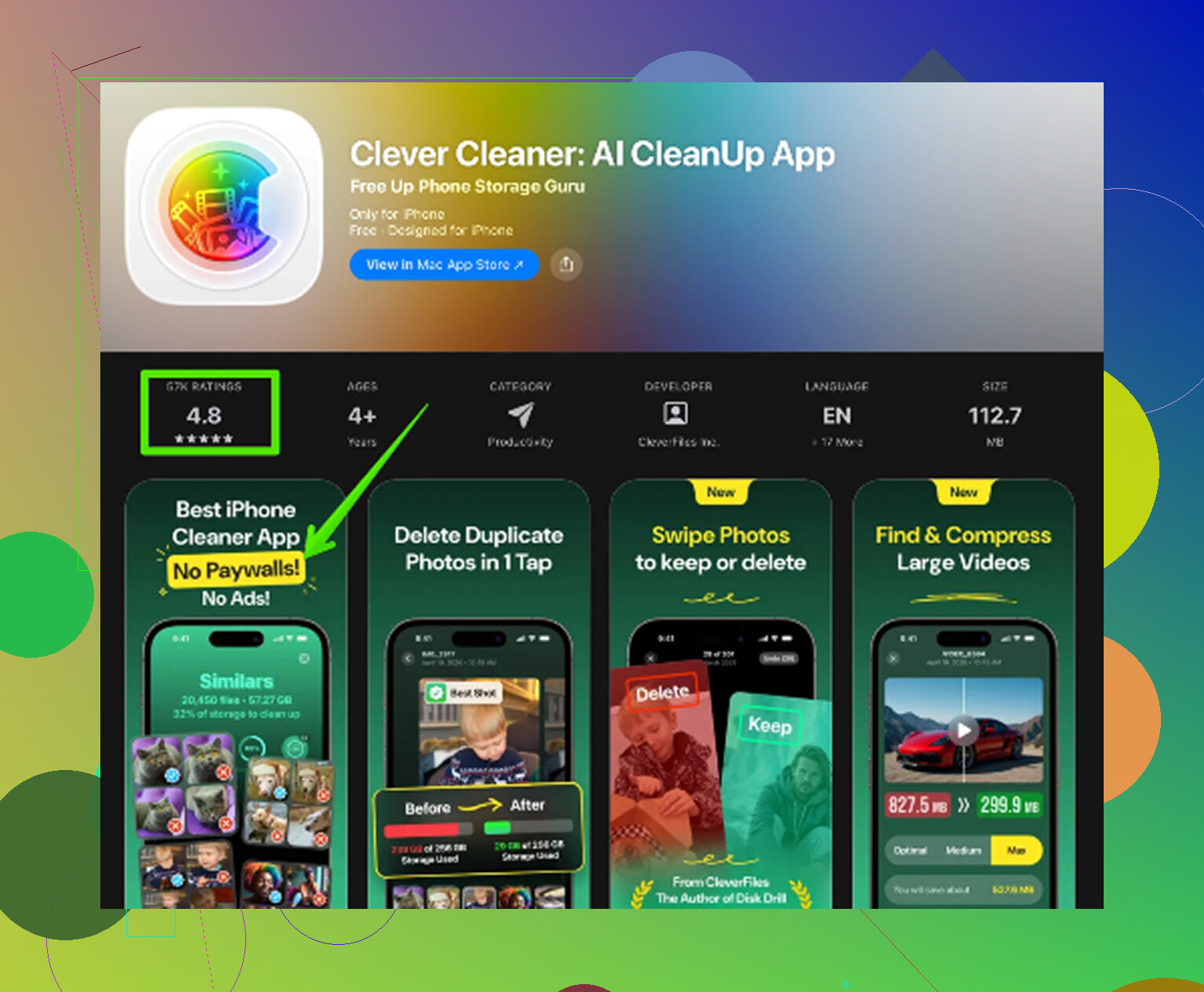
Clever Cleaner can help with that part. It’s free, with no ads or subscription. The Heavies tab sorts files by size, largest first, so oversized videos are easy to spot. The Similars tab groups near-duplicate shots and picks a Best Shot from each group, which is useful for bursts or repeated photos of the same thing. The Screenshots tab also shows the file size for each screenshot before you delete it. Processing happens on the device, so the files aren’t uploaded somewhere else.
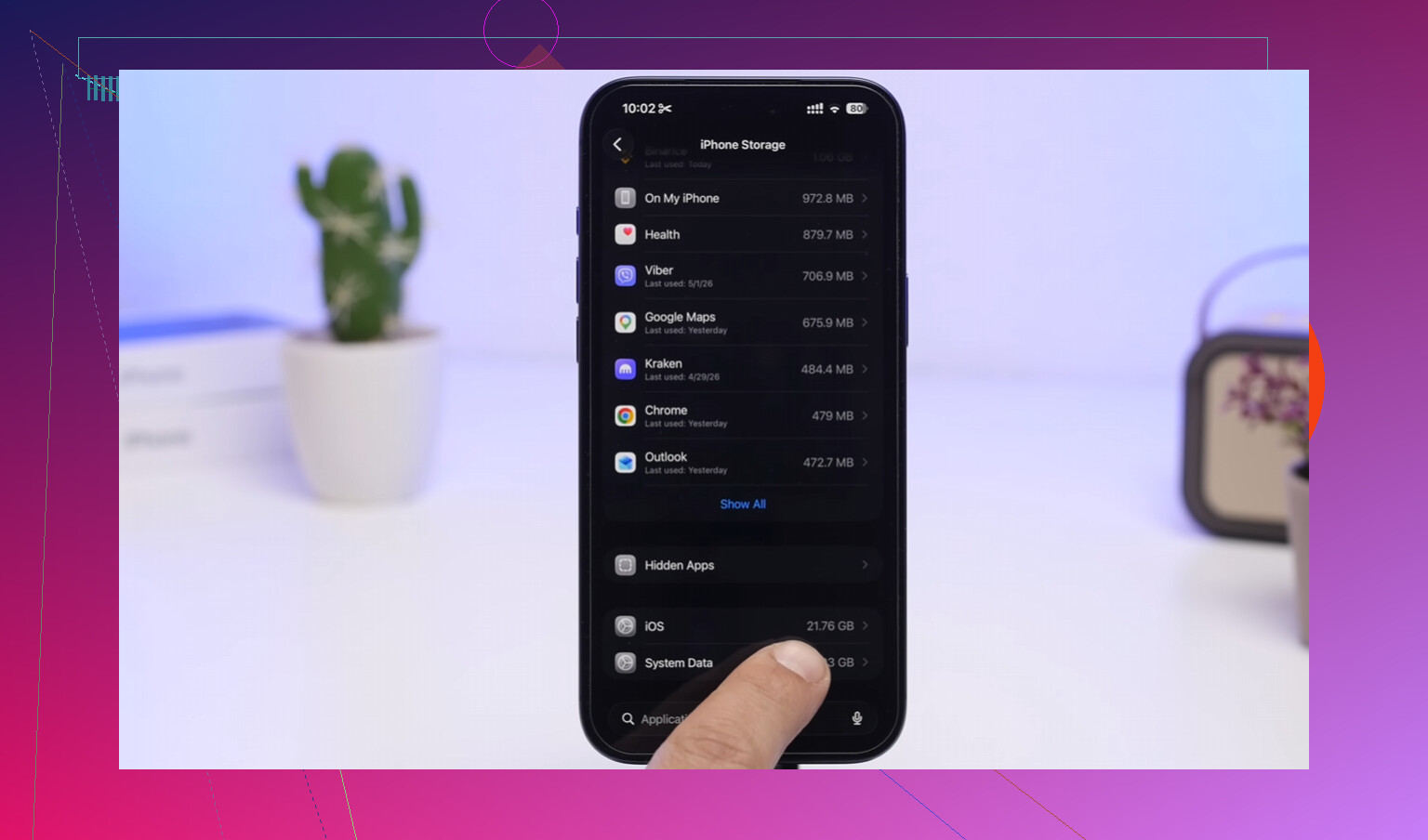
One last step matters more than people expect. Deleted photos and videos still sit in Recently Deleted for 30 days, and they keep using storage during that time. Go to Photos - Albums - Recently Deleted - Delete All after you finish. If the storage number still looks wrong after that, restart the phone so iOS recalculates the free space.
1 Like
Deleting while iCloud Photos is on is deleting from the shared cloud library; deleting after you’ve made a separate export/backup is a cleanup job. Before touching mass delete, save the non-favorites somewhere outside Photos, like a Mac folder or external drive, because an iPhone backup usually won’t save photos that are only managed by iCloud Photos.
The download setting matters before you flip any switches. If iCloud Photos is on, the Photos library is one synced library, and Favorites are just a label on photos. They are not protected copies, and they are not stored separately. So if you delete a non-favorite from the iPhone while iCloud Photos is enabled, you are deleting that item from iCloud Photos too.
I’d be careful with the “turn off iCloud Photos first” advice unless you know what option you’re choosing afterward. If the phone is using Optimize iPhone Storage, it may not have full-resolution originals locally. When you disable iCloud Photos, iOS may offer choices like removing items from the iPhone or downloading originals. “Remove from iPhone” is the storage-saving choice. Deleting inside the Photos app is the library-changing choice. Those are very different things.
For freeing space, the safer path is usually: leave iCloud Photos on, enable Optimize iPhone Storage, and don’t mass-delete anything unless you have a separate export somewhere outside Apple Photos. If you truly want to keep only favorites in the actual iCloud library, do it from a Mac if possible, because Smart Albums can make “not favorite” cleanup much less painful than trying to drag-select thousands of items on an iPhone. Just remember that once you empty Recently Deleted, that cleanup is no longer easy to undo.
Don’t treat Recently Deleted as a local trash can; with iCloud Photos on, that folder syncs too, and emptying it from the phone removes the recovery copy everywhere.
If your goal is only to free iPhone storage, don’t delete anything in Photos. Use Optimize iPhone Storage or remove iCloud Photos from that device, because Delete means “delete from the library,” not “delete from this phone.”