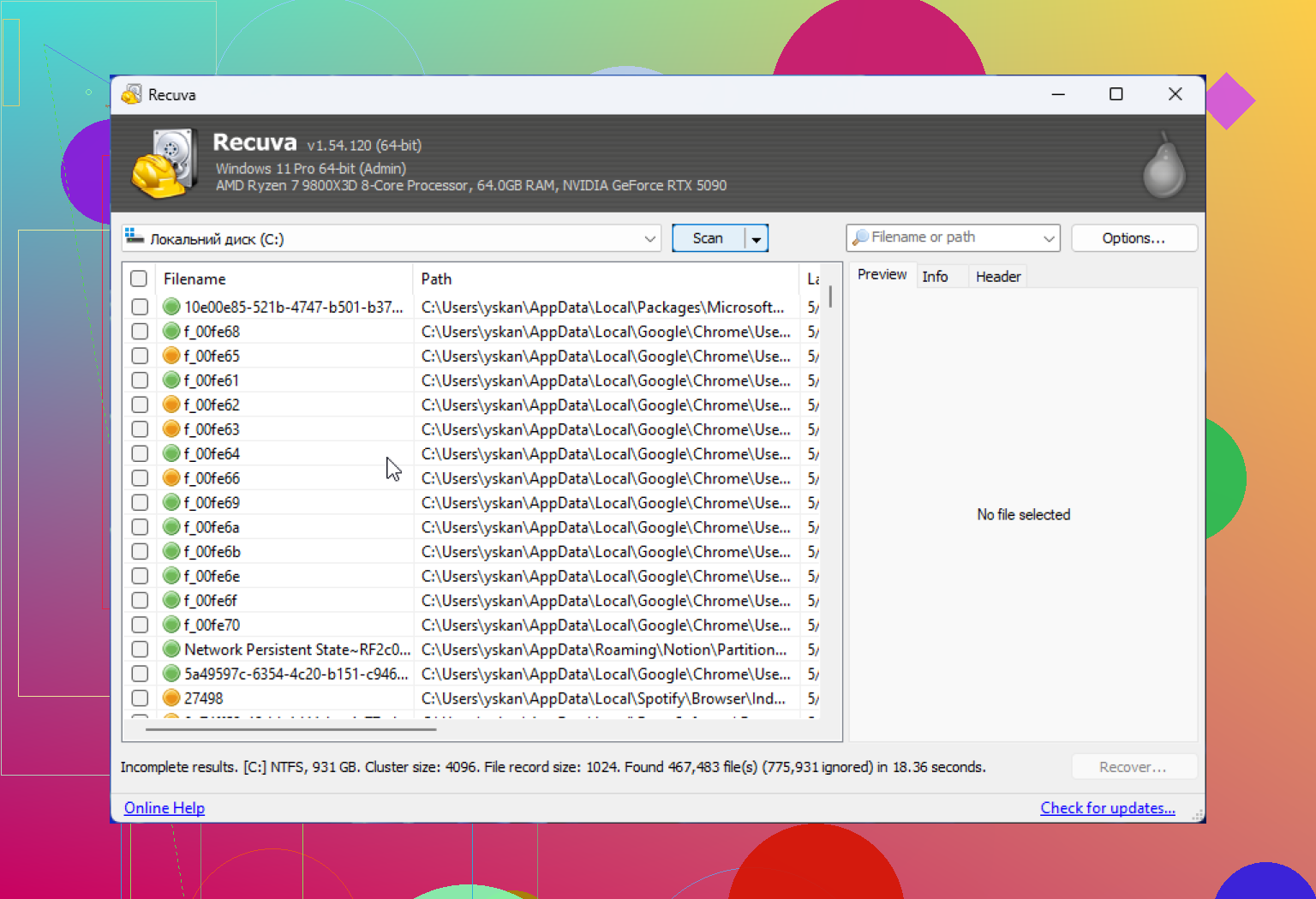
I downloaded Recuva to recover deleted files, but during setup it looked like it was asking me to install extra software too. I’m not sure if this is normal, safe, or something I should avoid. Can someone explain whether Recuva is safe to use and how to install it without unwanted extras?
People ask this all the time, and I get why. 'Is Recuva safe?' sounds like a yes or no thing. It isn’t, at least not if you care about more than whether the installer is clean. My short version is this: yes, Recuva is safe to run. It’s not malware. It’s not built to trash your PC. But there are a few catches around privacy, and a bigger one around how easy it is to make your own recovery worse if you use it the wrong way.
I’ve been testing recovery tools on old SSDs, dying flash drives, and a couple of disks I should have retired years ago. Recuva still has a place, but you need to know where it helps and where it falls over.
About the malware rumors
A lot of the fear traces back to the CCleaner breach in 2017. Same developer, Piriform. During that supply chain attack, hackers slipped malware into an official CCleaner release. Bad incident. Huge mess. Millions got caught up in it.
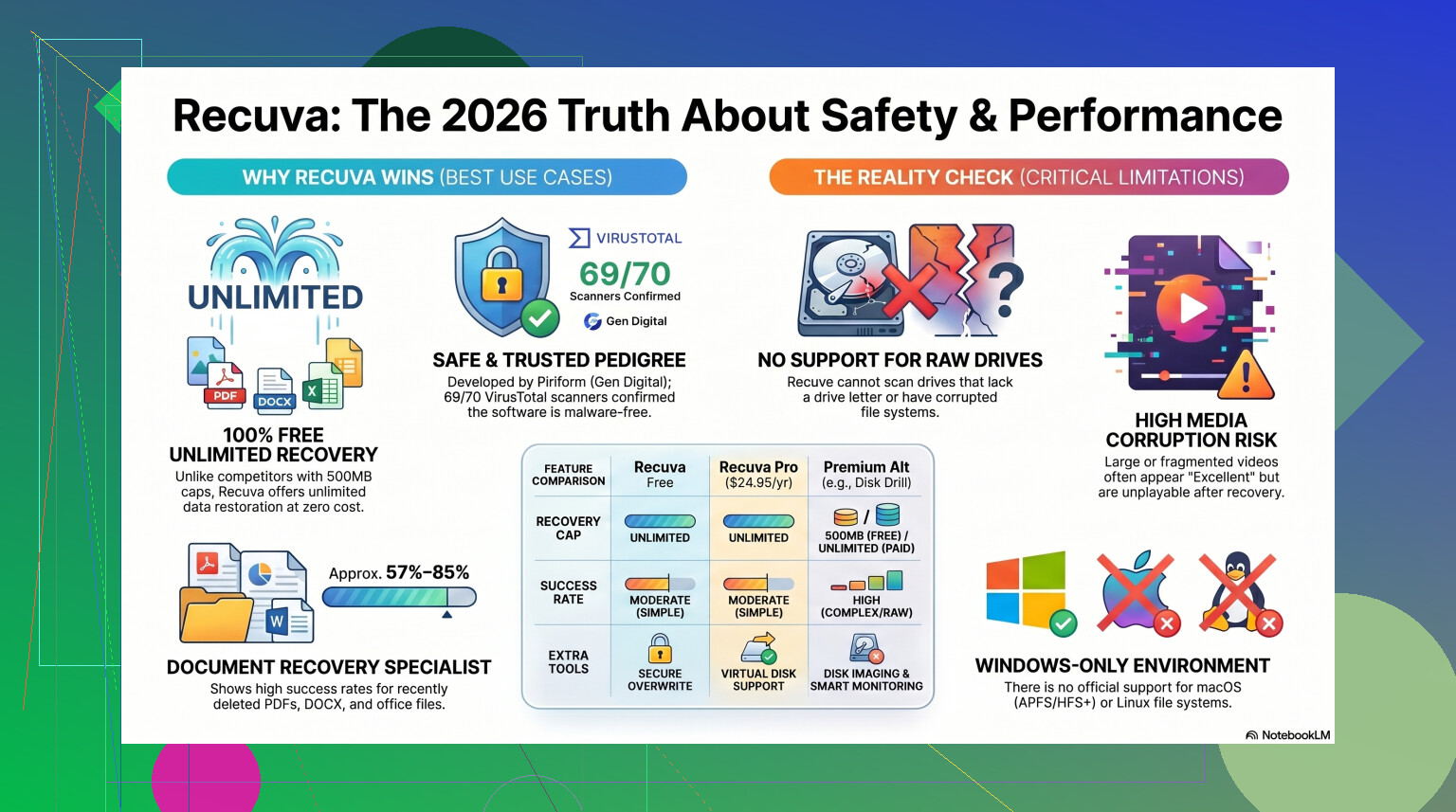
Still, that event is old news by 2026 standards. Piriform ended up under Avast, then under Gen Digital, the same umbrella tied to Norton. Current Recuva installers are scanned a lot more aggressively than they used to be. When I checked recent builds through VirusTotal, the pattern was usually clean results or one odd alert from a minor antivirus engine. That kind of single hit tends to happen with tools that poke around deleted sectors and low-level disk structures. Heuristic scanners get twitchy.
If you download Recuva from the official source, you’re not dealing with some hidden trojan. That part is fine.
Safe from malware is not the same as private
This is where people blur two different issues. Recuva itself isn’t spying in some dramatic movie-villain way, but the company behind it does collect standard telemetry. Their policy covers things like IP address, device identifiers, operating system details, and location info used for licensing and fraud checks.
If that bothers you, go into the settings right after install. Open Options, then Privacy, then turn off the box for sending usage data to help improve other apps. I do this first. Every time.
One detail people miss, IP data may stick around for 36 months before it gets anonymized. So yes, the free tool costs you some data. If you’re picky about privacy, factor that in.
The part where people ruin their own recovery
Recuva is usually safe for the machine. Users are the dangerous part.
The biggest mistake is installing it onto the same drive where the deleted files lived. I’ve seen people delete a folder of photos, panic, download Recuva onto the same desktop drive, then wonder why half the files come back broken. The reason is ugly but simple. Deleted data often sits there until new data writes over it. Your installer, temp files, browser cache, all of it chews up free space. Sometimes it chews up the file you wanted back.
So if your files matter, do this instead:
- Use the portable version if you can.
- Run it from a USB stick.
- Save recovered files to a different drive.
Not a different folder. A different drive. People miss that part and then get burned.
What Recuva does well, and where it starts looking old
For fresh deletions on a healthy Windows drive, Recuva still works decently. If you emptied the Recycle Bin ten minutes ago, or deleted a DOCX by mistake, it’s fast and easy. No paid cap blocking the scan. No bloated interface. The wizard is plain, but I kind of like plain when I’m stressed and trying to get files back.
Once the case gets messier, the cracks show fast.
The software has not had a true rebuild in years. There were patches to keep it alive on newer Windows versions, sure, but the guts still feel old. Recuva behaves more like an undelete utility from another era than a full recovery suite.
Some examples from my own tests and a few bench runs I repeated:
- On healthy NTFS drives with recently deleted files, it did fine.
- On USB drives formatted after deletion, recovery rates dropped hard, often around 63% to 67%.
- On damaged volumes or drives showing up as RAW, it often failed to detect anything useful.
- File names and folders came back messy, or not at all.
- Images marked 'Excellent' still opened as junk.
That last one annoys me more than a flat failure. I’d rather a tool miss a JPG than tell me it recovered it, then hand me a dead file.
And yes, if you recover a giant batch, there’s a fair chance you end up staring at a folder full of renamed files like 000123.jpg, 000124.jpg, 000125.jpg. Sorting that by hand is its own punishment.
When I stop bothering with Recuva
If the drive is failing, clicking, disconnecting, showing as RAW, asking to be formatted, or holding files you can’t replace, I stop treating Recuva as more than a quick first pass. Time matters. Repeated scans stress bad hardware. If the disk is fading, you want fewer mistakes, not more.
In those cases I’ve had better luck moving to Disk Drill. It handles rougher situations better, including damaged partitions and RAW volumes Recuva tends to ignore. In testing, I’ve seen recovery rates closer to 95% to 97% on formatted drives where Recuva came back half-empty or returned corrupted junk.
The feature I care about most is Byte-to-Byte Disk Imaging. This matters more than flashy UI stuff. You clone the failing drive first, then scan the clone. If the original drive dies halfway through, your image is still there. Recuva doesn't give you that safety net, and on unstable hardware, that changes the whole risk level.
I also wouldn't trust Recuva much for fragmented video or camera RAW formats. I had poor results with larger video files and niche photo formats from Nikon and Canon bodies. If your work involves media, the gap gets obvious fast. This Recuva review gets into that side of things in more detail.
What I’d do in your place
If you deleted something on a normal Windows PC and the drive seems healthy, Recuva is a fair first try. I’d still keep the steps tight:
- Get it from the official site.
- Pick the portable build when possible.
- Turn off usage sharing in Privacy settings.
- Recover to another drive, not the source drive.
- Don’t expect miracles from old or damaged disks.
If Recuva finds nothing useful, or the files return corrupted, stop writing to the drive. Don’t keep installing tools onto it. Don’t keep retrying random scans for hours. Move to a stronger recovery app, or if the data is irreplaceable, consider professional recovery before you make it worse. I’ve ignored my own advice on this once. Cost me a folder of client footage. Dumb mistake.
So, plain answer. Recuva is safe in the malware sense. It’s okay for simple undelete jobs. It’s less okay once the drive is damaged, formatted, fragmented, or carrying files you cannot lose. Use it carefully and it’s a decent free option. Use it carelessly and you’ll think the app failed, when the damage came from the way you ran it.
1 Like
Yes, that prompt is normal on some Recuva installers. No, you should not accept the extra software unless you want it.
The important part is this. Recuva itself is usually safe if you got it from the official Piriform site. The bundled offer is separate. It is often adware-ish junk, browser stuff, or a trial app. Not a virus in most cases, but not something your recovery job needs either.
My rule:
- Decline every extra offer.
- Use custom install, not express.
- Untick any prechecked boxes.
- If there is a portable version, use thta instead.
I slightly disagree with @mikeappsreviewer on one point. Telemetry is not the main risk for most people here. The bigger risk is cluttering the same drive and overwriting deleted data during install. That is where people mess up fast.
If your files matter, stop using the drive first. Then run recovery from USB or another disk. Recuva is fine for simple deletes. If it was a formatted drive, RAW partition, or failing SSD, I would skip the old tools and look at Disk Drill. It tends to do better on harder cases.
If you want a solid list of data recovery tools for Windows and external drives, this guide is useful:
best data recovery software for deleted files and damaged drives
So yes, safe enough. Extras, no thanks. Untick them all.
Yes, that can be normal, and no, you generally should not install the extras.
Recuva itself is usually safe if you downloaded it from the official source. The ‘extra software’ part is the sketchy bit, not because it is always malware, but because bundled offers are often just unwanted junk, trials, toolbars, or system cleaners you did not ask for. I auto-decline that stuff on principle.
I mostly agree with @mikeappsreviewer and @boswandelaar, but I think people sometimes overstate the danger of the bundle screen itself. Annoying? Yes. Red flag? Kinda. Instant infection? Usually no. It is more like a sign to slow down and read every checkbox.
What matters more is where you install it. If you are recovering deleted files, writing anything new to that same drive is a bad move. That includes Recuva, temp files, browser downloads, all of it. If possible, use the portable build or run recovery from a USB drive and recover files to a separate disk. Thats the part people mess up most.
Also, Recuva is fine for simple undeletes, but it starts to feel old fast on tougher jobs. If the drive was formatted, shows RAW, or is acting flaky, I would skip the gamble and use Disk Drill instead. It tends to be better for damaged or more complicated recovery cases.
If you want background on the tool itself, this overview is decent:
what Recuva data recovery software is and how it works
Short version:
- Recuva: generally safe
- bundled extras: decline them
- install location: very important
- failing or formatted drive: Disk Drill is usually the smarter pick
So yeah, safe enough, but click carefully. One lazy ‘Next, Next, Next’ and your recovery attempt gets dumber real fast.