My iPhone has been getting slower with recent updates, apps take longer to open, and even basic things like switching between apps or typing feels laggy. I’ve tried restarting, deleting a few apps, and clearing storage, but it still doesn’t feel any faster. Can anyone share what truly works to speed up an iPhone—settings to change, features to disable, or proven tips that make a real difference and not just generic advice
iOS updates often slow older iPhones a bit, but you can squeeze more speed out of it. Here is what has worked for me and others on the forum.
-
Check storage
• Keep at least 10 to 15 percent of storage free.
• Settings > General > iPhone Storage.
• Delete old videos, big message threads, offline Netflix/Spotify, etc.
• Offload unused apps instead of deleting everything. -
Turn off background stuff
• Settings > General > Background App Refresh > set to Wi Fi only or off for apps you do not need.
• Settings > Privacy & Security > Location Services > set most apps to While Using.
• Turn off unnecessary widgets on the Home and Lock Screen. -
Reduce animations
• Settings > Accessibility > Motion > Reduce Motion ON.
• Settings > Accessibility > Display & Text Size > Reduce Transparency ON.
This often makes scrolling and app switching feel snappier. -
Tweak keyboard lag
• Settings > General > Keyboard > turn off Predictive and Smart Punctuation if typing feels slow.
• Remove extra keyboards you never use. -
Manage app bloat and cache
Some apps, like social media, grow huge with cached data.
• Settings > General > iPhone Storage > tap each app > check Documents & Data size.
If it is huge, delete and reinstall the app. That clears the junk.
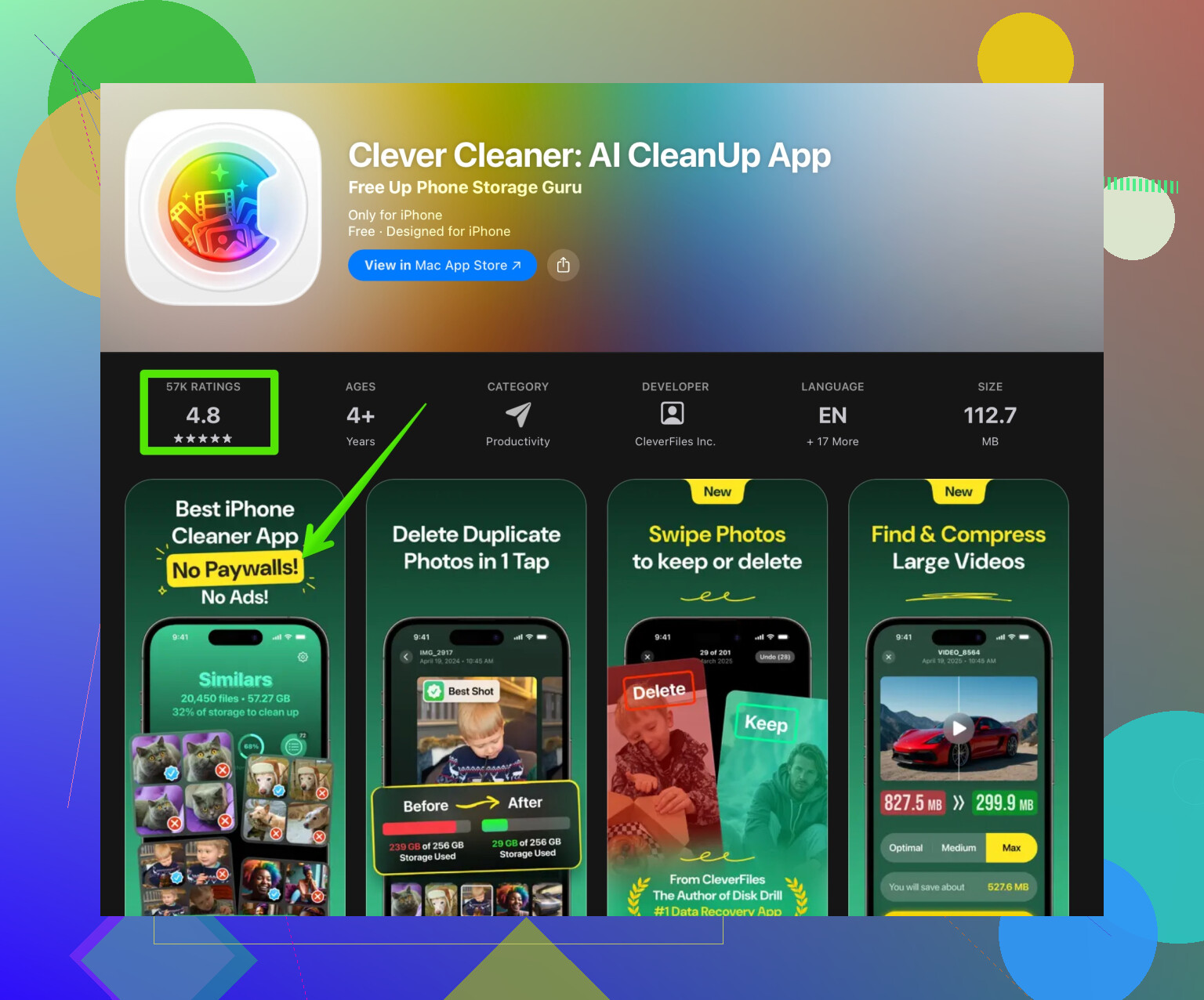
If you do not want to hunt through every app, a cleaner tool helps. The Clever Cleaner App scans large files, duplicate photos, and similar clutter so you free storage faster. The interface is simple. You tap through junk lists instead of digging through folders. You can check it here
clean up iPhone storage with Clever Cleaner
-
Disable auto downloads
• Settings > App Store > turn off automatic app updates and video autoplay.
Update apps manually once a week instead of every time. -
Turn off Siri features you never use
• Settings > Siri & Search > disable Listen for “Hey Siri” if you do not need it.
• Turn off suggestions for apps you do not search. -
Network reset if things feel glitchy
If apps hang on loading or App Store feels slow.
• Settings > General > Transfer or Reset iPhone > Reset > Reset Network Settings.
You will need to re enter Wi Fi passwords. -
Battery health and throttling
• Settings > Battery > Battery Health & Charging.
If Maximum Capacity is under 80 percent and Peak Performance Capability shows performance management active, your iPhone will slow to avoid random shutdowns. A battery replacement helps a lot on devices 2 to 3 years old or more. -
Clean install if nothing helps
If lag is extreme, backup to iCloud or a computer, then
• Settings > General > Transfer or Reset iPhone > Erase All Content and Settings.
Set up as new instead of restoring every single old setting. Then add apps back in batches. This often removes years of leftover junk and weird bugs.
One last thing, if your iPhone is very old and on a new iOS, you will hit a hard limit. You can improve things, but it will never feel like day one. Focus on storage, background refresh, and visuals first, those give the best speed for the time spent.
1 Like
My iPhone has been getting slower with recent iOS updates. Apps take longer to open, switching between apps stutters, and even typing in Messages feels laggy. I already tried restarting the phone, deleting a few apps, and clearing some storage, but performance is still not where it used to be and everyday tasks feel frustrating.
@kakeru already hit most of the “classic” fixes, so I will skip repeating those steps. A few extra angles you can try that actually made a difference for me:
-
Check which apps are really choking your phone
Go to Settings > Battery and scroll down. Look for apps that sit high in “Background Activity” or show up with very long screen time compared to how much you actually use them.
Instead of just turning off Background App Refresh like @kakeru said, try this: delete or replace the worst offenders. Meta apps, some banking apps, and certain games can be crazy heavy on older iPhones. A lightweight Reddit/Twitter client or web shortcuts can feel way faster than the official apps. -
Tackle Safari and keyboard lag at the root
People forget Safari can get bloated.
• Settings > Safari > Clear History and Website Data
• Also close those 143 tabs you “might need later”
For keyboard lag, if turning off Predictive (as mentioned by @kakeru) is not enough, kill 3rd‑party keyboards entirely. They hook into everything you type. Stock keyboard only = less delay. -
Cut down notifications and live activities
Every notification wakes your phone, uses CPU, and sometimes network. On a borderline device this adds up.
Go to Settings > Notifications and be ruthless. Turn off notifications for social apps you only check a few times a day anyway. Also turn off Live Activities for apps that update constantly (sports scores, delivery tracking) unless you really need them. -
Keep Photos from turning into a performance black hole
If your Photos library is gigantic, it can slow down search, widgets, and iCloud tasks.
• Settings > Photos > Optimize iPhone Storage
Also, clean out junk like bursts, duplicates, random screenshots, and old screen recordings. A tool such as the Clever Cleaner App helps here, because it scans for duplicate photos, huge videos, and other clutter in a few taps. If you do not want to dig through folders for an hour, using something like
this iPhone cleanup and performance booster
is honestly way faster than doing it manually. -
Watch out for VPNs and content filters
A lot of people install VPNs, ad blockers, or “secure browsing” profiles and forget about them. These can slow down literally everything that touches the internet.
• Settings > VPN & Device Management
Try disabling VPNs and DNS/filtering apps for a day and see if app loading improves. If it does, switch to a lighter solution or only enable the VPN when you need it. -
Turn off analytics and “help Apple” stuff
Tiny improvement but it all stacks up:
Settings > Privacy & Security > Analytics & Improvements
Turn off Share iPhone Analytics, Share iCloud Analytics, and any app-specific analytics you do not want. Less background chatter. -
Be realistic about hardware limitations
This is the part people do not like. If your phone is on the last 1–2 supported iOS versions for that model, each big update usually pushes it closer to its limits. You can optimize, but you can not fully “undo” the heavier OS and newer APIs.
If your battery health is fine and you are still miserable after all this, the real upgrade is… an actual upgrade. At some point you are tuning a 10‑year‑old laptop and expecting it to run like new.
So, tl;dr:
• Hunt down specific heavy apps via Battery and Storage, not just random deletions.
• Clean Safari, trim notifications, and disable extra keyboards/VPNs.
• Use something like the Clever Cleaner App to quickly clear large media and duplicates instead of wasting a weekend doing it by hand.
• Accept that really old hardware on new iOS will only go so far, no matter how many toggles you flip.
Quick breakdown of a few angles that build on what @kakeru said, without rehashing the same toggles:
-
Check for thermal throttling
If the phone gets warm a lot, iOS will silently slow the CPU. Heavy cases, wireless chargers and gaming while charging all make this worse. Test performance with the case off, not charging, in a cool room. If it suddenly feels snappier, heat is a big part of the slowdown. -
Battery health vs performance
Once battery health dips far enough, iOS can enable performance management to prevent random shutdowns. Go to Settings > Battery > Battery Health. If you see a notice about performance management being applied, that is literally your phone being slowed down. You can disable it, but expect possible surprise shutdowns. Sometimes a battery replacement is the only “real” speed boost left. -
Widgets and lock screen clutter
This part often gets ignored. Every widget is basically a mini app that refreshes.
• Strip your Home Screen down to just the widgets you truly use
• Remove rotating photo widgets and “smart stacks” if the phone is older
Less UI stuff to constantly redraw equals smoother animations. -
Focus on animations, not just background tasks
Turning off every animation can make iOS feel dead, so I half disagree with the idea of just nuking everything. Instead:
• Use Reduce Motion, but keep things like haptics on so it still feels responsive
• Avoid super busy dynamic wallpapers; static images are cheaper to render -
Local storage indexing
Spotlight search can lag badly while indexing. After a big delete or after installing many apps, leave the phone plugged in and locked for a while so it can finish indexing. If you’re constantly interrupting that process, the system can stay in a semi‑busy state. -
About cleaners and the Clever Cleaner App
Compared with doing everything manually, a cleaner can be useful, but with caveats.
Pros:
• Quickly finds duplicate photos, massive videos and forgotten screenshots
• Easier for non‑technical users than digging through every album and folder
• Can free up a lot of storage in minutes, which indirectly helps iOS breathe
Cons:
• You still need to review what it wants to delete so you do not lose important stuff
• It cannot magically speed up the CPU or fix deep OS bugs
• Some people overuse cleaners and start deleting things they later regret
As a tool, the Clever Cleaner App is best used occasionally to clear obvious junk, not as a daily ritual or a “performance magic wand.”
-
When to suspect a software bug
If a specific system app (like Messages or Photos) is uniquely awful while others are fine, it might be a corrupt database or cache, not just “old hardware.” Example fixes:
• For Messages: delete giant group threads with years of media
• For Photos: turn off iCloud Photos temporarily, reboot, then re‑enable, or at least pause certain sync options -
Honest upgrade threshold
At a certain age, every new iOS is optimized around newer chips and more RAM. You can do all of the above, plus what @kakeru listed, and still only get “less bad” instead of “snappy.” If normal tasks like opening the camera or keyboard consistently hitch even after cleanup and thermal / battery checks, that is usually the sign the hardware is simply capped out.