My external NTFS drive suddenly shows up as RAW in Disk Management, and now Windows says I need to format it before I can use it. It had important files on it and was working fine before this happened. I need help figuring out whether recovery is still realistic and what steps I should take first to avoid making things worse.
I ran into this before, and I would not start by trying to force RAW back into NTFS. When Windows shows a drive as RAW, what I usually saw was this: the files were often still sitting there, but the NTFS structure was damaged enough for Windows to give up reading it.
The safer path is boring, but it saves data more often.
First, pull your files off the drive
- Stop writing to the RAW drive right away. Don’t format it. Don’t initialize it. Don’t run CHKDSK yet.
- Install Disk Drill on a different disk. Not the broken one.
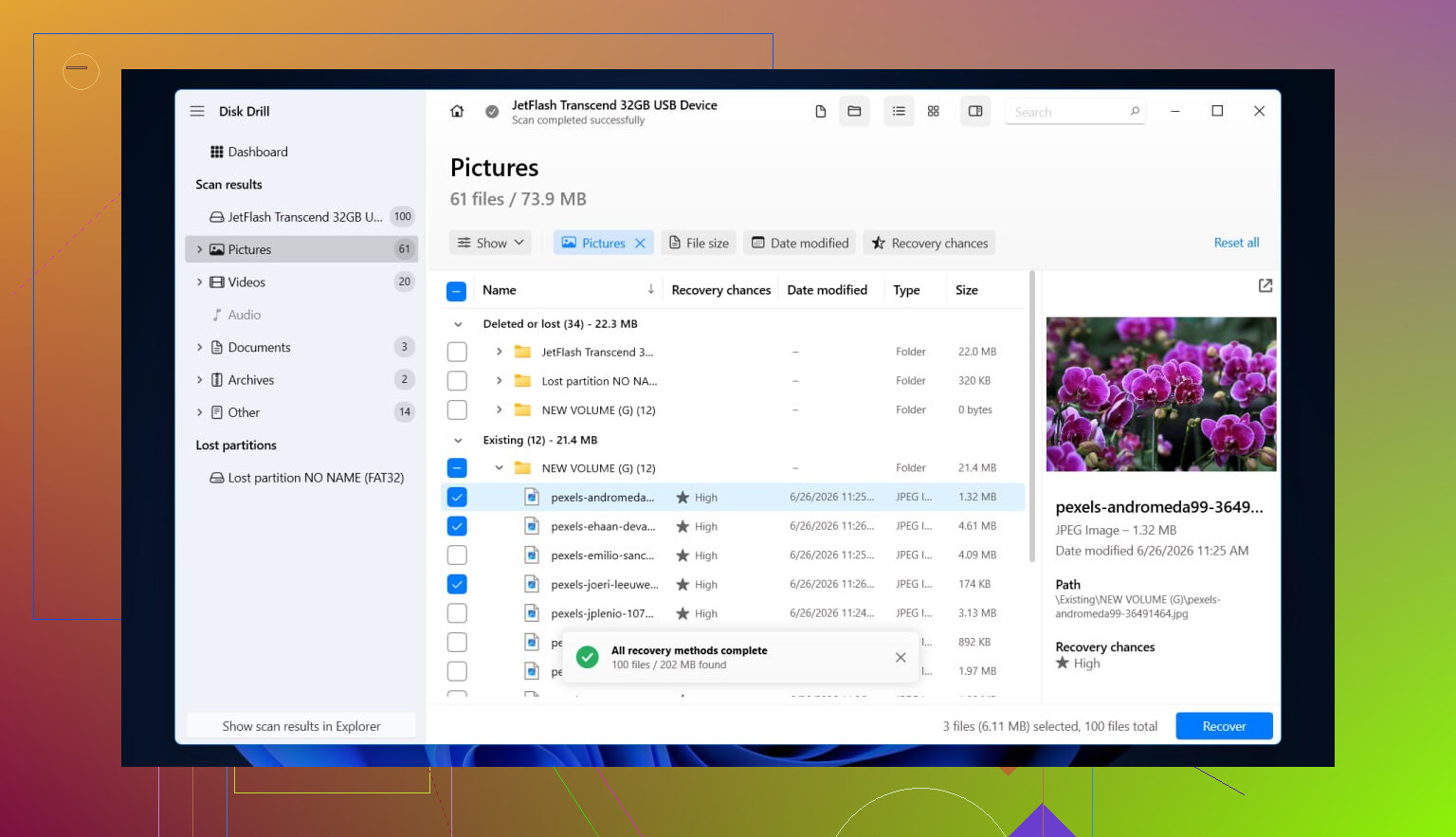
- Launch Disk Drill and pick the RAW device from the list. If it shows both the partition and the full physical drive, I’d scan the full drive first.
- Hit Search for lost data.
- Wait it out. Large external hard drives take a while, and RAW scans are not quick.
- When results show up, look through Existing, Deleted or lost, and Reconstructed.
- Use file type filters and the search field so you’re not scrolling forever.
- Preview a handful of files before you recover anything. If previews open cleanly, I usually take that as a decent sign.
- Mark the files you want back.
- Recover them to another drive with free space. Do not write recovered files back onto the RAW drive. I’ve seen people do that and make a mess worse.
Why Disk Drill helps here is simple. It does not need Windows to mount the volume first. It scans RAW partitions directly. If some NTFS records still exist, you might get original names and folder layout back. If the file system is more trashed, signature scanning still pulls out files by type.
After your data is safe, deal with the drive itself
Once the important stuff is copied somewhere else, then fix or rebuild the disk.
Option 1, format it in Disk Management
- Open Disk Management.
- Locate the RAW partition.
- Right-click it and pick Format.
- Set the file system to NTFS.
- Leave Quick Format on.
- Give it a volume label if you want.
- Click OK and let it finish.
This is the usual route. It does not repair the old file system. It writes a new one, so do it only after recovery.
Option 2, format it from File Explorer
- Open This PC.
- Right-click the RAW drive.
- Choose Format.
- Select NTFS.
- Keep Quick Format enabled.
- Start the format.
Option 3, use DiskPart when the normal tools refuse
- Open Command Prompt as admin.
- Type
diskpart - Type
list disk - Type
select disk X, where X is the RAW drive number - Type
list volume - Type
select volume X, for the RAW volume - Type
format fs=ntfs quick - Type
assign - Type
exit
Go slow in DiskPart. One wrong disk number and you’re formatting the wrong device. I’ve seen poeple click through this stuff too fast.
One more thing. If the drive formats fine and then later flips back to RAW again, I would stop trusting it. From what I’ve seen, that usually points to bad sectors, flaky hardware, a dying enclosure, or some other deeper fault.
1 Like
Yes, recovery is still realistic.
RAW on an NTFS drive usually means Windows lost the file system map. It does not always mean your files are gone. I agree with @mikeappsreviewer on one big point, do not format first. I disagree a bit on jumping straight into repair attempts after recovery talk. Before anything else, check whether the problem is the drive or the connection.
Do this first.
- Try a different USB cable.
- Try a different USB port, direct to the PC.
- If it is in an external enclosure, test it on another machine.
- Check SMART health with CrystalDiskInfo or Hard Disk Sentinel.
If SMART shows bad sectors, pending sectors, or I/O errors, stop using the drive normally. Clone it first with something like ddrescue or HDDSuperClone. Recover from the clone, not the sick disk. This matters a lot. A failing drive often gets worse scan by scan.
If SMART looks decent, then use a recovery tool. Disk Drill is fine for RAW NTFS cases because it reads the disk without Windows mounting it. R-Studio, UFS Explorer, and DMDE are also strong if you want more control. DMDE is great when the partition table or NTFS boot sector got mangled, since it sometimes lets you inspect and restore metadata instead of doing file-by-file recovery. That path keeps folder structure better when it works.
One thing I would not rush into is CHKDSK. People love typing chkdsk /f on a RAW drive, then wonder why the result is worse. If the file system is damaged hard enough, CHKDSK tends to ‘fix’ things by dropping damaged entries. Fine for a backup volume. Bad for first-pass recovery.
If you want a readable walkthrough, this helps: how to convert RAW to NTFS without losing data
Short version, yes, your odds are decent if you stop writing to the drive now. If the drive is healthy, file recovery is often pretty solid. If the hardware is failing, clone first or you risk making it worse. That part gets missed a lot, and its a big deal.

Yes, recovery is still realistic, but I’d split this into two totally different cases.
If the drive suddenly went RAW after a disconnect, power blip, or enclosure hiccup, you may be dealing with damaged NTFS metadata, not dead files. If the drive is also clicking, disappearing, freezing Explorer, or reading painfully slow, then it might be hardware and every extra scan is a gamble. That’s where I slightly part ways with @mikeappsreviewer and @ombrasilente. People focus a lot on the file system label, but sometimes the USB-SATA bridge/enclosure is the real idiot in the room.
What I’d do is remove as many variables as possible:
- test the drive on another PC
- if possible, use another enclosure or SATA dock
- check whether the disk capacity shows correctly in BIOS/Disk Management
- look in Event Viewer for disk errors like I/O or controller resets
If the size shows wrong or the drive keeps reconnecting, software recovery is not step one anymore.
If it stays stable, then yeah, scan it with Disk Drill or another RAW-capable recovery tool and copy data off to a different disk. Disk Drill makes sense here because it can scan a RAW NTFS partition without Windows mounting it first.
One more thing people skip: make a sector image if the data matters a lot. Even if the drive seems “fine.” Working from an image is slower up front, but way safer if the disk decides to get worse mid-recovery. Kinda boring, but boring is how you keep your files.
Also, if you want more background, this video on best data recovery software for RAW and damaged drives is a decent starting point.
Do not format first. Do not run CHKDSK first. And if the drive turns RAW again after you recover and reformat it, retire it. No second chances for sketchy storage, imo.

Realistic, yes. Guaranteed, no.
I mostly agree with @ombrasilente, @reveurdenuit, and @mikeappsreviewer on the big rule: treat the drive as read-only from now on. Where I slightly disagree is the idea that software is always the next move. If this external drive went RAW because the enclosure’s USB bridge glitched, the filesystem may be innocent and the packaging is the problem.
A couple things worth checking that were not stressed enough:
- In Disk Management, see whether the partition size still looks correct.
- In Device Manager, uninstall the USB mass storage device, unplug, reboot, reconnect.
- Check Event Viewer under System for Disk, Ntfs, or storahci warnings around the time it failed.
- If it is a 3.5-inch external, make sure the power adapter is not flaky. Undervoltage causes weird RAW appearances.
If the capacity is wrong, or the drive drops in and out, stop. That is not a normal “recover files with one scan” situation.
If hardware looks stable, Disk Drill is a reasonable choice for pulling data off a RAW NTFS volume.
Pros of Disk Drill:
- easy to use
- good preview support
- can find files even when Windows cannot mount the volume
Cons:
- deeper repairs are limited compared with tools like DMDE or R-Studio
- file signature recovery can lose original names/folders
- heavy scans on weak drives are still stressful
My personal order would be:
- verify hardware stability
- image or clone if the data matters a lot
- recover files from the image
- only then test reformatting the original drive
One unpopular opinion: if the recovered files are truly important, skip “repairing” the NTFS volume entirely and focus only on extraction. Repair attempts are great when the data is replaceable. They are not my first pick when the files are not.