My older iPad has gotten really slow lately, especially when opening apps, browsing, and switching between screens. I’m trying to figure out which settings to turn off first to improve speed and battery life without messing anything up. Looking for help with the best iPad settings to disable on an old iPad to make it run faster.
Yeah, I ran into the same mess on an older iPad. Safari would stall, app switching would hang for a few seconds, and the whole thing felt worn out overnight. Mine used to feel smooth too, so I get why this gets old fast.
I wouldn’t jump to a new Pro yet. On older iPads, lag usually showed up for me when the OS was dealing with too much background junk, low free storage, or bloated Safari data. What helped most was trimming the obvious stuff first.
Start with the basic cleanup
I did a full restart first. Boring fix, but it helped more than I expected. A restart clears memory and kills stuck processes, which is often enough to stop random freezes for a while. I try to do it every few weeks now.
Then I checked Settings > General > Software Update. Even small iPadOS patches fixed odd Safari slowdowns for me once or twice. If you skipped an update, it’s worth a look.
Settings I turned off first
These were the big ones on my device.
- Background App Refresh
Go to Settings > General > Background App Refresh and shut it off. On an aging iPad, this setting felt like a tax running in the background all day. Apps keep checking for updates and data even when you are not using them. Turning it off cut down on battery drain and made browsing less jerky.
- Reduce Motion and Reduce Transparency
Open Settings > Accessibility > Motion and enable Reduce Motion.
Then go to Settings > Accessibility > Display & Text Size and enable Reduce Transparency.
This strips out some of the blur and animation effects. It looks plainer, sure. My iPad felt snappier right after, which mattered more to me than the visual polish.
Safari was part of the problem too
In Settings > Safari, I used Clear History and Website Data. Safari had built up a lot of cached junk over time, and some pages were freezing or loading halfway. Clearing it gave me a fresh start.
Also, if you keep a huge pile of tabs open, close them. I had way more open than I thought. On older hardware, tabs eat memory fast.
The thing that fixed it for me was storage
This was the part I missed for too long. Once my iPad got close to full, around 90% used, the freezes got worse. Touch input would pause, apps would stop responding, and Safari felt awful. Apple says you need free space, and on older devices I found you want more than the bare minimum. I’d try to keep 10 to 15% of the total storage open if you can.
When storage gets tight, iPadOS struggles with temporary files and routine system tasks. On mine, it turned into those annoying 3 to 5 second lockups where nothing responded.
I checked iPad Storage and found the usual trash heap. Big videos, duplicate burst photos, screenshots I forgot about, plus System Data creeping up.
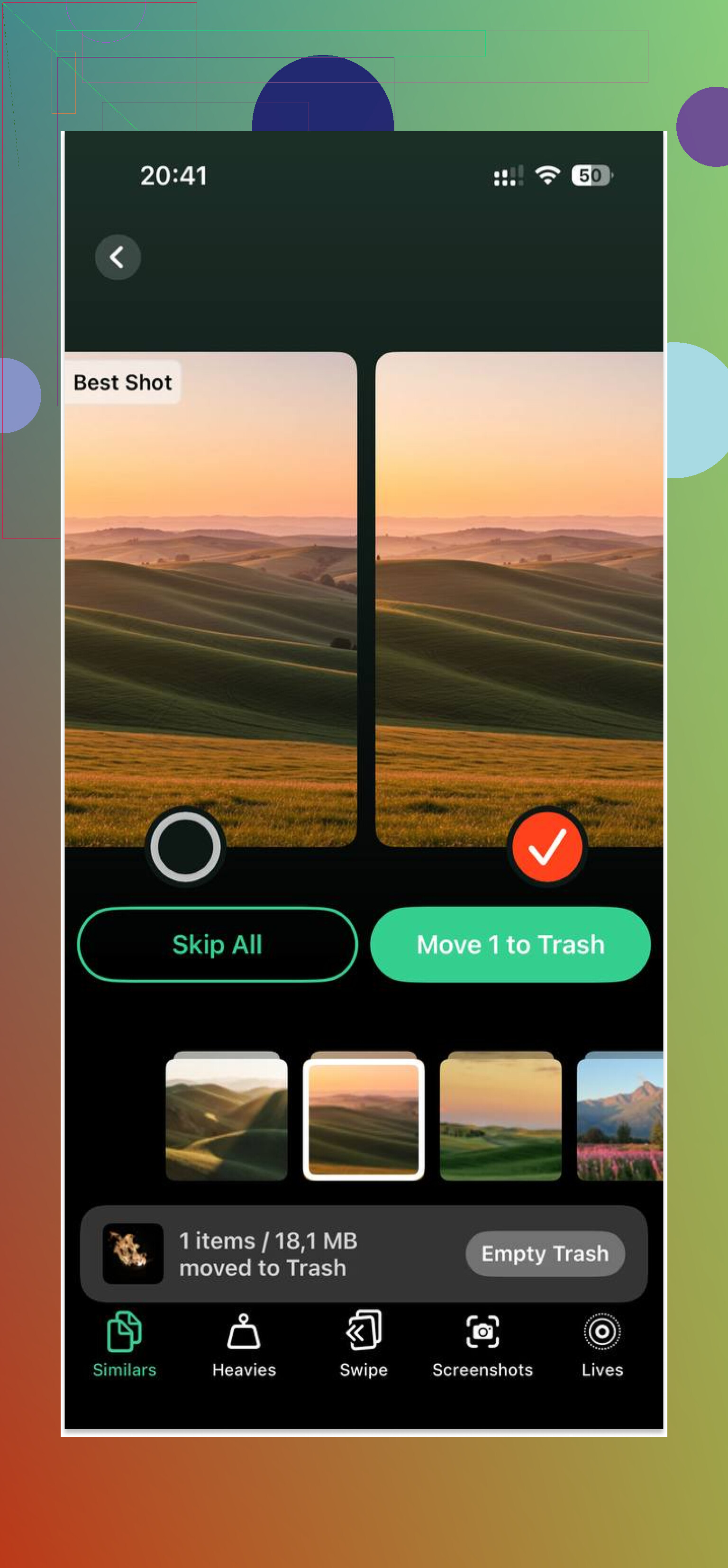
At first I tried cleaning it by hand. Bad idea. Too many photos, too much time wasted. I ended up using Clever Cleaner, and it helped me clear space fast without a paywall popping up every two taps.
What I liked:
- The Heavies section sorts media by size, so I found giant videos first and deleted those.
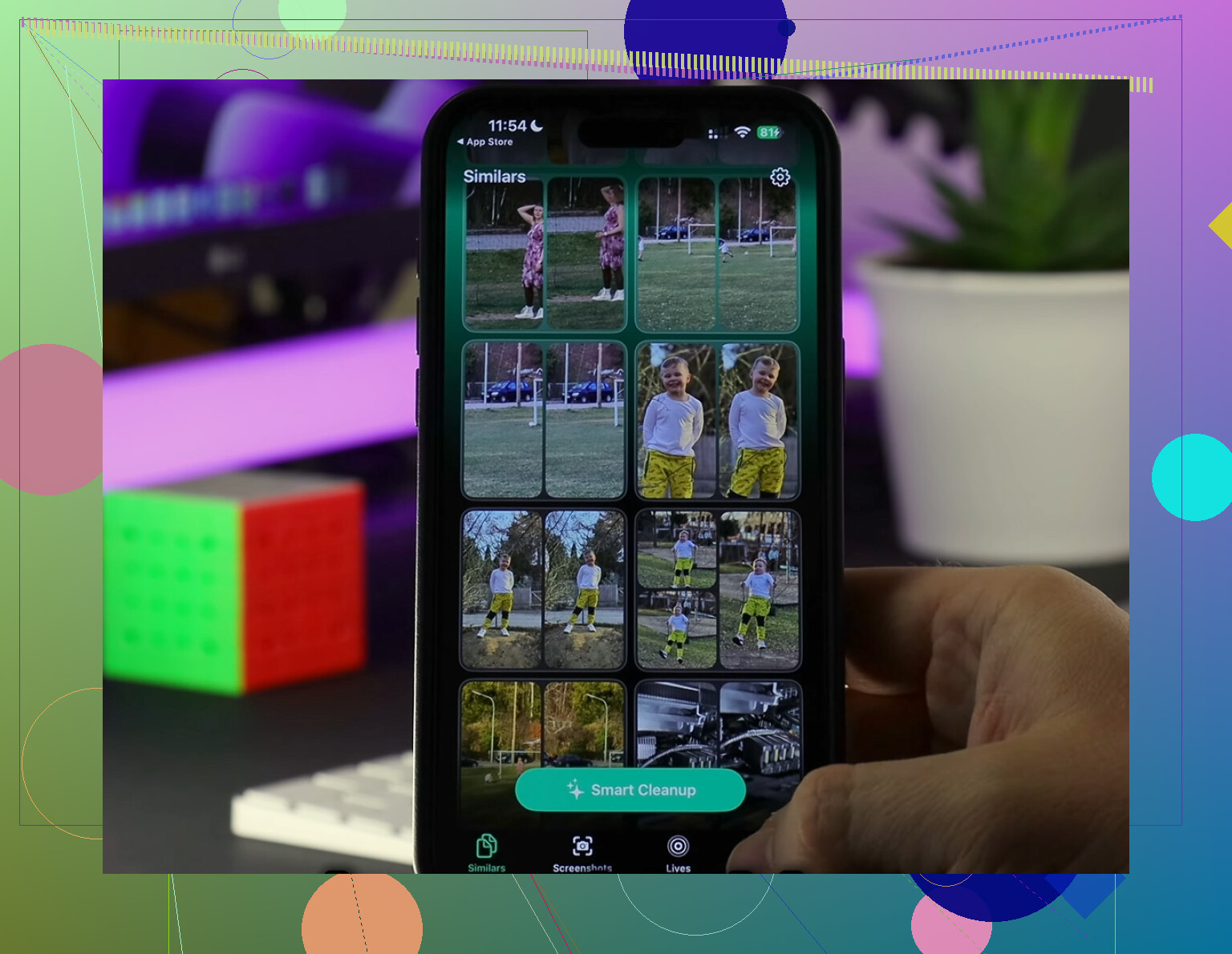
- The Similars section grouped near-duplicate photos and repeated screenshots, which saved a lot of manual sorting.
- It processes locally, so my photos were not being shipped off somewhere else.
After I cleared around 5GB, the freezing dropped off almost imediately. Not subtle either. The iPad felt usable again.
One more thing people forget
If you use Apple Mail and your inbox is huge, switch mail fetch to Manual instead of Push. Mail indexing and constant checking hit older devices harder than I expected. That one change took some pressure off in the background.
If you do all this and it still drags, then I’d start looking at battery health as a suspect. When the battery is worn down, iPadOS sometimes reduces performance to avoid random shutdowns. Still, I’d deal with storage, Safari cleanup, and those settings first. For me, that was where the real fix was.
1 Like
Turn off the stuff your iPad keeps doing when you are not touching it.
First picks for me.
Location Services for apps you do not need.
Settings > Privacy & Security > Location Services.
A lot of apps keep checking location in the background. Weather, shopping, food apps, even some games. Set most of them to Never or While Using. Battery drain drops fast.
Siri Suggestions and Search junk.
Settings > Siri & Search.
Turn off Suggestions in Search, Suggestions in Look Up, and anything tied to apps you never search for. On older iPads, indexing and suggestions feel like dead weight. Small change, but it helps with random slowdowns.
Widgets on the Home Screen.
If you stacked a bunch of widgets, remove most of them. Weather, news, stocks, photo widgets all refresh. Older iPads hate constant refresh cycles.
Mail settings.
I agree with @mikeappsreviewer on mail being part of it, but I’d start by reducing Accounts and Mail Days to Sync before messing with every other visual setting. Huge inboxes crush old devices. If you use Gmail in Safari anyway, remove the account from Mail.
Notifications.
Settings > Notifications.
Turn off notifications for noisy apps. Less wake-ups, less background work. This helps battery more than people think.
Auto downloads.
Settings > App Store.
Turn off App Updates, App Downloads, and maybe automatic video autoplay stuff in apps where you can. Background downloads on old hardware feel slooow.
One setting people skip.
Settings > Accessibility > Touch > Haptic Touch.
Set it to Fast. It does not speed the iPad up, but it makes the UI feel less laggy.
If storage is part of the mess, Clever Cleaner is worth a look for photo and video cleanup. It is easy to find reviews like best free iPhone storage cleanup app review. Same idea applies if your iPad photo library is stuffed.
Last thing. Disable Low Power Mode tests while troubleshooting. It saves battery, yes, but it also slows some tasks, so it muddies the waters a bit.
I’d actually put offloading system features ahead of some of the usual advice from @mikeappsreviewer and @suenodelbosque. Not saying they’re wrong, just that on really old iPads, the stuff that keeps analyzing, syncing, and preloading in the background is what makes it feel muddy.
Try these first:
-
Turn off Analytics & Improvements
Settings > Privacy & Security > Analytics & Improvements
Disable Share iPad Analytics, Improve Siri & Dictation, etc. Tiny stuff individually, but old hardware feels every little background task. -
Turn off automatic iCloud syncing for things you don’t care about
Settings > your Apple ID > iCloud
If Notes, Voice Memos, Books, or random app toggles are syncing and you barely use them, switch them off. Constant cloud syncing can be sneaky. -
Disable Live Text / Visual Look Up stuff if your iPad supports it
Settings > General > Language & Region or Siri/Search related options depending on model/iPadOS. These “smart” features are nice, but older devices can choke on them. -
Limit Spotlight indexing
Settings > Siri & Search
Instead of only killing suggestions, go app by app and disable “Show App in Search” for junk apps. Search indexing can get weirdly heavy. -
Turn off automatic AirPlay/Handoff
Settings > General > AirPlay & Handoff
Handoff especially is one of those features a lot of people never use, but it still sits there being “helpful.” -
Auto-Lock shorter
Settings > Display & Brightness > Auto-Lock
Set 2 minutes or so. Doesn’t make it faster, but it helps battery on an older battery that’s already tired.
Also, I kinda disagree with turning off every visual feature first. Sometimes animations aren’t the main bottleneck. If app opening and browsing are slow, it’s usually background syncing, storage pressure, or Safari/data bloat before UI polish.
One more underrated fix: check battery condition indirectly. iPads don’t show battery health as cleanly as iPhones, but if it gets hot doing basic stuff, drains fast, or stutters more under 40%, the battery may be part of the probelm.
If your storage is full of photos/videos, Clever Cleaner is still worth a look for quick cleanup. This short demo explains it better: see how Clever Cleaner frees up iPhone and iPad storage fast. Keeping more free space usually helps old iPads way more than people expect.
If I had to pick just 3 things first:
- Disable unnecessary iCloud sync
- Reduce Spotlight/Search indexing
- Turn off Analytics & Improvements
That combo helped my old iPad more than messing with ten other toggles tbh.
I’d put battery-related toggles higher than some of what @suenodelbosque, @waldgeist, and @mikeappsreviewer focused on.
What I’d check first that they did not really hit:
-
Turn off keyboard extras
Settings > General > Keyboard
Disable Predictive, Check Spelling, Auto-Correction, and especially Dictation if you never use it. On older iPads, lag while typing or opening search bars often comes from keyboard overhead. -
Disable Raise to Wake / Tap to Wake if your model has it
Not a huge speed boost, but it cuts pointless wake cycles and battery drain. -
Review Safari extensions and content blockers
Too many blockers or shopping coupon extensions can make browsing slower, not faster. People blame Safari cache, but extensions are often the real pig. -
Turn off shared albums and photo features you do not use
Settings > Photos
Shared Albums, automatic memories, and some photo processing features can keep the device busy in the background. -
Stop using animated wallpapers
Static wallpaper only. Tiny change, but old GPUs appreciate it.
Also, I slightly disagree with killing every sync feature immediately. If you rely on iCloud for notes or photos, turning everything off can create more annoyance than benefit. I’d prune, not nuke.
If storage is the real issue, Clever Cleaner is useful for clearing photo clutter fast.
Pros
- quick scan for large media
- helps find duplicate or similar photos
- simpler than manual cleanup
Cons
- still need to double-check before deleting
- not everyone likes using a separate cleanup app
- biggest gains only happen if storage is actually your problem
If you want the fastest first test, I’d do this order:
- Remove Safari extensions
- Disable keyboard extras
- Turn off photo background features
- Check free storage
- Then use Clever Cleaner if the library is bloated