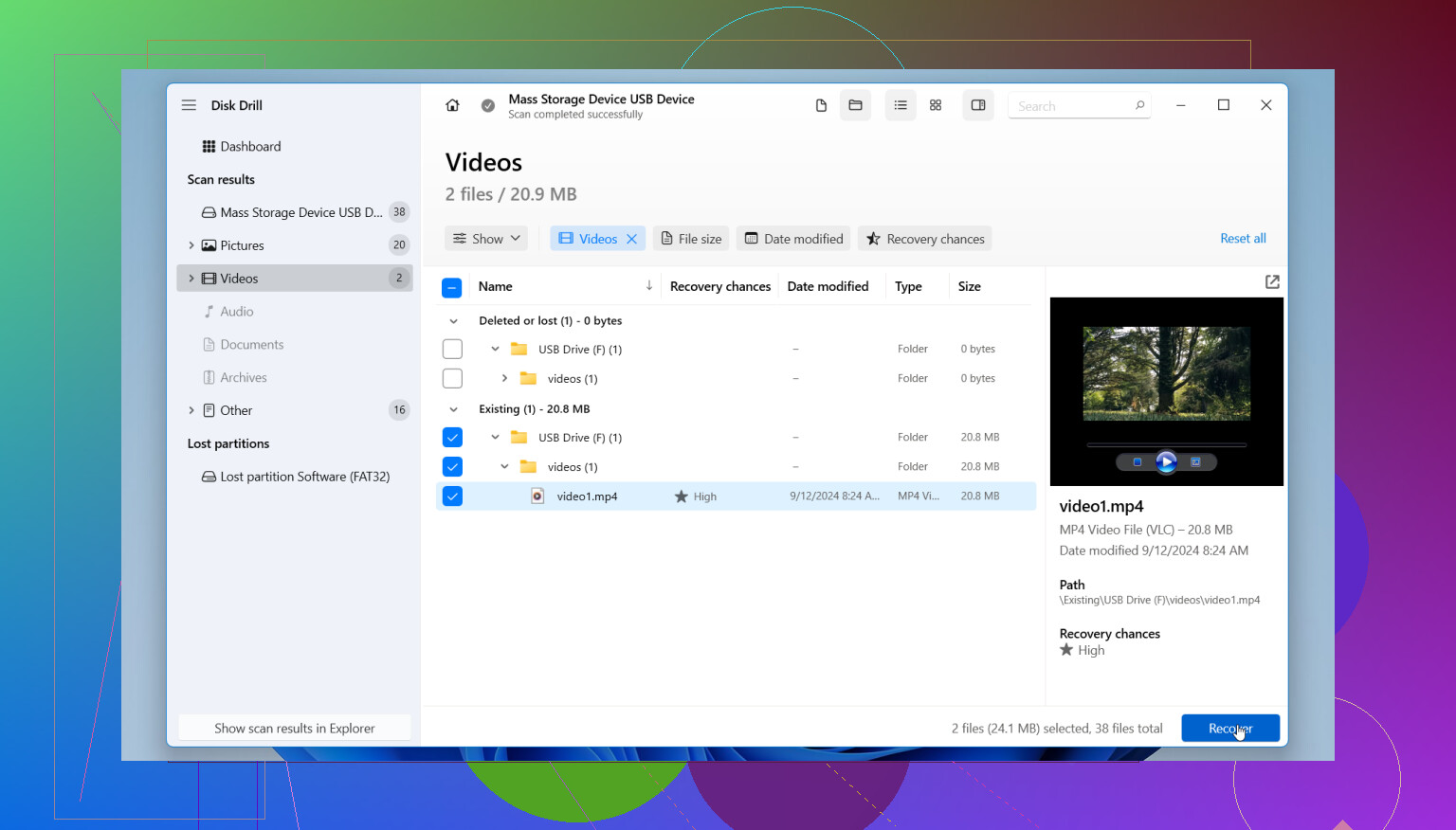
I accidentally deleted important files from my hard drive and then realized I didn’t have a backup. I’m trying to figure out if there’s still a good chance to recover deleted files before I make things worse. I need help with the safest recovery steps and what software or methods actually work.
Take a breath first. I know the gut-drop feeling when files vanish, but deleted files on a hard drive are often still sitting there for a while. If you move fast and stop doing random stuff on the drive, your odds are decent.
The first thing I did the last time this happened was stop touching the drive. No downloads. No moving files around. No browser tabs if the missing files were on the system drive. When you delete a file, the system usually marks the space as free. The old data stays in place until something else lands on top of it. So every write to the drive is a risk. If you keep using it, you make recovery harder. Simple as taht.
Figure out which drive lost the files
- External drive or second internal drive: easier situation. Disconnect it, hook it up to another computer, then scan it there.
- Your main boot drive: more annoying. I’d boot from a USB setup or connect the drive to a different machine, so the operating system is not writing logs, cache, and temp junk onto the same disk.
Use recovery software fast, and install it somewhere else
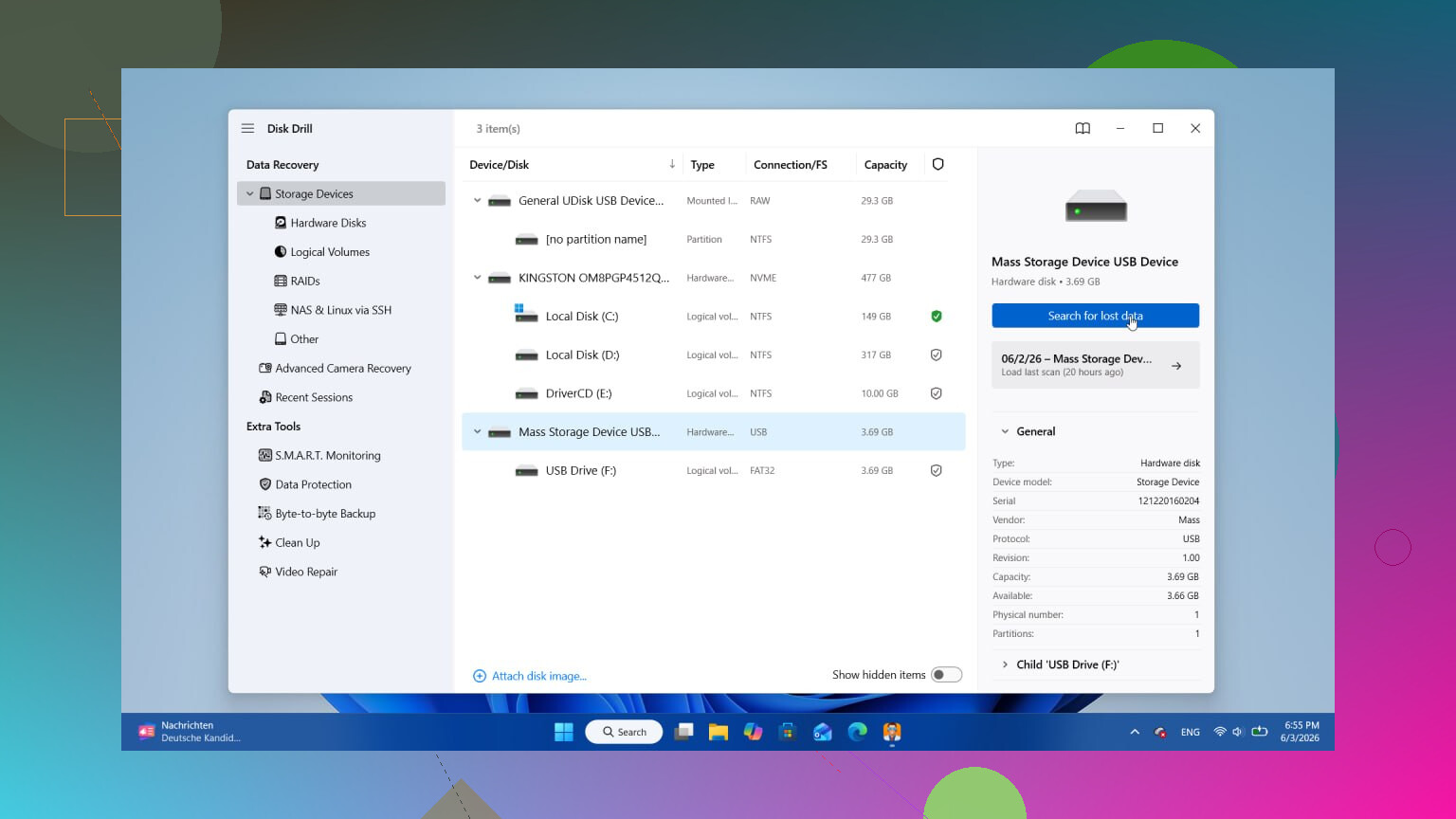
This is where most recoveries either work or don’t. If you caught the deletion early, software often finds a lot more than people expect. I’ve had the best results with Disk Drill. It scans for deeper deletions, not only the easy recent stuff, and the preview feature helps because you can check whether a file still opens before wasting time restoring everything.
The free scan was enough for me to see what was still there. One rule matters a lot, install it on another drive, not the one you’re trying to save data from. If you put the app on the damaged drive, you risk overwriting the same files you want back. People miss this all the time.
A few things people usually learn the hard way
- Old-school hard drives tend to recover better than SSDs. Spinning disks give you a little more room for error. Still, some newer hard drives support TRIM, so don’t sit on it for hours thinking the data will wait forever.
- If the drive clicks, grinds, or makes ugly repeated noises, stop. Software won’t fix a mechanical failure. At that point you’re looking at a recovery lab.
- Don’t hammer the drive with scan after scan. One proper pass is usually enough. Repeating the same scan over and over rarely gives better results, it mostly burns time.
When I’ve seen people recover files, the ones who did well were the ones who slowed down and followed a clean process. Stop writes. Scan from another system. Restore recovered files to a different disk. If you do those three things, you’ve got a fair shot.
1 Like
Your chances depend on 4 things. Drive type, time since deletion, how much you used the drive after, and whether the files were deleted or the drive is failing.
Quick odds, from what I’ve seen:
- HDD, deleted recently, low drive activity after, decent chance.
- SSD, deleted recently, lower chance because TRIM often wipes blocks fast.
- Shift+Delete or emptied Recycle Bin, still recoverable in some cases.
- Formatted partition, mixed results.
- Clicking or disappearing drive, stop. That moves into lab territory.
I agree with @mikeappsreviewer on stopping writes. I disagree a bit on doing one scan only. If the first tool misses filenames but finds raw data, a second tool with a different file signature database sometimes helps. The key is not endless rescans on a dying drive. For a healthy drive, one image of the disk, then test tools on the image, is the safer path.
Best next move:
- Check SMART health first. CrystalDiskInfo on Windows is a fast check.
- If health looks bad, clone or image the drive before recovery.
- Recover from the clone, not the original drive.
- Save recovered files to another disk.
If you want a simple option, Disk Drill is fine for deleted file recovery and previewing results. If it shows your file names and previews open, your odds go up alot. If all you see is generic raw files with no names, recovery gets messier.
Also, if the file lived in OneDrive, Google Drive, Dropbox, or even Office temp folders, check version history and cloud trash. People forget this stuff all the time.
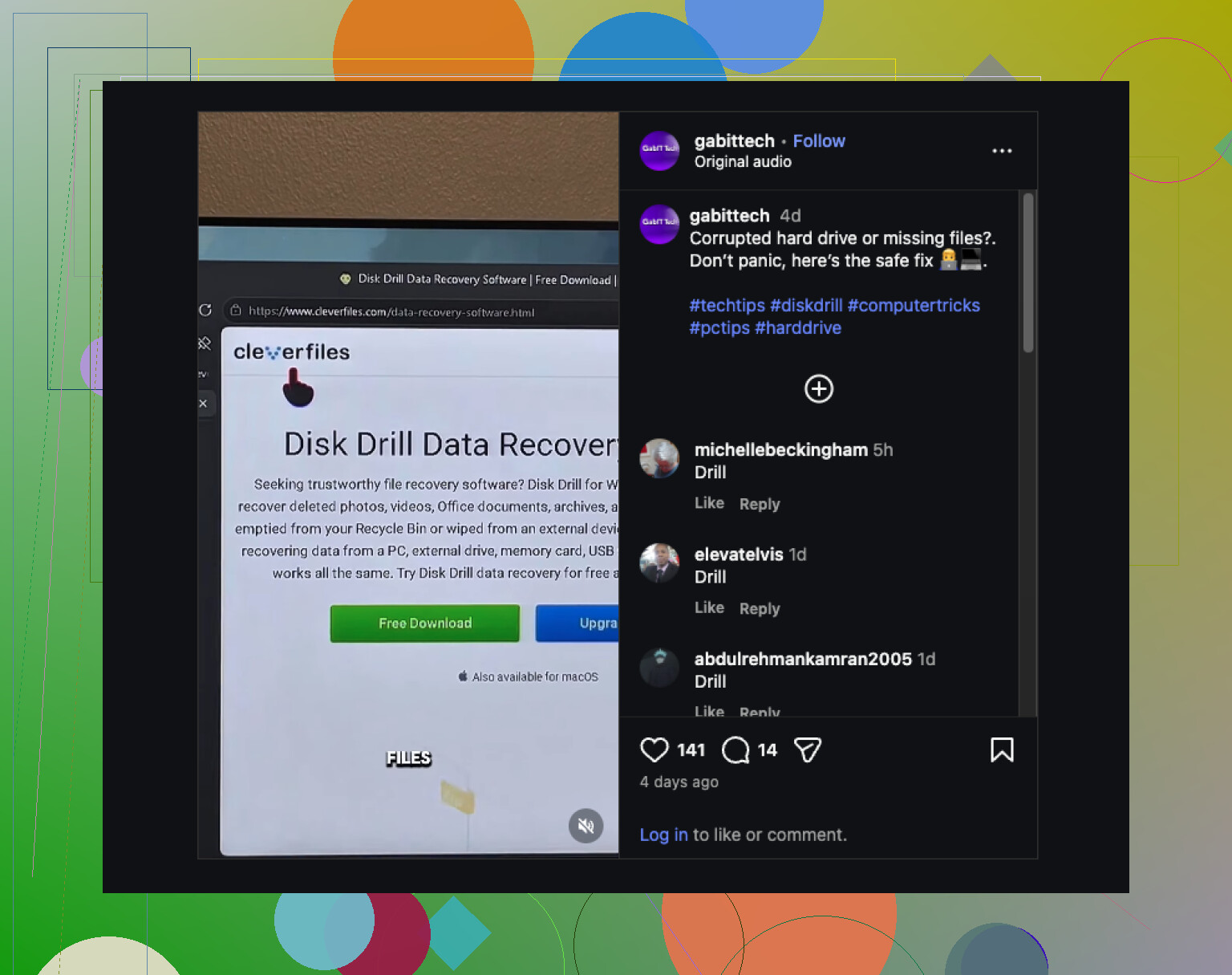
For a quick visual guide, this hard drive recovery tip on Instagram is easy to follow:
hard drive recovery tips for deleted files
Post back with HDD or SSD, Windows or Mac, and whether you kept using the drive. Those details change the odds a lot.
Your chances are honestly pretty decent if this was a normal delete on a healthy hard drive and you caught it early. Where I differ a bit from @mikeappsreviewer and @cazadordeestrellas is this: people obsess over the delete event, but the bigger factor is what happened after. If Windows spent the next hour doing updates, syncing cloud files, caching junk, that can hurt more than the deletion itself.
Also, don’t assume “hard drive” means the same odds across the board. A plain HDD usually gives you a better shot than an SSD. If it’s an SSD, chances can drop fast even when everything looks fine.
One more thing people miss: check file history in apps themselves. Word, Excel, Photoshop, even PDF editors sometimes keep autosaves or temp copies. That has saved my bacon before when recovery apps found nothing useful.
If the drive is healthy, I’d make a disk image first if the files really matter, then work from that. Less risk, less panic-clicking. If you want a user-friendly tool, Disk Drill is a solid place to start for deleted file recovery because you can preview what’s actually recoverable before restoring. That matters more than flashy scan results tbh.
And for extra reading, this Facebook discussion on external hard drive file recovery tips covers some practical cases too.
If the drive is making noises though, stop messing with it. Software won’t magic that away.