My iPhone storage is almost full and it’s slowing everything down. I’m worried I’ll delete important photos, messages, or apps if I just start removing things at random. What are the safest, step-by-step methods or settings to clear space on an iPhone while making sure I don’t lose anything I might need later?
iPhone storage is annoying, but you can clean it up safely if you go in order and use backups.
Here is a step by step setup that keeps risk low.
-
Start with a full backup
- Go to Settings > your name > iCloud > iCloud Backup > Back Up Now.
- If you use a computer, use Finder (macOS) or iTunes (Windows) and do an encrypted backup.
- This protects your photos, messages, app data before you delete anything.
-
Check what eats space first
- Settings > General > iPhone Storage.
- Look at the bar and the list under it.
- Focus on the biggest sections, usually Photos, Messages, Media apps, Games, Social apps.
-
Clean Photos safely
a) Enable iCloud Photos if you have enough iCloud space- Settings > your name > iCloud > Photos > Sync this iPhone ON.
- Turn on Optimize iPhone Storage. Your phone keeps smaller versions and moves full size to iCloud.
b) Remove obvious junk - In Photos, go to Albums > Recently Deleted and empty it.
- Go to Albums > Screenshots and delete old ones.
- Check Albums > Videos. Videos use way more storage than photos.
c) Use a helper app if your library is huge
- A lot of people use a cleaner app that spots duplicates and similar shots.
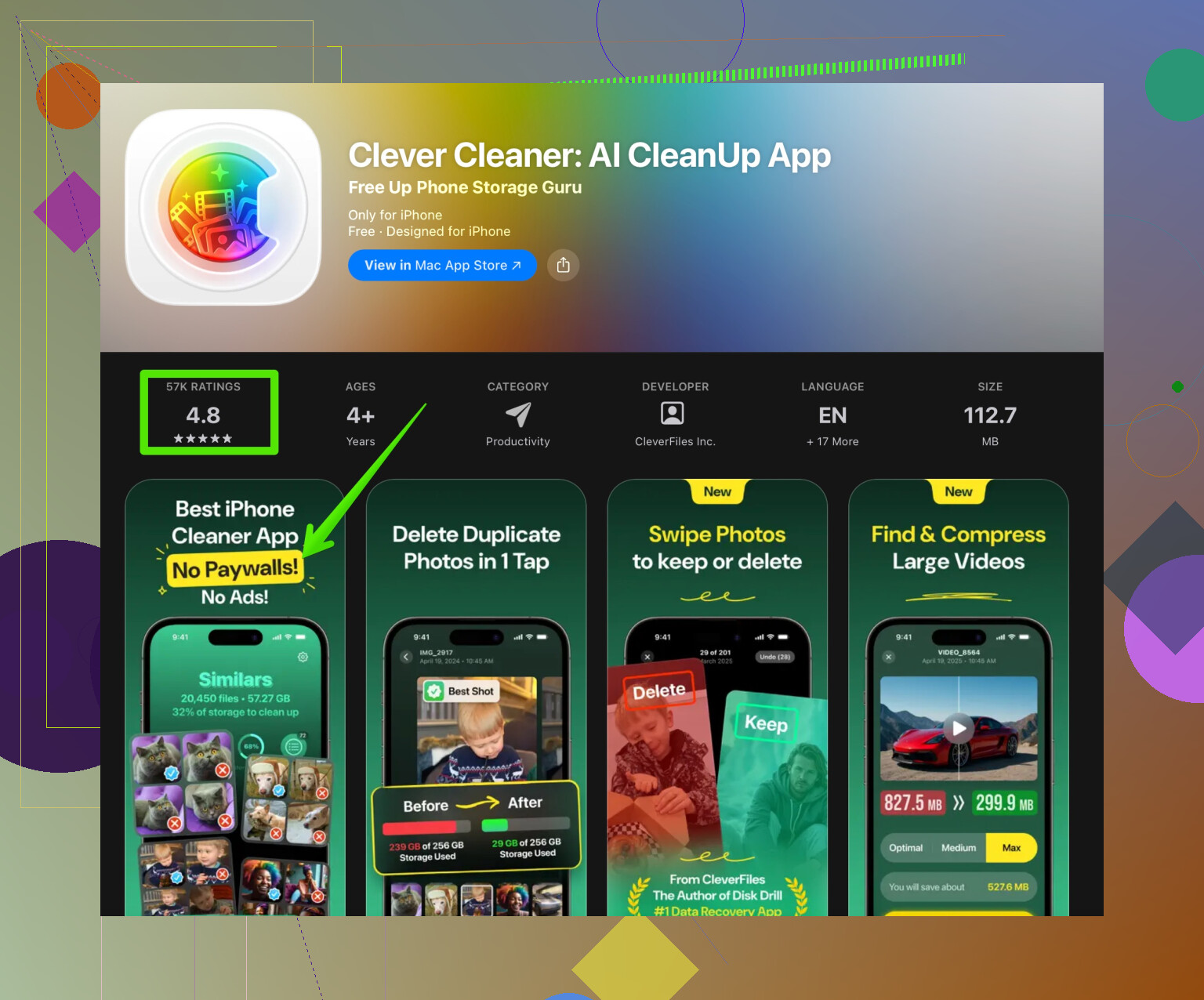
- Something like the Clever Cleaner App helps clear duplicate photos, similar selfies, and blurry pics without scrolling for hours.
- You can try an AI powered photo cleanup solution here:
smart iPhone cleaner for photos and storage
Do small batches if you feel nervous, and check Recently Deleted before emptying.
-
Messages clean up without losing everything
- Go to Settings > Messages > Keep Messages.
Set to 1 Year or 30 Days if you are ok losing old threads later. - In Messages > a big chat > tap contact name > Info > Review Large Attachments.
Delete big videos, GIFs, and photos from group chats. - This removes media from Messages but your Photos library stays unless you sent from there and saved no copy.
- Go to Settings > Messages > Keep Messages.
-
Offload rarely used apps instead of deleting data
- Settings > General > iPhone Storage.
- Tap big apps you rarely use, tap Offload App.
- iOS removes the app but keeps its documents and data.
- Icon stays on the home screen. When you tap it again, it downloads and restores your data.
- This is safer than full delete.
-
Clean video and music apps
Streaming apps often store a ton of offline content.- Netflix, YouTube, Spotify, Apple Music, Prime Video and similar.
- Open each app > Downloads or Library > remove offline videos, playlists, or albums you finished.
- In Apple TV or Apple Music, use Settings inside the app to manage downloads.
-
Clear Safari and other cache in a controlled way
- Settings > Safari > Clear History and Website Data.
- This frees some space, logs you out of sites, and removes history.
- For apps like Instagram or TikTok, the only reliable way to clear cache is to delete then reinstall the app.
- If you do that, write down any login info first or use a password manager.
-
Turn on auto cleanup options so it does not fill up again
- Settings > Messages > Keep Messages set to 1 Year or 30 Days.
- Settings > Photos > Optimize iPhone Storage ON.
- Settings > Photos > Auto Play Videos and Live Photos OFF if you feel they take space and data.
- Offload Unused Apps
Settings > App Store > Offload Unused Apps ON.
-
Watch the “Other” / “System Data” section
- In iPhone Storage, System Data can grow large after many updates and heavy cache use.
- The biggest reset for that is a full backup then erase and restore.
Settings > General > Transfer or Reset iPhone > Erase All Content and Settings.
Then restore from your backup. - Do this only if storage is still a mess after the previous steps and you have a verified backup.
-
Rough impact examples
- Deleting 10 short 4K videos can free 2 to 5 GB.
- Removing old Netflix downloads can free 3 to 10 GB fast.
- Cleaning Messages attachments in a few big group chats can free 1 to 3 GB.
- Offloading 3 or 4 big games often frees 5 to 15 GB while keeping save data.
If you move in this order, backup first, photos, messages, media, apps, then system, you reduce the risk of losing something important and you keep control over what goes away.
1 Like
Your phone slowing down is basically iOS screaming “feed me space.” @hoshikuzu already nailed the classic stuff (backup, iPhone Storage menu, offloading apps, etc.), so I’ll skip rehashing that checklist and focus on extra things that are still safe but not as obvious.
1. Protect yourself first: a second backup, not just one
They said do an iCloud or computer backup, which is right, but if your storage is precious (photos of kids, trips, etc.), consider a “belt and suspenders” approach:
- iCloud or computer backup like they said
- Plus: export your photos to:
- A computer via Photos / Image Capture
- Or an external drive using a computer
- Or Google Photos / OneDrive as a second cloud copy
That way, even if you mess something up in iCloud Photos later, you still have a cold backup somewhere else. I’ve seen more people regret not over-backing up than the opposite.
2. Use “Download and Keep Originals” only if you truly have space elsewhere
Tiny disagreement with the usual advice: turning on iCloud Photos and “Optimize iPhone Storage” is usually great, but it locks you into iCloud.
If you’re low on iCloud or hate subscriptions:
- Temporarily turn on iCloud Photos with “Download and Keep Originals” on a Mac
- Let everything sync
- Archive photos from the Mac to an external drive
- Then turn iCloud Photos off entirely and manage photos locally or in another cloud
This is safer if you want long term control and no monthly bill.
3. Safest way to deal with photos locally
If you do not want to rely only on iCloud:
- Move photos off the iPhone:
- Connect to a computer
- Import photos and videos there
- Confirm they are readable and complete
- Only then go into iPhone Photos and delete in chunks:
- Sort by “Years” or “Months”
- Delete obvious stuff like random memes, receipts, old screen recordings
- Always check “Recently Deleted” and wait a day or two before emptying, in case regret hits.
If your library is massive or full of duplicates, this is where the Clever Cleaner App can be super handy. It does a nice job finding similars, dupes, blurry shots and all the “why did I take 15 of the same photo” junk. For a quick, safe cleanup, something like
smart AI photo organizer and storage optimizer for iPhone
lets you review before deleting, which keeps the “oh crap I deleted my favorite pic” nightmares to a minimum.
4. Messages: use “archive mentality,” not instant purge
I slightly disagree with setting Messages to 30 days unless you really do not care about old convos. Instead:
- Go into big threads and:
- Tap contact name
- Check “Large Attachments” and delete those only
- Screen record or screenshot important info before deleting: addresses, codes, sentimental texts
- Once you’re sure you never check old chats, then set Keep Messages to 1 Year. 30 Days can be harsh.
5. Emails and mail attachments
People forget Mail can eat gigabytes.
- Settings > Mail > Accounts
- Turn off Mail for accounts you barely use
- In the Mail app, delete old newsletters, flyers, and large-attachment emails
- Empty “Trash” and “Junk” in Mail
This removes local copies but not the server copies (Gmail, Outlook, etc.) so it’s safe.
6. Voice Memos, WhatsApp, and the sneaky hoarders
Some apps quietly eat tons of space:
- Voice Memos
- Open the app
- Delete old recordings you’ll never listen to
- Then empty Recently Deleted in Voice Memos
- WhatsApp / similar messengers
- In WhatsApp > Settings > Storage and Data > Manage Storage
- Delete large videos / media from chats only, not full chats if you need the text
- This is often multiple GB for people in active groups
These are very low risk if you only delete obvious junk.
7. Safe “system” cleanups that don’t involve nuking the phone
Full erase and restore like @hoshikuzu mentioned works, but it’s a bit heavy-handed if you’re nervous.
Try these lighter moves first:
- Restart the phone after big cleanups
- Install the latest iOS update if you’re a version or two behind
- If “System Data” is huge, sign out of iCloud and sign back in, then reboot
- Settings > your name > Sign Out
- Then log back in
- This sometimes shrinks cached iCloud data without wiping the phone
Still, if System Data is a monster and everything else is clean, then yeah, erase and restore from your backup is the nuclear but effective option.
8. Ongoing protection so you don’t repeat this mess
Once you’ve freed space:
- Set a mental threshold: when storage hits, say, 85 percent, do a mini cleanup
- Monthly:
- Clear downloads in streaming apps
- Run Clever Cleaner App or similar to prune new photo junk
- Remove or offload any “I thought I’d use this” apps you still never open
SEO-friendly summary of what you’re basically asking
You’re trying to figure out the safest way to free up space on an iPhone without losing important photos, videos, or messages. The best method is to:
- Create multiple backups
- Check the iPhone Storage screen for the biggest space hogs
- Safely clear photos, videos, and message attachments
- Clean up cache-heavy apps and downloads
- Use a smart cleaner like Clever Cleaner App to find duplicate photos and large files
- Turn on settings that automatically manage storage over time
All of that will help you reclaim space while keeping your important stuff intact, and without randomly deleting things you’ll regret later.
Short version: your phone is choking mostly on media bloat and app caches, not the core apps you’re scared to touch. You already got the classic playbook from @hoshikuzu, so here are angles that fill in the gaps and sometimes push against that advice a bit.
1. Don’t blindly trust “Other / System Data” to fix itself
People often wait, hoping “System Data” will magically shrink. It usually doesn’t.
What actually helps:
- Offload & reinstall the worst offenders (Instagram, TikTok, YouTube, Reddit, Spotify).
- Settings → General → iPhone Storage → pick app → Offload App.
- Then reinstall from App Store.
- This drops caches without touching your main data in most cases.
- For apps where your login is annoying or data is fragile (banking, 2FA apps), do not offload. The risk of having to reconfigure them is higher than the storage you save.
I’m slightly less optimistic than @hoshikuzu about relying only on a full erase/restore. It works, but it is a lot of stress if you’re not very comfortable with backups.
2. “Optimize iPhone Storage” is not risk free
Where I disagree a bit: everyone treats iCloud Photos + Optimize as a silver bullet. It is convenient, but:
Pros:
- Saves a ton of on-device space.
- Works automatically, almost zero effort.
Cons:
- You are betting everything on your iCloud account.
- If you later downgrade storage or mess up a setting, recovery is confusing for non‑techy users.
- It needs decent internet to re-download full‑res files.
If you are not the type to carefully read Apple dialogs, I’d actually suggest:
- Do one solid offline export of photos to a computer or external drive.
- Then it is safer to enable Optimize on the phone, because you know there is a real copy outside Apple’s cloud.
3. Photos cleanup: prioritize high-impact, low-sentiment junk
Instead of scrolling from the oldest baby photos and getting stuck:
-
In Photos, go straight to:
- “Media Types”
- Clear out:
- Screen recordings
- Bursts where only 1 frame matters
- Slow‑mo stuff you don’t care about
- Old downloaded videos (WhatsApp, Telegram, etc.)
-
Only later touch core memories. Emotional paralysis is what stops people from cleaning at all.
If your library is huge and you are visually tired of manual sorting, this is where a tool like Clever Cleaner App is actually useful, but not magical.
Pros of Clever Cleaner App:
- Very good at surfacing:
- Near-duplicates
- Blurry photos
- Random screenshots, memes, receipts
- Lets you review before deletion, which is crucial for safety.
- Great for non-techy users who get overwhelmed by the default Photos interface.
Cons of Clever Cleaner App:
- Still requires attention; you can’t just tap “delete all” and trust it with zero review.
- Another app installed means a tiny bit of storage overhead (although usually it pays for itself quickly).
- If you already have a super clean, small library, the benefit is smaller.
Used right, it is more like a triage assistant than an auto shredder.
4. Messages cleanup: smarter than just “Keep for 30 Days”
I agree that nuking everything older than 30 days is overkill for most people, but I’d be more aggressive than “forever”:
- Set Keep Messages to 1 Year for most users.
- Every few months:
- In Messages → specific big thread → tap name → review Photos / Videos / Documents and delete only big, non-sentimental files.
- For group chats full of memes and forwards, it’s often safe to delete whole threads once you’ve grabbed any important codes/addresses.
You trade a little historical chat history for a lot of storage relief.
5. Streaming apps: your hidden landfill
Almost everyone ignores this.
Check:
- Netflix / Disney+ / Prime / Spotify / Apple Music / Podcasts / YouTube Offline.
Inside each app:
- Remove downloaded playlists, episodes, and movies you already watched.
- Disable automatic downloads where you never needed them.
These can give you multiple GBs back with almost zero risk.
6. When to bother with something like Clever Cleaner App vs just manual
Use a cleaner app when:
- Your Photos count is in the tens of thousands.
- You know there are tons of duplicates and screenshots.
- You are too busy (or unmotivated) to tap through months of content.
Stick to manual cleanup when:
- You have a smaller library and strong sentimental attachment to most shots.
- You are already doing organized exports to a computer or external drive.
Clever Cleaner App fits in as a “quick high-yield pass,” not a replacement for proper backups or common sense.
7. Backup philosophy: shallow vs deep safety
I like @hoshikuzu’s emphasis on doing a backup, but I’d push it further:
- Shallow safety
- One iCloud backup or one computer backup. Fine for most, but a single point of failure.
- Deep safety
- iCloud and a computer backup
- Plus at least one export of photos/videos outside Apple’s ecosystem (external drive or alternative cloud).
If you are terrified of losing photos, deep safety is worth the extra half hour once.
8. Settings changes that keep you from getting stuck again
After you clean:
- Disable auto-downloads of full-resolution media in chat apps where you don’t care.
- Turn on “Offload Unused Apps” if you are okay reinstalling occasionally.
- Once per month, do a 10-minute check:
- iPhone Storage screen
- Photos “Media Types”
- Streaming apps downloads
- Run Clever Cleaner App for new duplicates and junk if your library grows fast.
That habit matters more long term than any one big purge.
If you follow @hoshikuzu’s basics, then layer on the stuff above, you should free a comfortable amount of space without the “oh no, I deleted something important” moment.