I keep clearing temporary files and system storage on my iPhone, but the space fills back up again within a day or two. I’m not sure if this is caused by apps, iOS cache, or something running in the background. I need help figuring out why my iPhone storage keeps filling up so quickly and what I can do to stop it.
Why ‘System Data’ stays huge after a restart
I ran into this on my iPhone and the annoying part was the restart did almost nothing. The bar sat there like it owned the place. What I learned is simpler than Apple makes it look.
A restart does less than people think
Restarting clears memory and kills off small background stuff. It does not wipe app caches.
Those cached files live in storage, not in the temporary memory your phone dumps on reboot. Safari keeps site data. Spotify hangs onto audio bits and images. TikTok stores chunks of video. Messages keeps attachments and previews. iOS sees all of this as useful because it speeds things up the next time you open the app.
So no, a reboot usually won’t shrink System Data in a meaningful way. I tried it a few times. Same result.
Why the junk comes back fast
This part threw me off at first. You clear space, then a day later it’s creeping up again.
That is normal behavior. Every time you scroll, stream, browse, or open chats, apps start building cache again. iOS does this on purpose. The system wants faster loading times more than it wants a neat storage graph.
So the goal isn’t to stop temporary files forever. You won’t. The goal is to knock them back before your free space gets too low and the phone starts dragging.
Updates often leave a mess behind
I saw the biggest jump after an iOS update.
Before installing, the phone downloads a large update package locally. Most of it should vanish after the install finishes. Still, some leftover install files and logs stick around longer than you’d expect. System Data getting fatter right after an update is common.
A restart after the update helps sometimes. Not always. Mine barely moved.
Offloading apps is hit or miss
A lot of people suggest offloading apps. I did too. Results were mixed.
Offloading removes the app itself, but keeps its Documents and Data. Good if you want the app back without losing your login or saved files. Bad if your main problem is cache bloat, because some of that junk stays behind.
If you want a clean reset for one app, deleting it and installing it again works better. It takes longer, yeah, but it clears more completely.
If you cleared cache and the phone still feels slow
This is where I wasted the most time. I cleaned browser data, removed downloads, trimmed message history, and the phone still felt sluggish.
The bigger issue was my photo library.
For most people, storage isn’t dying from Safari alone. It’s old screenshots, duplicate shots, burst photos, random screen recordings, and 4K video clips you forgot existed. When free storage gets cramped, iOS loses breathing room for background tasks. Then the lag sticks around even after you wipe smaller caches.
Stuff worth doing first
These are the first three things I’d check.
-
Go to Settings > Apps > Safari, then tap Clear History and Website Data
-
Open Files, go to Browse > On My iPhone > Downloads, then remove anything you don’t need
-
Go to Settings > Messages > Keep Messages, then switch from Forever to 1 Year or 30 Days
None of this is fancy. It helps.
When manual cleanup stops being enough
At some point I had trimmed the obvious junk and storage was still tight. The hole was my photo library, same as it is for a lot of people.
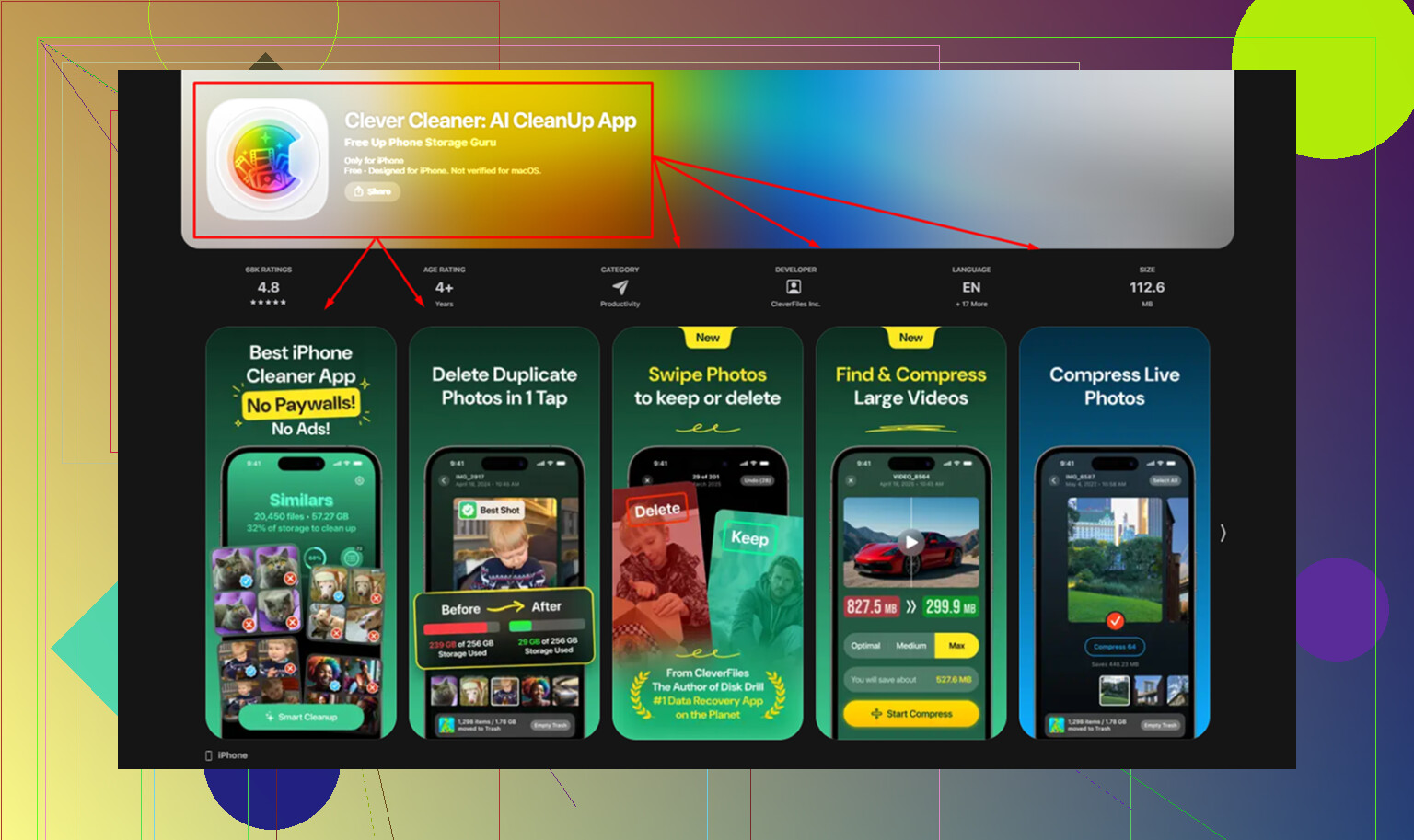
Clever Cleaner fills in the part manual cleanup misses.
What stood out for me:
Large files are easy to spot
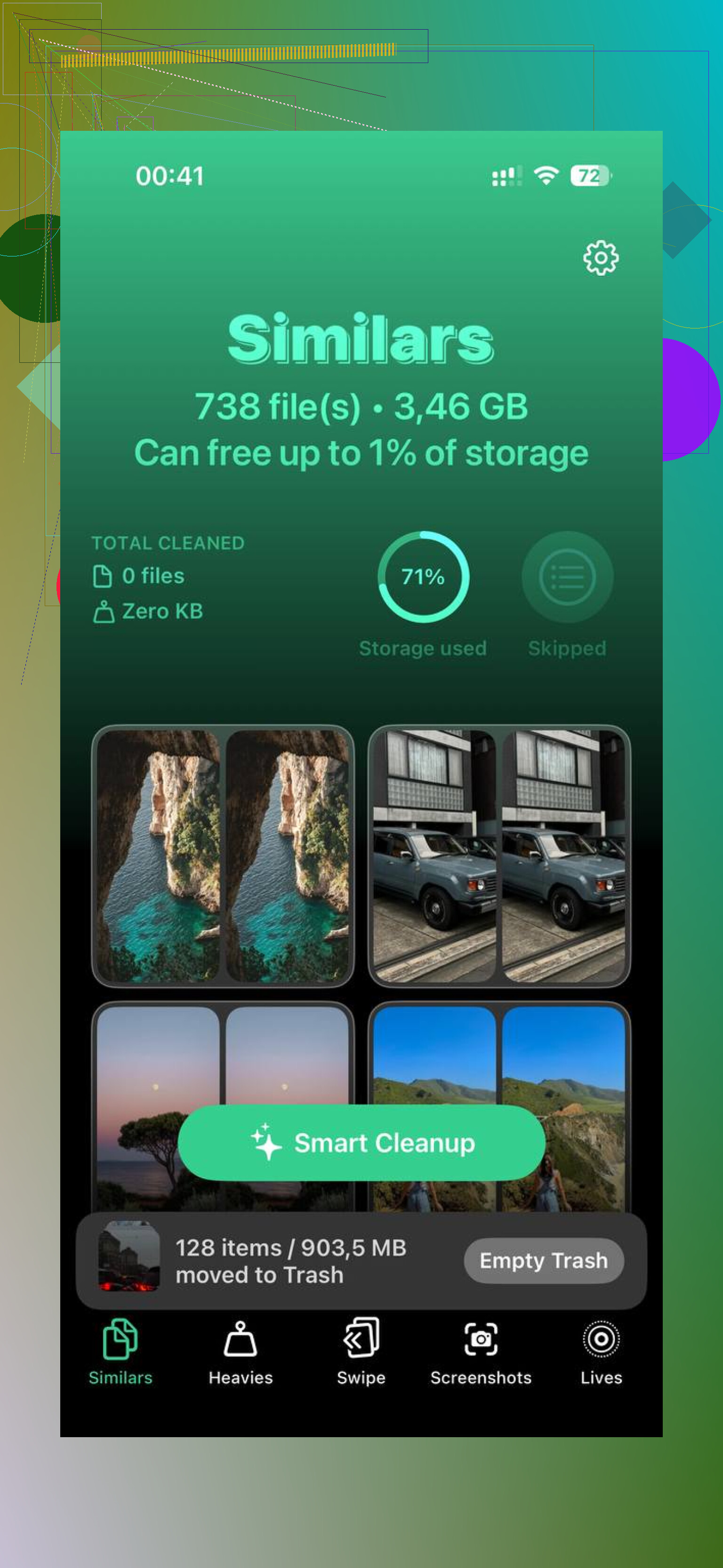
The Heavies section sorts files by size, largest first. No digging through years of junk. You see the giant videos and space hogs up front.
Similar photos get grouped better
The Similars section doesn’t only catch exact duplicates. It also picks up near-matching shots, like burst runs or five tries at the same photo where only one is worth keeping. That saved me more space than duplicate finders usually do.
Processing stays on the phone
Everything runs on-device. Nothing gets sent out. I liked that part.
After I cleared duplicate photos and the biggest videos, the phone stopped choking on low space and the lag went away. One easy thing to miss after deleting photos, open Photos and empty Recently Deleted. If you skip that, those files still sit there for 30 days and still count against your storage.
1 Like
It fills back up fast because iPhone temp storage is not one thing. It is a mix of app caches, logs, indexing, failed sync leftovers, streaming buffers, photo analysis, message previews, and iCloud background work.
I agree with parts of what @mikeappsreviewer said, but I think people blame ‘System Data’ too much. A lot of the growth comes from a few noisy apps. Instagram, TikTok, YouTube, Spotify, Podcasts, Maps, Chrome, and Messages are usual offenders. Some of them rebuild 500 MB to 2 GB of cache in a day if you use them a lot. So if you stream, scroll, or send media daily, the space comes back fast. Annoying, but normal.
What I would do is track the growth, not keep clearing blindly.
- Go to Settings, General, iPhone Storage.
- Take screenshots of the storage list.
- Check again 24 hours later.
- See which app jumped.
If one app grows fast, delete and reinstall it. Offload is weaker for this. Also check these:
- Podcasts auto-downloads
- Spotify or Netflix offline files
- Messages with lots of videos and voice notes
- Mail app with large attachments
- Photos syncing from iCloud
- Files app downloads from Safari or Drive apps
Another thing people miss is indexing. After an iOS update, restore, or big photo import, iPhone creates thumbnails, scans faces, and indexes search data. Storage spikes for a bit. If it keeps climbing for days, look at apps first.
If your Photos library is the hidden problem, Clever Cleaner is worth a look. It helps find big videos, duplicate pics, and similar shots faster than doing it by hand. Theres also this short video on how to clear iPhone system storage and temporary files.
Main point, temp files refilling in 1 to 2 days is ususally normal usage, not some mystery bug. The fix is finding which app keeps refilling the bucket.
What fills back up fast is usually not one single ‘temp files’ bucket. It’s a loop.
@mikeappsreviewer is right that reboots barely touch real storage junk, and @stellacadente is right that a few apps can refill cache crazy fast. Where I sorta disagree is that people focus too much on clearing over and over. If the phone has less than roughly 10 to 15% free space, iOS starts acting dumb even when you just cleaned it. It needs working room for swap, indexing, updates, photo analysis, and syncing.
A few less-mentioned causes:
- iCloud Photos downloading originals again
- Mail re-caching attachments
- Spotlight re-indexing after updates
- streaming apps preloading stuff in background
- failed backups or update debris that clears later, not instantly
So instead of daily ‘cleaning,’ test this:
- Disable Background App Refresh for the worst offenders
- turn off automatic app updates for a day or two
- check Mail accounts with huge attachments
- see if Photos is set to Download and Keep Originals
If your storage graph keeps bouncing but app sizes stay similar, that’s often iOS housekeeping, not a bug.
Also, if photos/videos are the real space hog, cleaning cache is kinda treating a broken leg with a band-aid. Clever Cleaner helps more there because it finds duplicate pics, similar shots, and big videos fast.
And if you want a visual walkthrough, this step-by-step guide to clearing iPhone system data and storage is probly more useful than guessing in Settings.